Exatouch Knowledge Base
Search the Exatouch Knowledge Base

SMS Receipts from the Customer Facing Display

  • Last Updated: June 2, 2026

If touch is enabled on the Customer Facing Display (CFD), then the CFD allows merchants to select whether to receive receipts via text message by tapping SMS.

NOTE: Contact EPI to have a member of our staff enable the touch screen CFD capability  setting for you.

To display receipt options on the CFD, do the following:

  1. Create an order in the Register app and select a payment method.
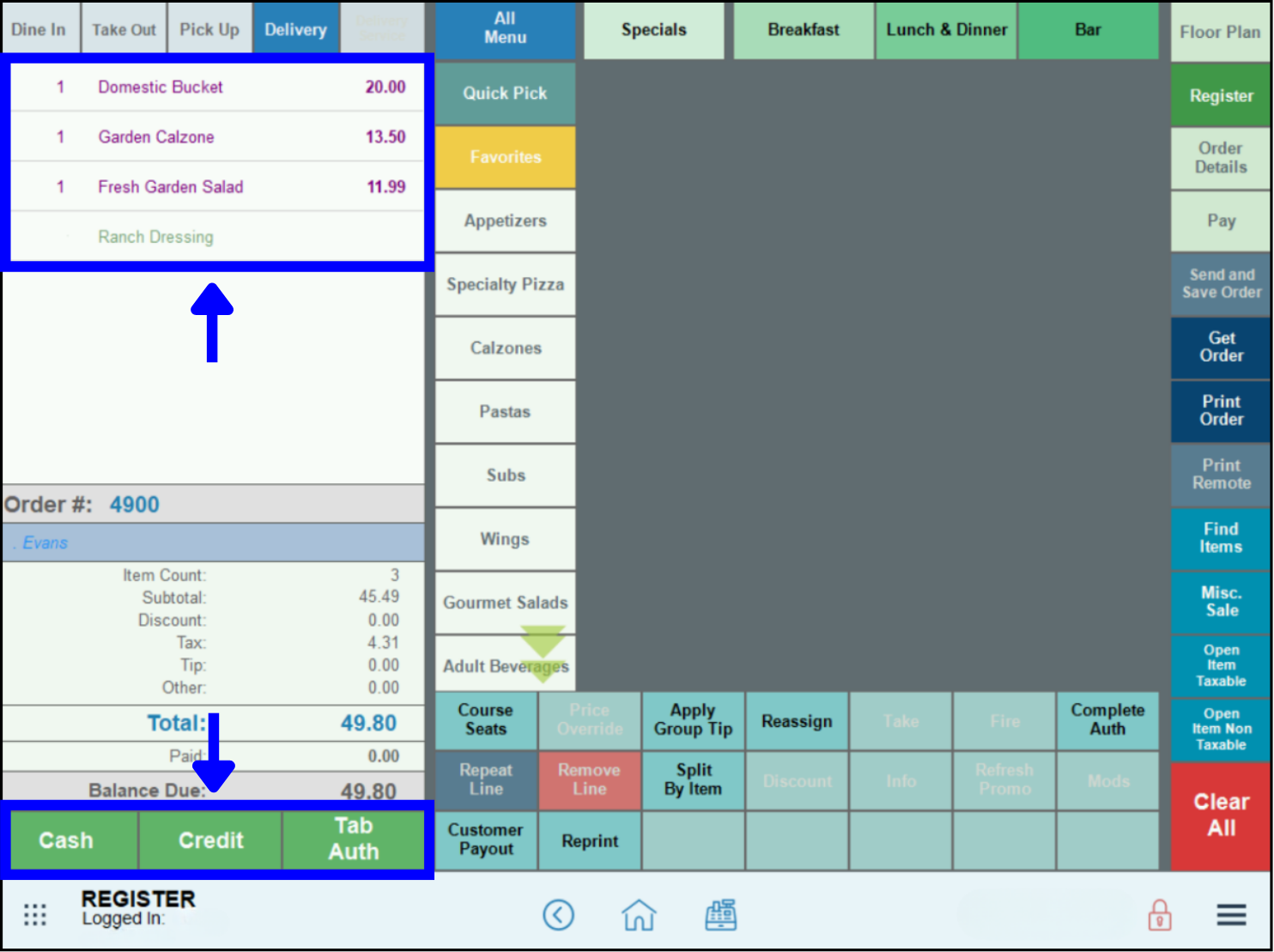
    Select payment method

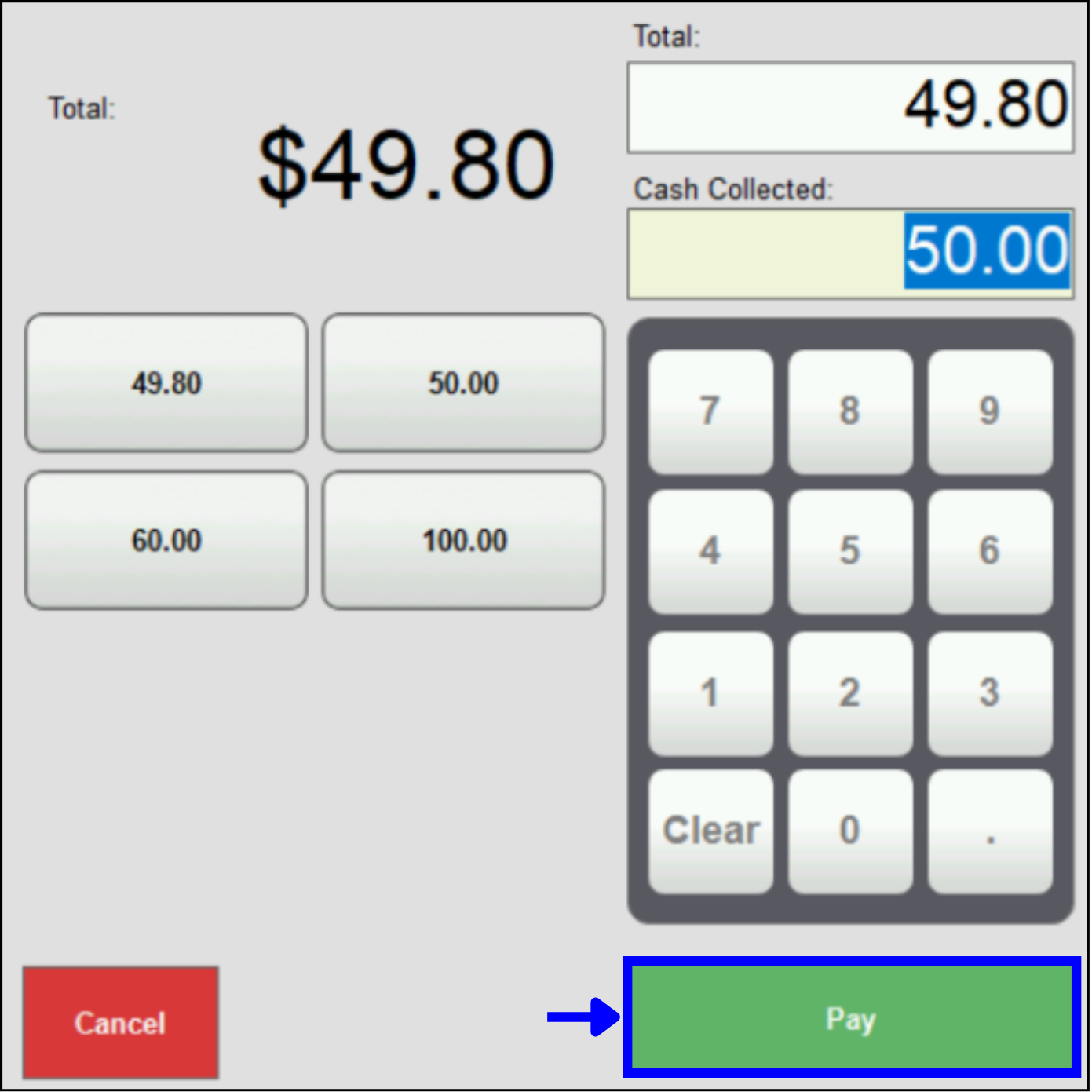
  2. Tap Pay.

    Tap Pay

  3. On the CFD, once the Ratings screen displays, tap the SMS button.
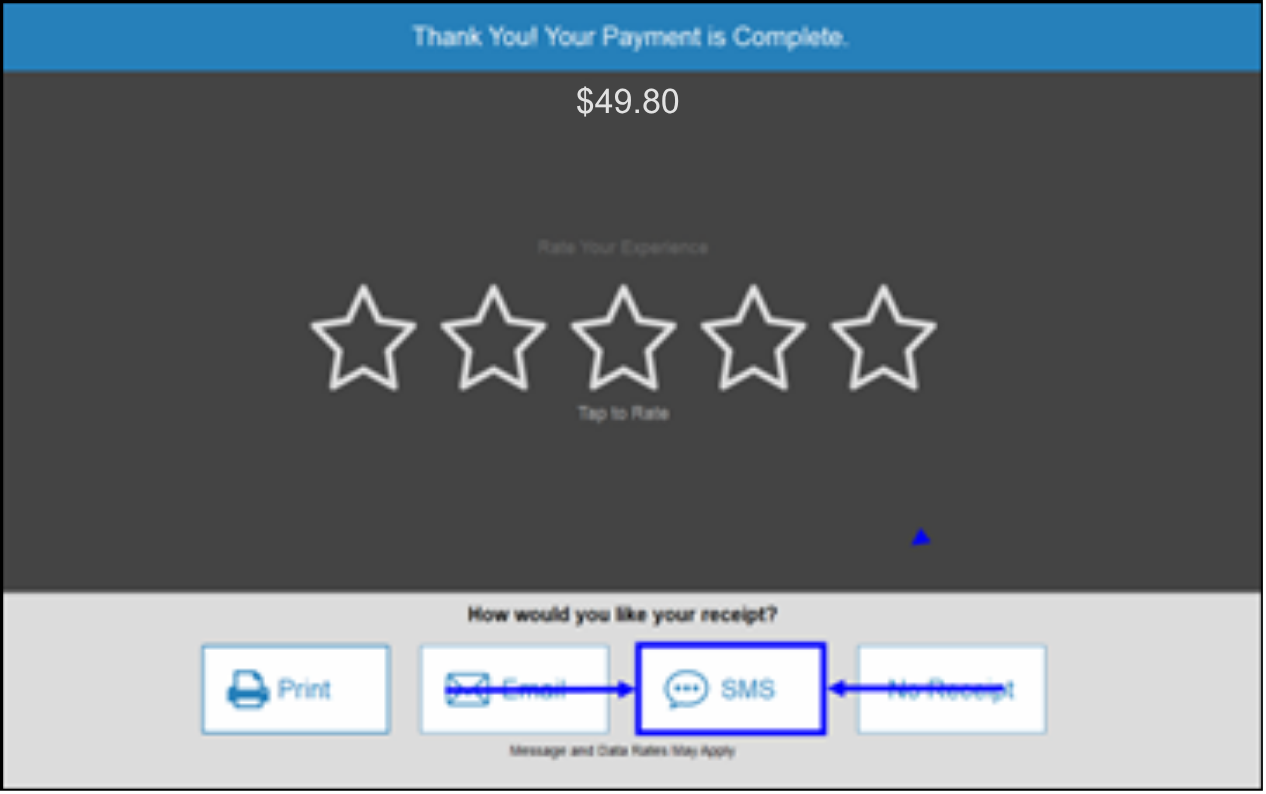
    Tap SMS button

  4. Enter a telephone number using the key pad, then tap OK.
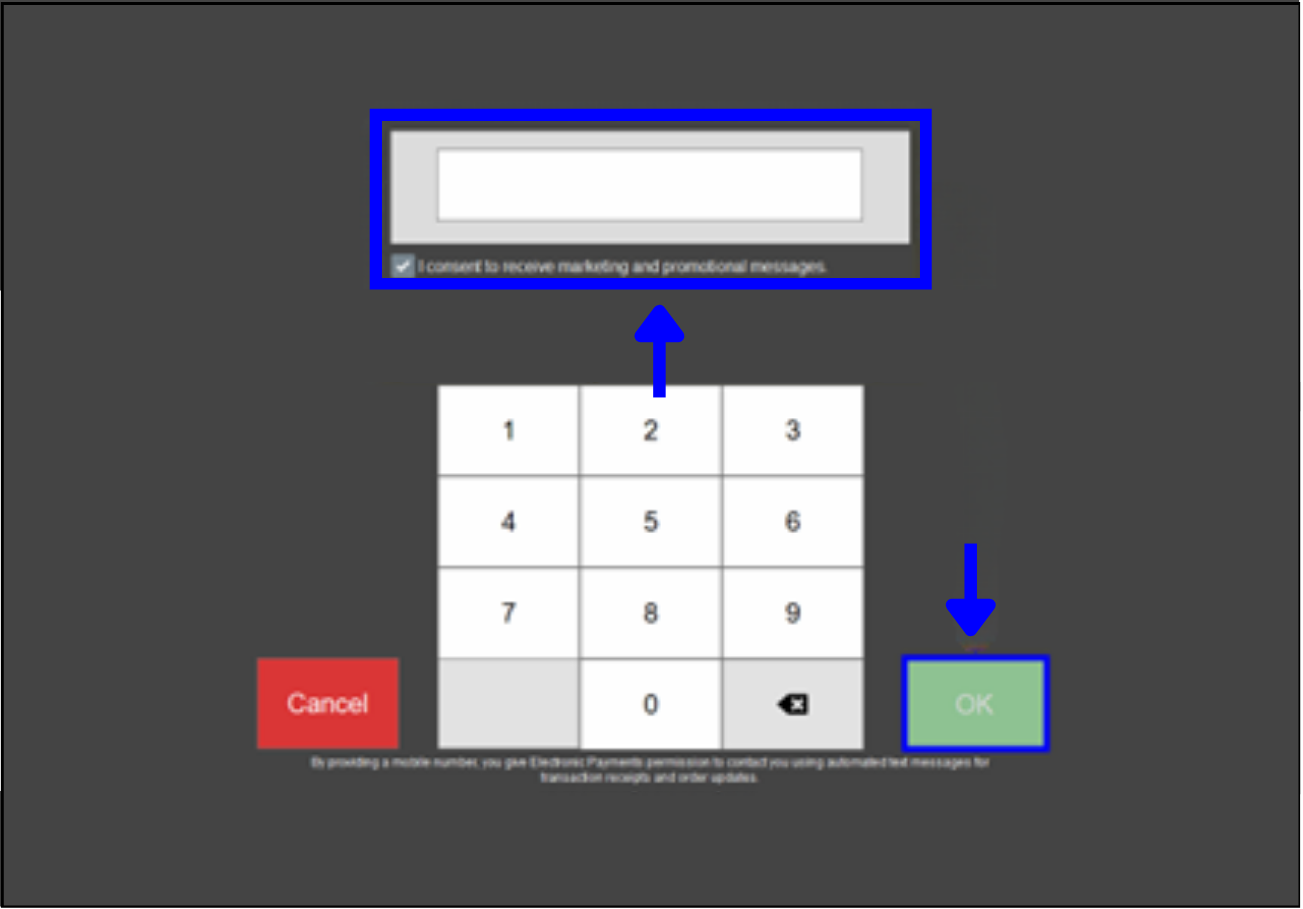
    Tap OK

    NOTE: Customers can optionally select the consent checkbox to receive marketing and promotional messages.

  5. An SMS receipt is sent to the customer’s mobile device.

Popular With

Grocery/C-StoreLiquorPizzaQSR/DeliveryRetailSalon/SpaTable Service

Ready to Update your Software?

Contact Technical Support to schedule your software update today!

Related Topics

  • Receipt Printing
  • Remote Printing

Related Articles

  • SMS Receipts from the Register

    Last Updated: September 23, 2024

  • Customer Facing Display (CFD) Settings

    Last Updated: June 26, 2025

How helpful was this article?

Your page rank:

How can we improve this information for you? Cancel Reply

Registered internal users can comment. Merchants, have a suggestion? Tell us more.

Software Update Request

Software Update Request Form

  •  
  • Check Your Exatouch Version Number
  • MM slash DD slash YYYY
  • This field is for validation purposes and should be left unchanged.
Questions? Suggestions? We're here to help! Contact our 24/7 Technical Support Team today!
Privacy Policy  |   Privacy Rights  |   Cookie Preferences