
Some merchants need more control than the default Exatouch floor plan provides. Business owners can set up a closed floor plan, allowing them to assign sections and control staff access to tables.
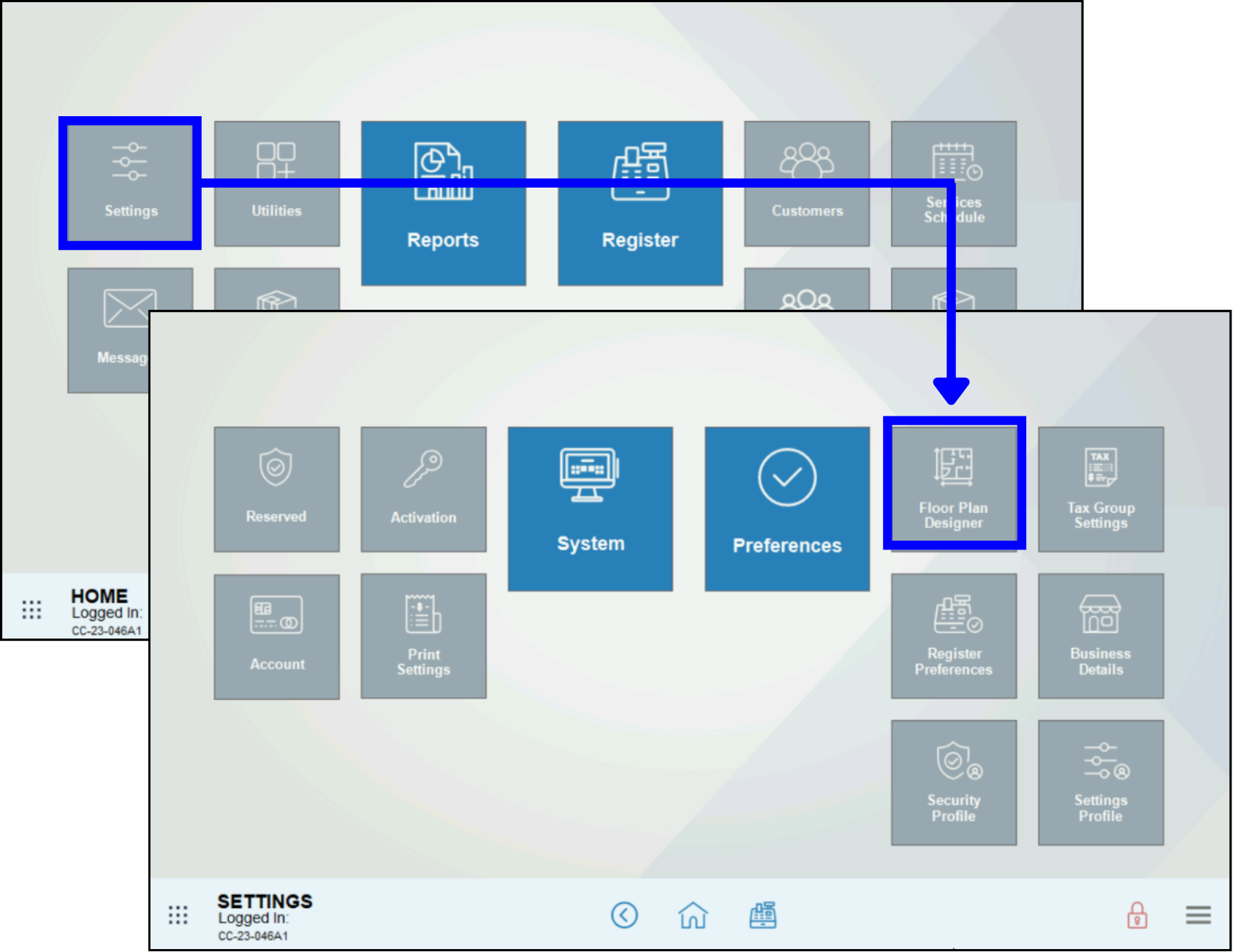
- Go to Home > Settings > Floor Plan Designer.
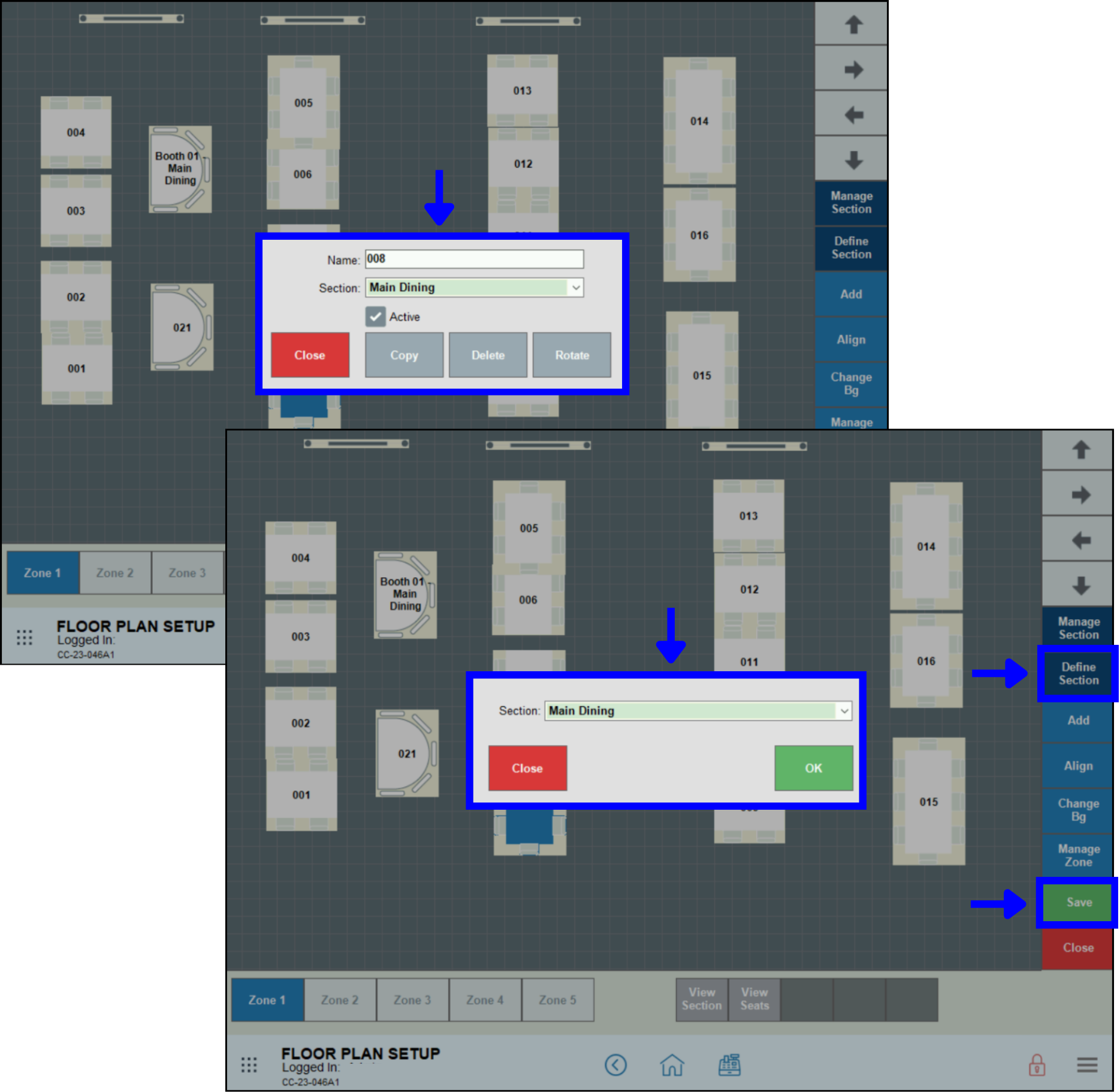
- There are two options for assigning a section name to a floor plan:
- Tap on a table, choose the desired floor plan section, then tap Save.
- Tap Define Section, choose the desired floor plan section, then tap Save.
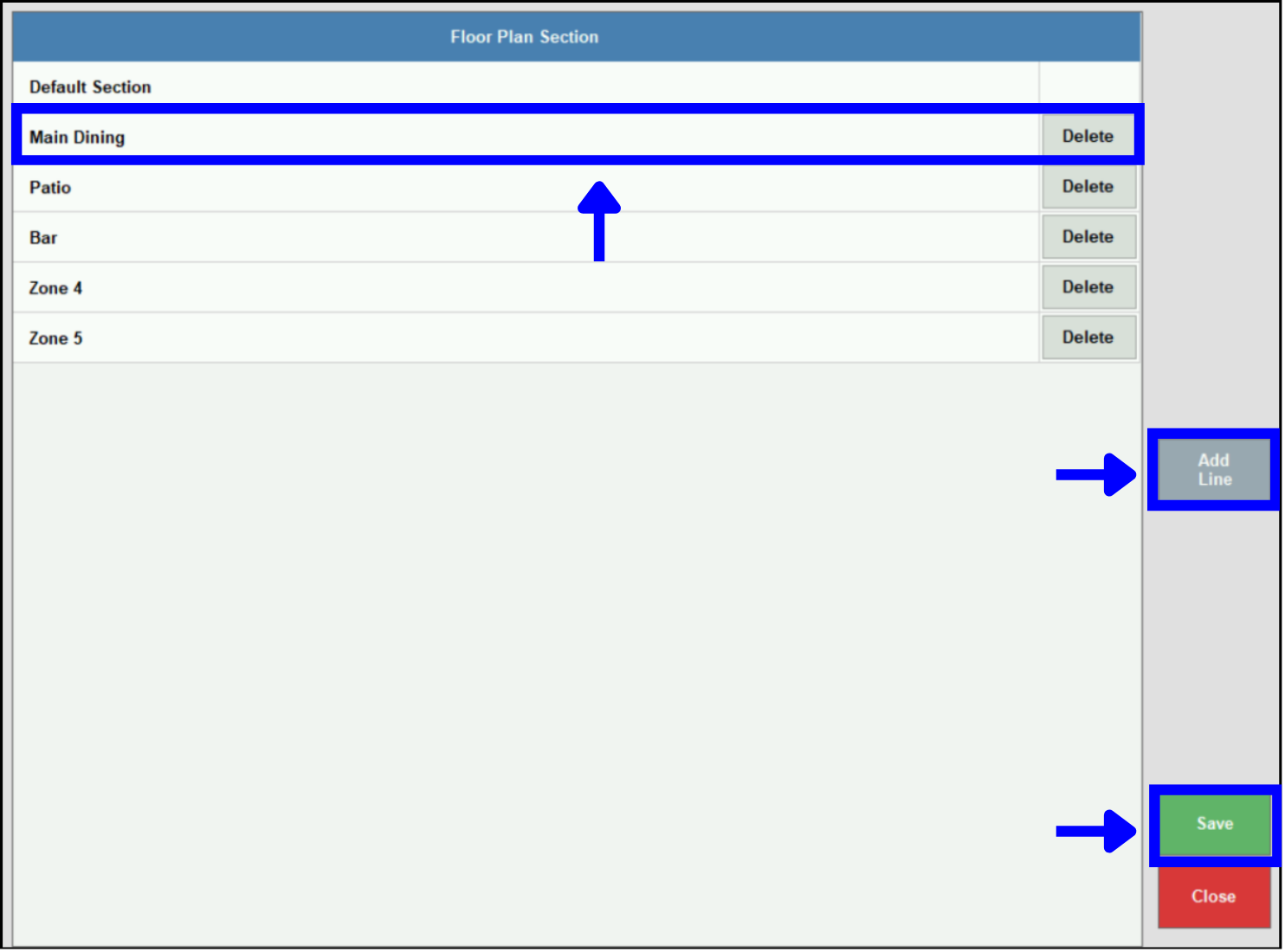
- To rename, add, or remove sections, tap Manage section.
- Type a new name over the current one to rename a section.
- Tap Add Line to add a new section.
- Select a line and tap Delete to remove a section.
- Tap Save.
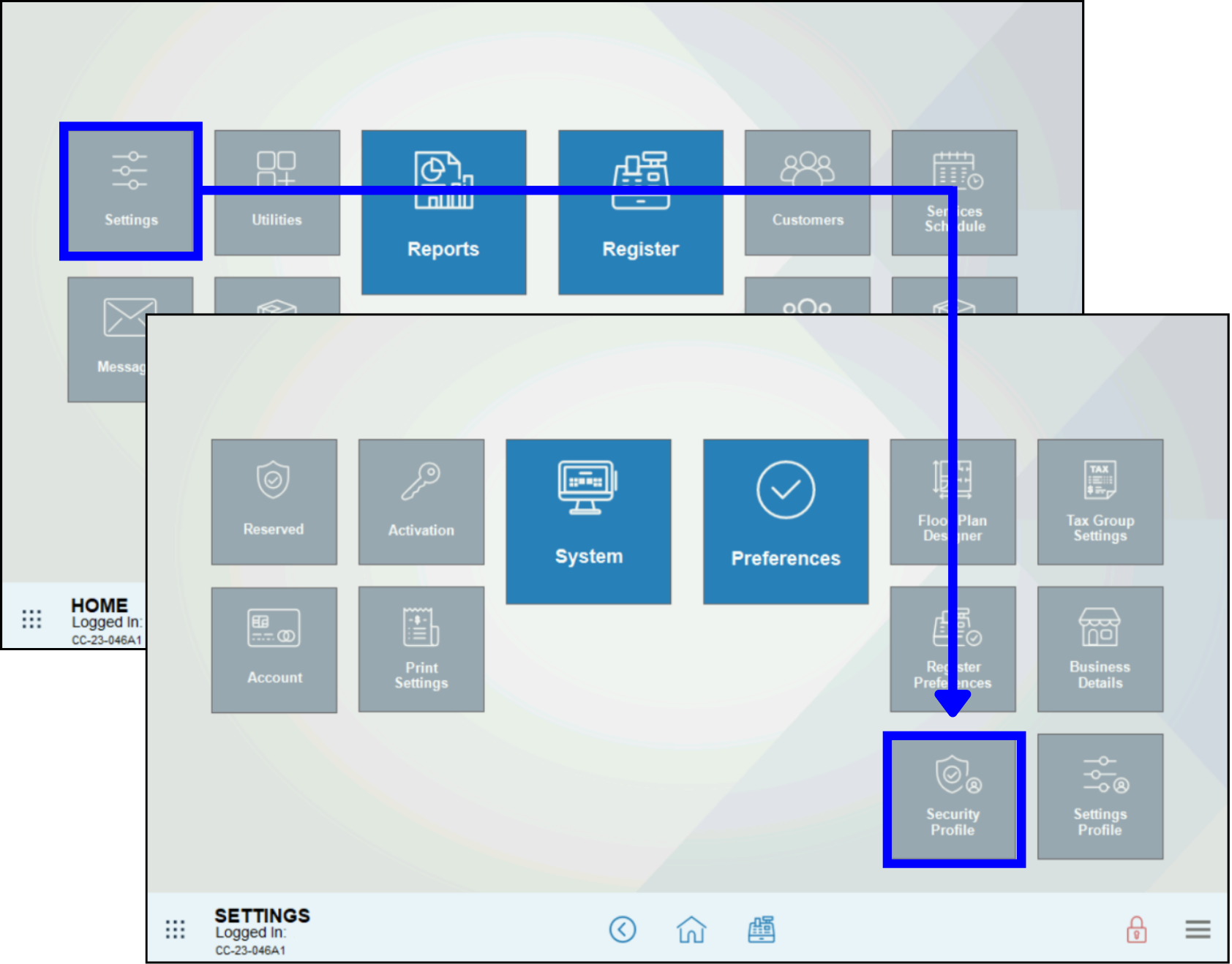
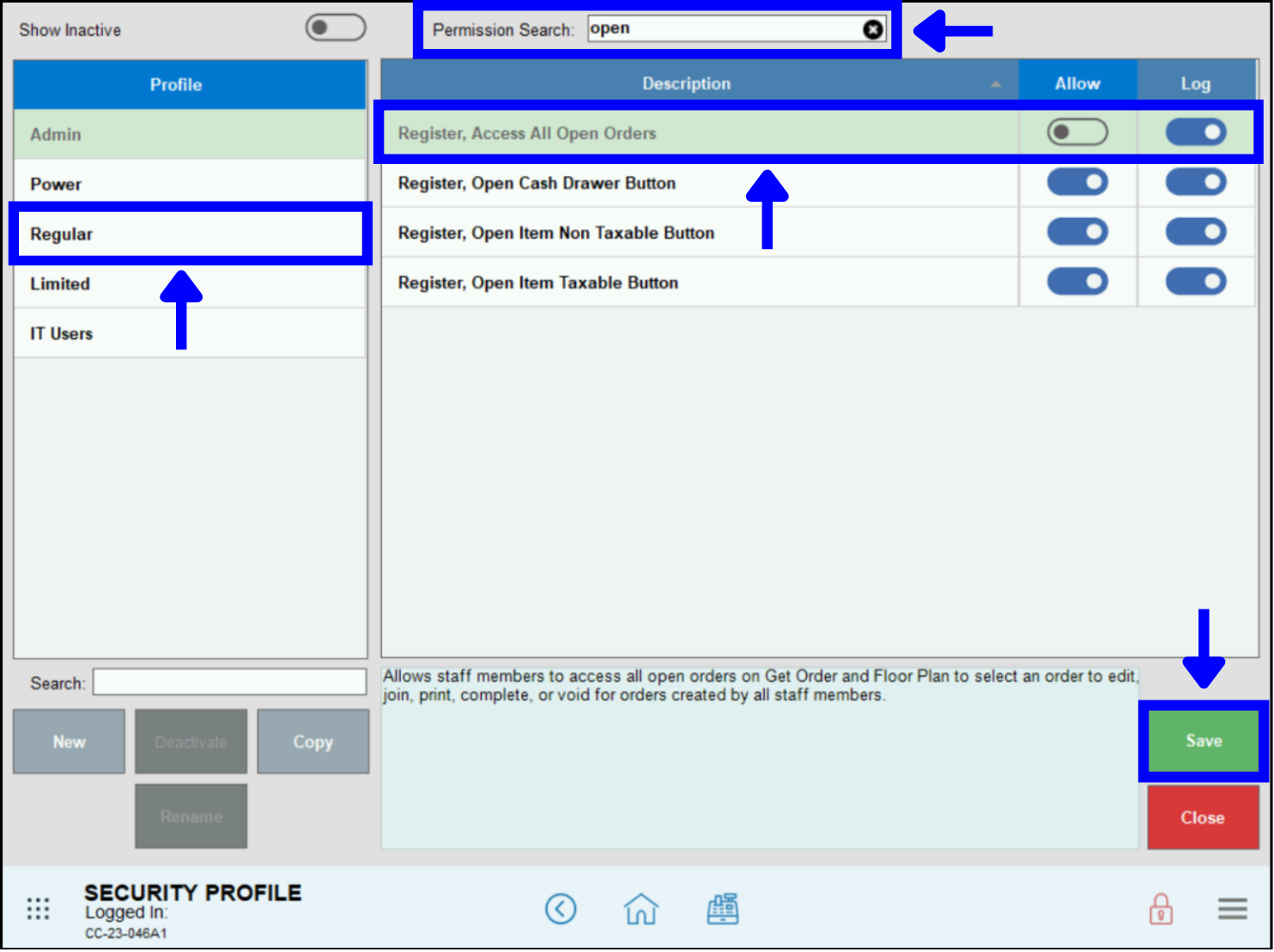
- Go to Home > Settings > Security Profile.
- Select a User Type under Profile.
- Use the Permission Search field to find “Register, Access all Open Orders.” Only one or two of these words is sufficient to find it.
- Select the correct line, then turn off the toggle button under Allow.
- Tap Save.
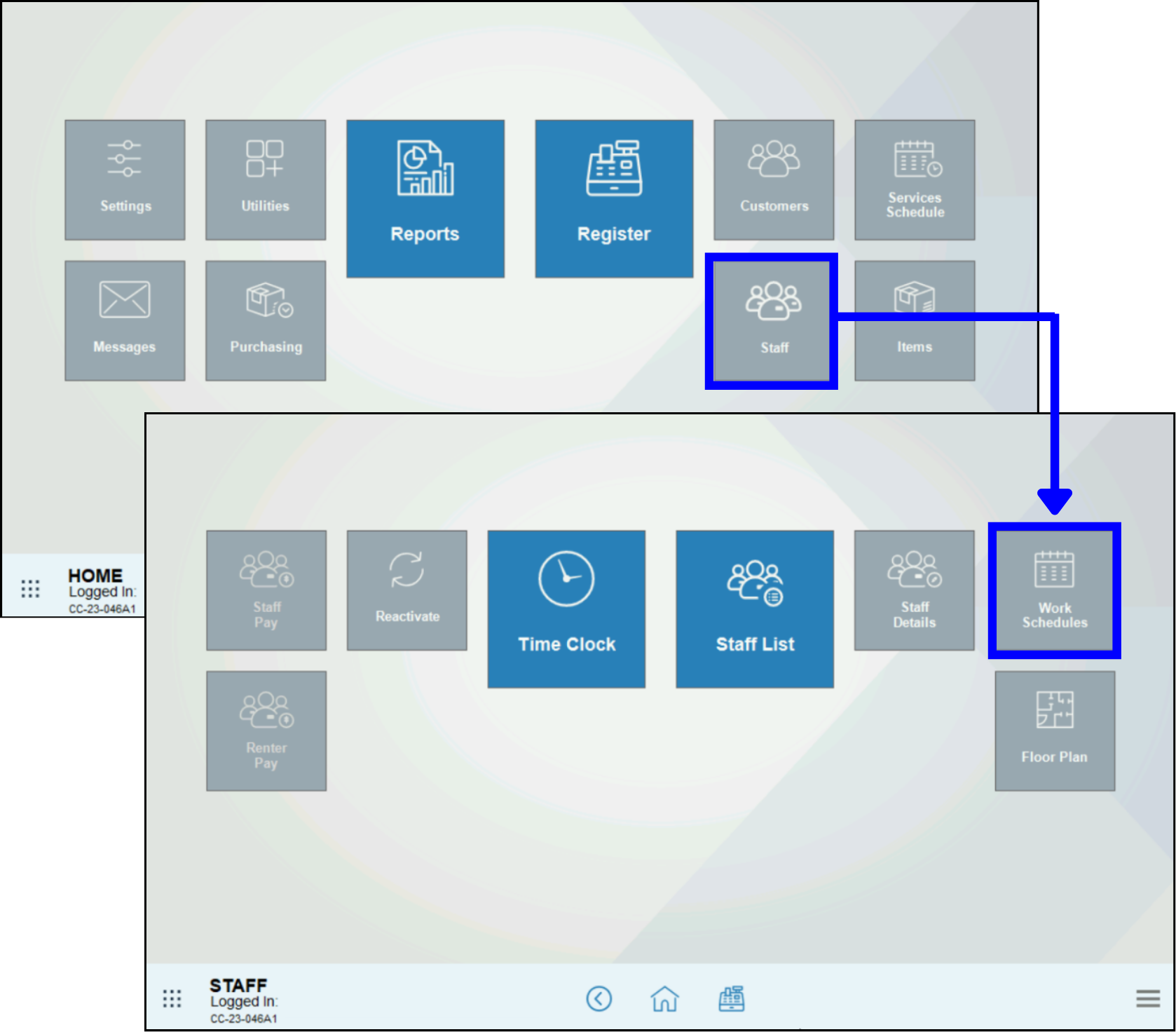
- Go to Home > Staff > Work Schedules.
- Tap the magnifying glass icon to the right of the Staff Name box to find a staff member.
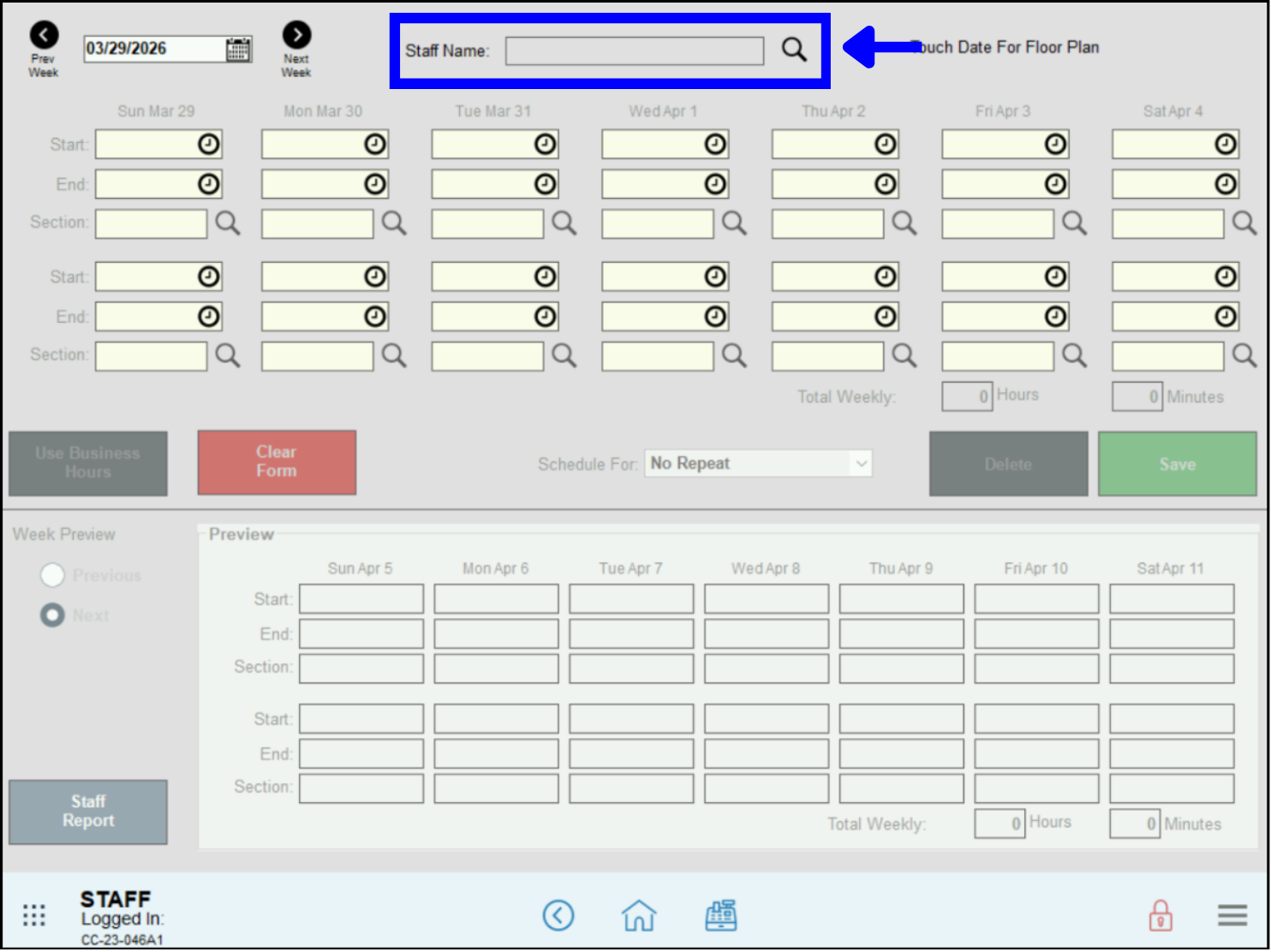
- Create the staff member’s work schedule. (See: VCreate a Staff Work Schedule.)
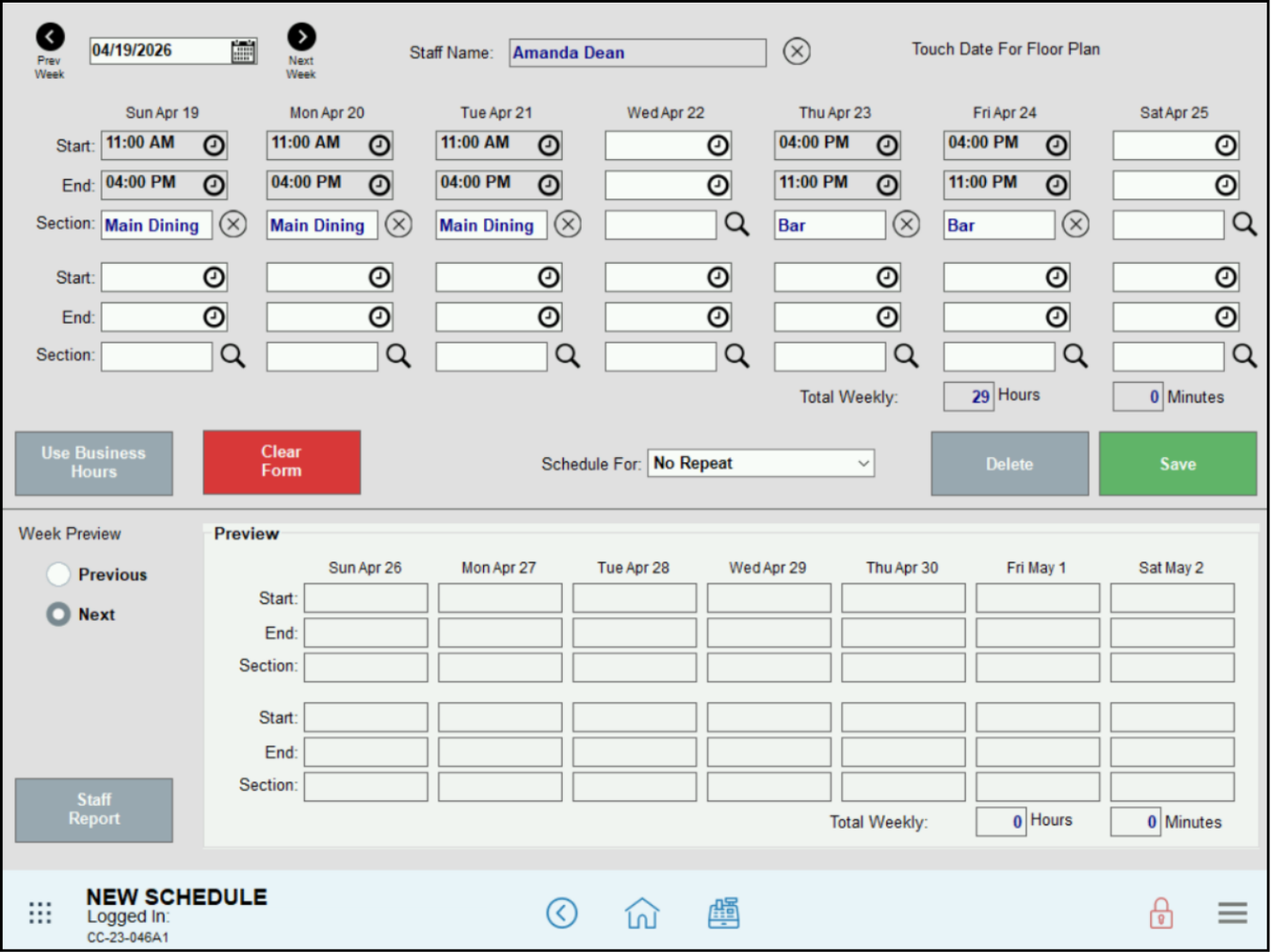
- Tap the magnifying glass icon next to the Section field to choose the floor plan section for each scheduled shift for that staff member.
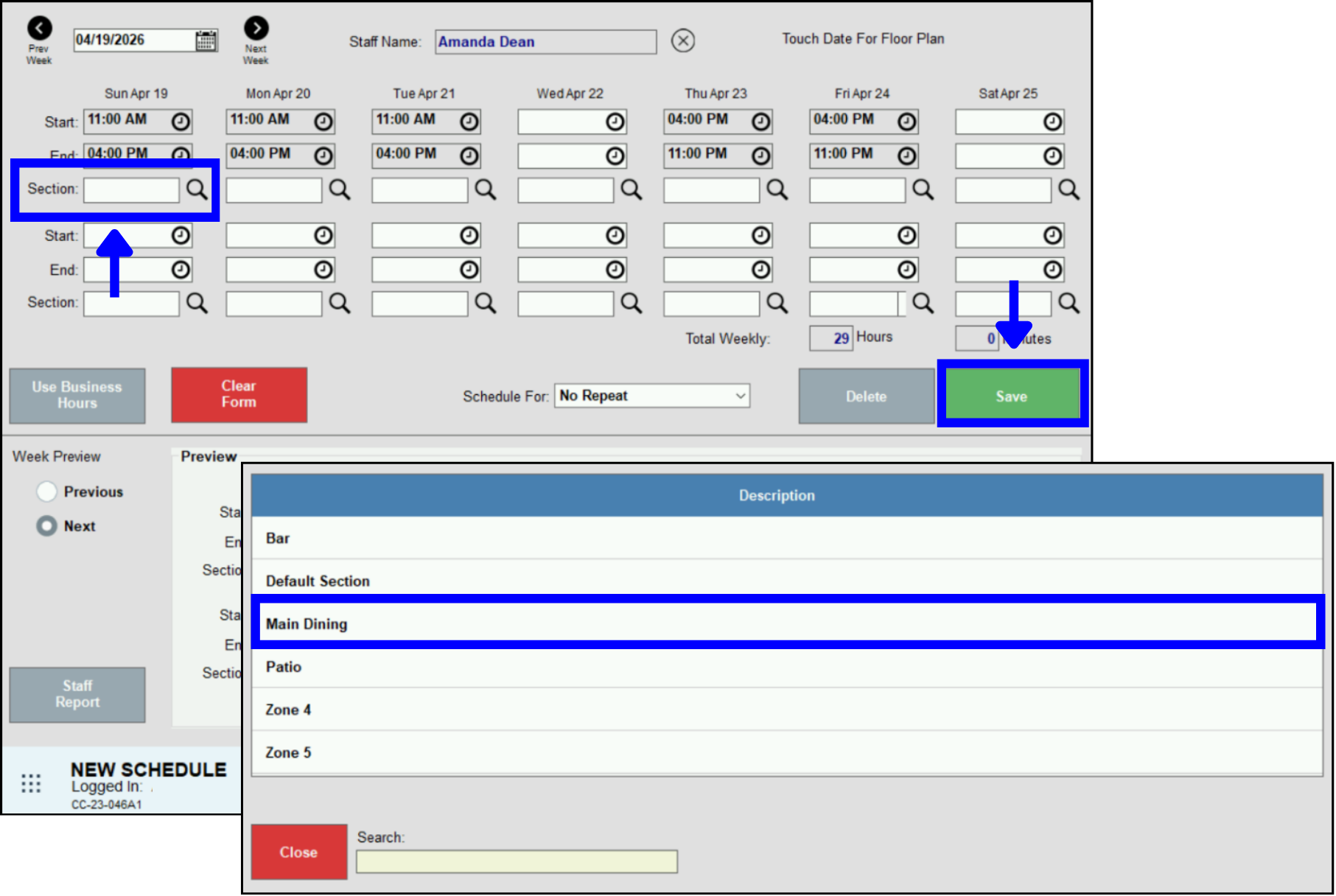
- Tap Save after finishing setting up the schedule. The example shows Amanda Dean working five days, three in the Main Dining section and two in the Bar section.
How can we improve this information for you?
Registered internal users can comment. Merchants, have a suggestion? Tell us more.