
Accept payments quickly and easily using Exatouch Quick Pay directly in the Register app. Accept Cash, Credit, Debit, and Gift Certificate payments. If in use, close out Tab Authorizations as well.
- Enter or open a customer order.
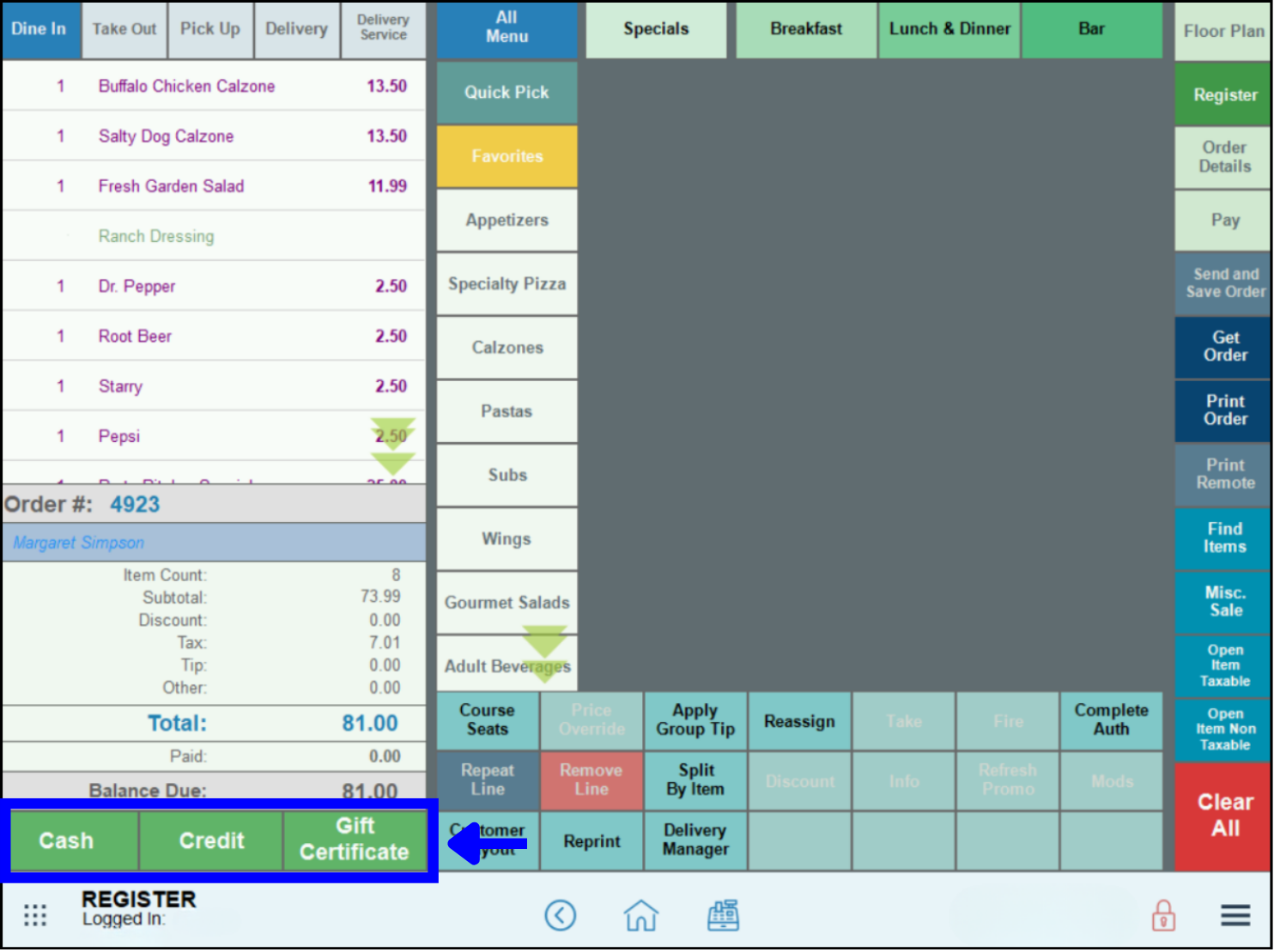
- Tap to select a payment option: Cash, Credit or Gift Certificate.
- Note: The payment options that appear depend on the Register Preferences. Restaurants and bars may have a Tab Auth / Tab Complete option.
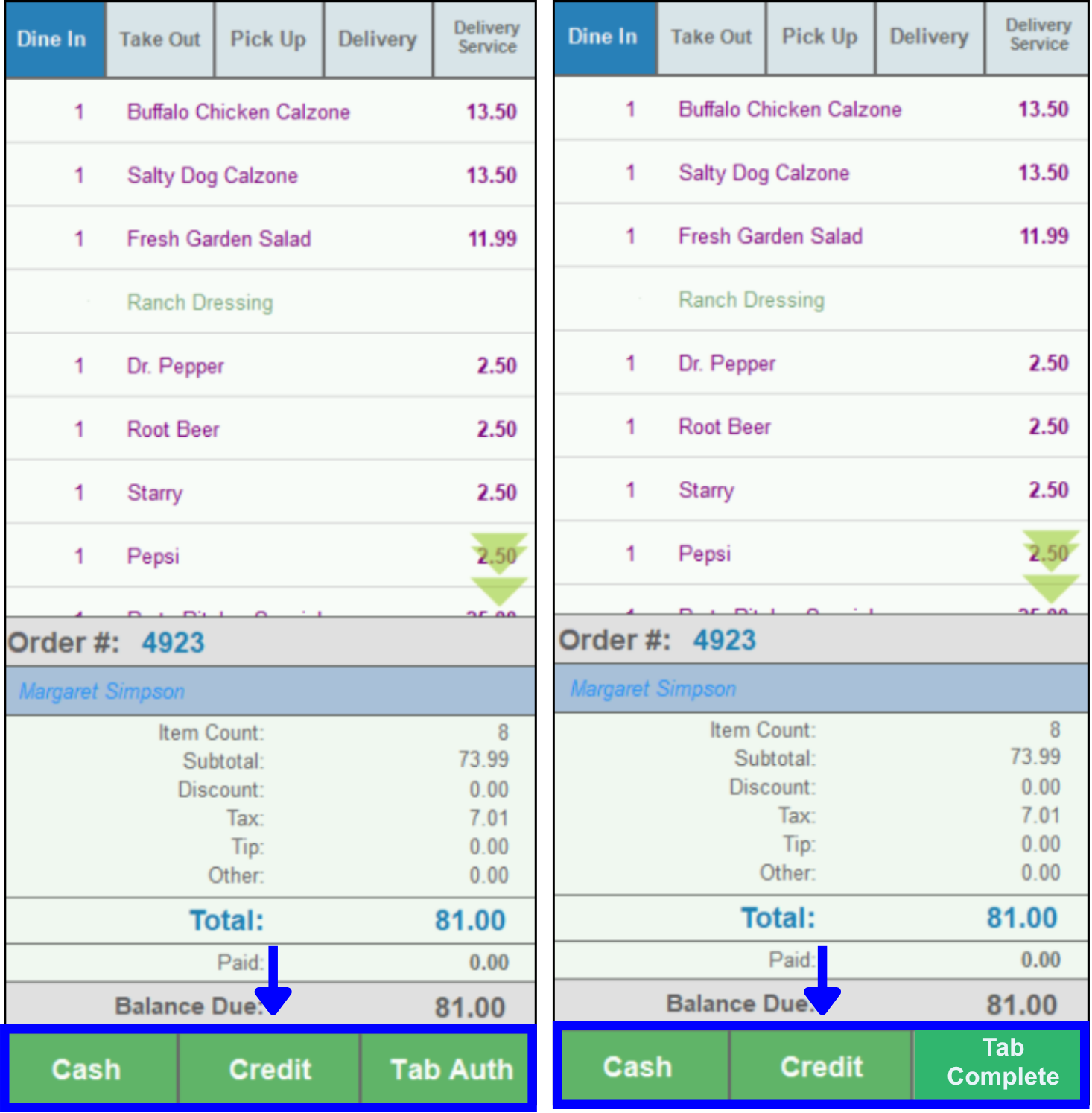
- Follow the prompts for your selected tender type to complete the payment.
Cash:
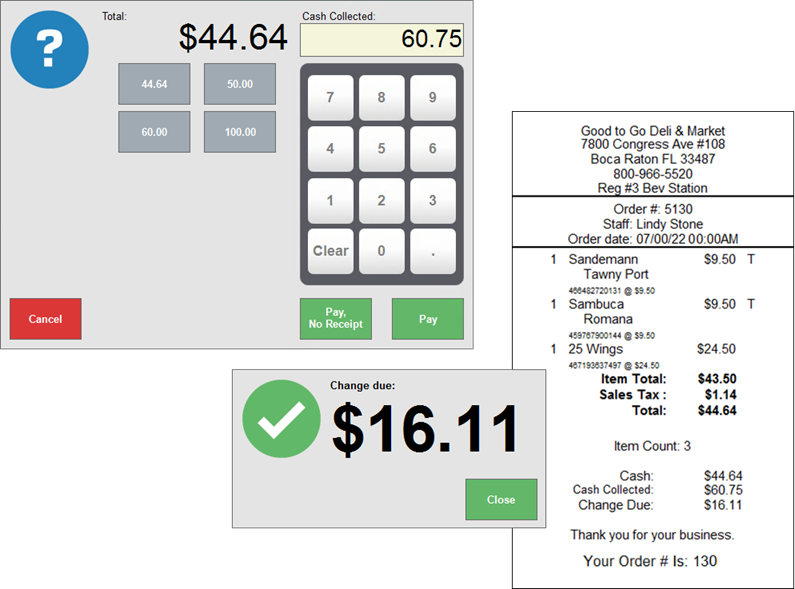
- Accept the default cash amount, tap a quick pay amount, or enter an exact cash amount.
- Tap Pay, No Receipt or Pay.
- A Change due: message appears, and the register drawer opens, if applicable. Tap Close to clear the message.
- Applicable customer, remote, or other receipts print.
Credit:
- Enter the Credit Amount: to apply to the order, and tap Pay, No Receipt or Pay.
- Swipe, slide in, or tap the credit card on your payment device.
- Print payment receipts.
- Capture the customer’s signature and complete the transaction as prompted.
- Applicable customer, remote, or other receipts print.
PIN Debit:
- Enter the Debit Amount: to apply to the order, and tap Pay, No Receipt or Pay.
- Swipe, slide in, or tap the debit card on your payment device.
- Capture the customer PIN on your payment device.
- Complete transaction as prompted.
- Applicable customer, remote, or other receipts print.
Tab Complete:
These steps assume you have already set up a Tab Auth for an order, and are ready to close out the tab.
- With the order open in the Register app, tap to select Tab Complete.
- Enter the tip amount listed on the tip line of the Merchant copy of the receipt.
- Tap OK to accept the Adjusted Total and complete the Tab Auth transaction.
- Applicable customer, remote, or other receipts print.
How can we improve this information for you?
Registered internal users can comment. Merchants, have a suggestion? Tell us more.