
Exatouch offers two- and four-line Whozz Calling caller ID boxes for delivery and pickup orders.
The Whozz Calling caller ID devices provide caller contact information and caller queue management, when integrated with the Exatouch system. To add Whozz Calling caller ID to your Exatouch system, contact your sales representative.
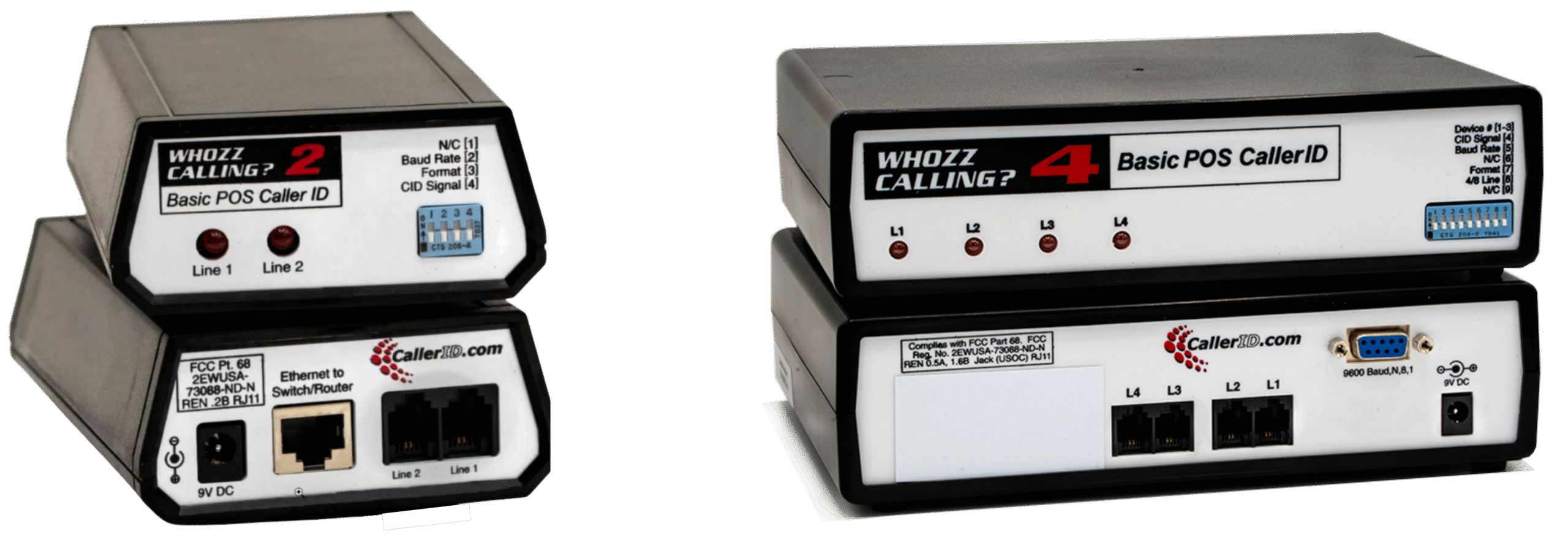
(Exact equipment model may vary.)
Required Whozz Calling Equipment and Setup
Whozz Calling Bundle (provided by Exatouch)
- Whozz Calling ID box
- Power cable
- Equipment manual
Other equipment
- Analog phone(s)
- Exatouch router
- Splitter, ethernet cables, surge protectors, etc.
Setup Information
- Note: Once you have set up the equipment and connected all the cables to the phones(s) and Exatouch router, contact the Exatouch Technical Support Team; they will help you install and demo the software.
How to Use Whozz Calling
- When a delivery or pickup order call comes in, a yellow Calls Waiting notification will appear in the bottom left of the order screen.
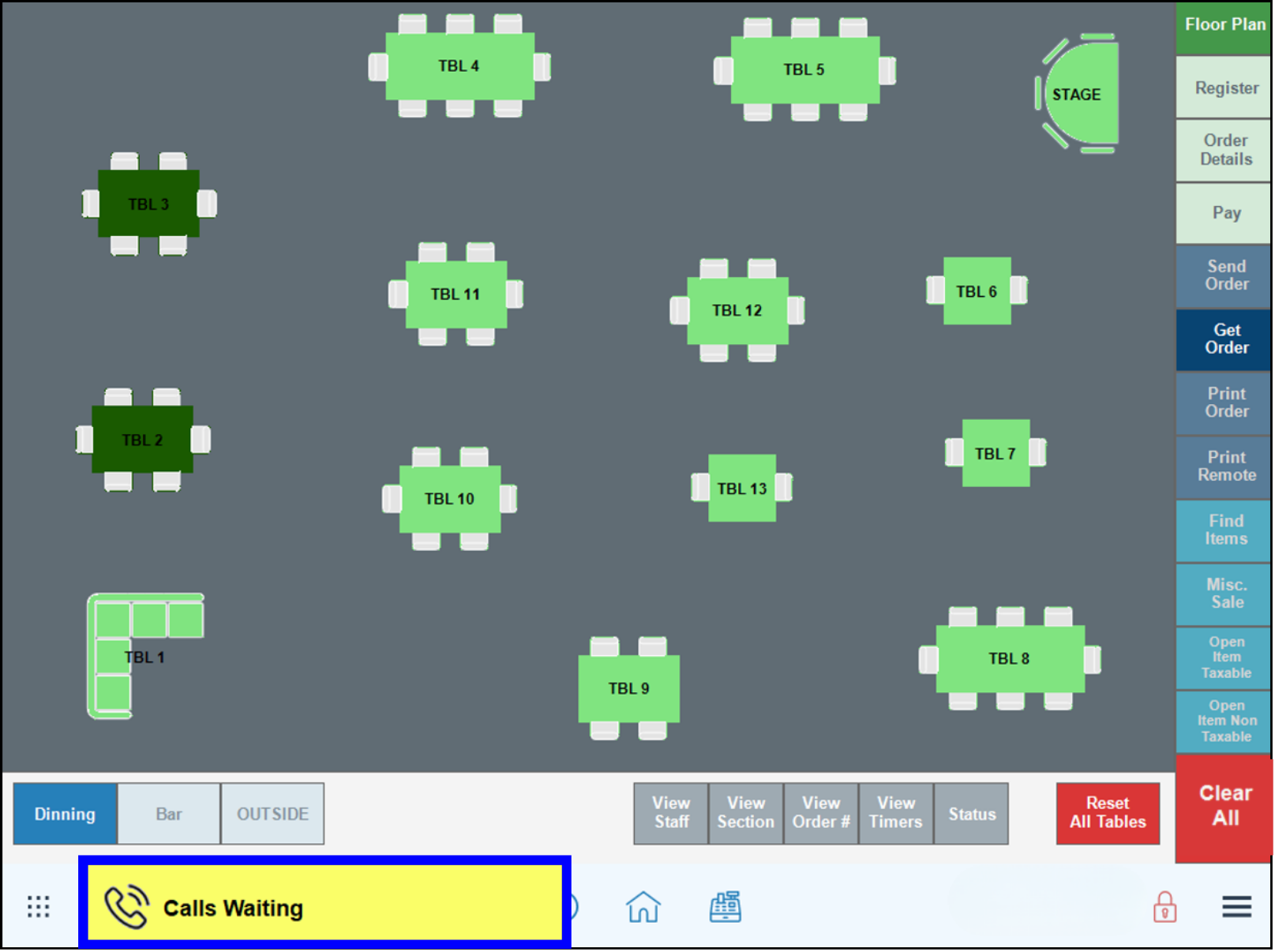
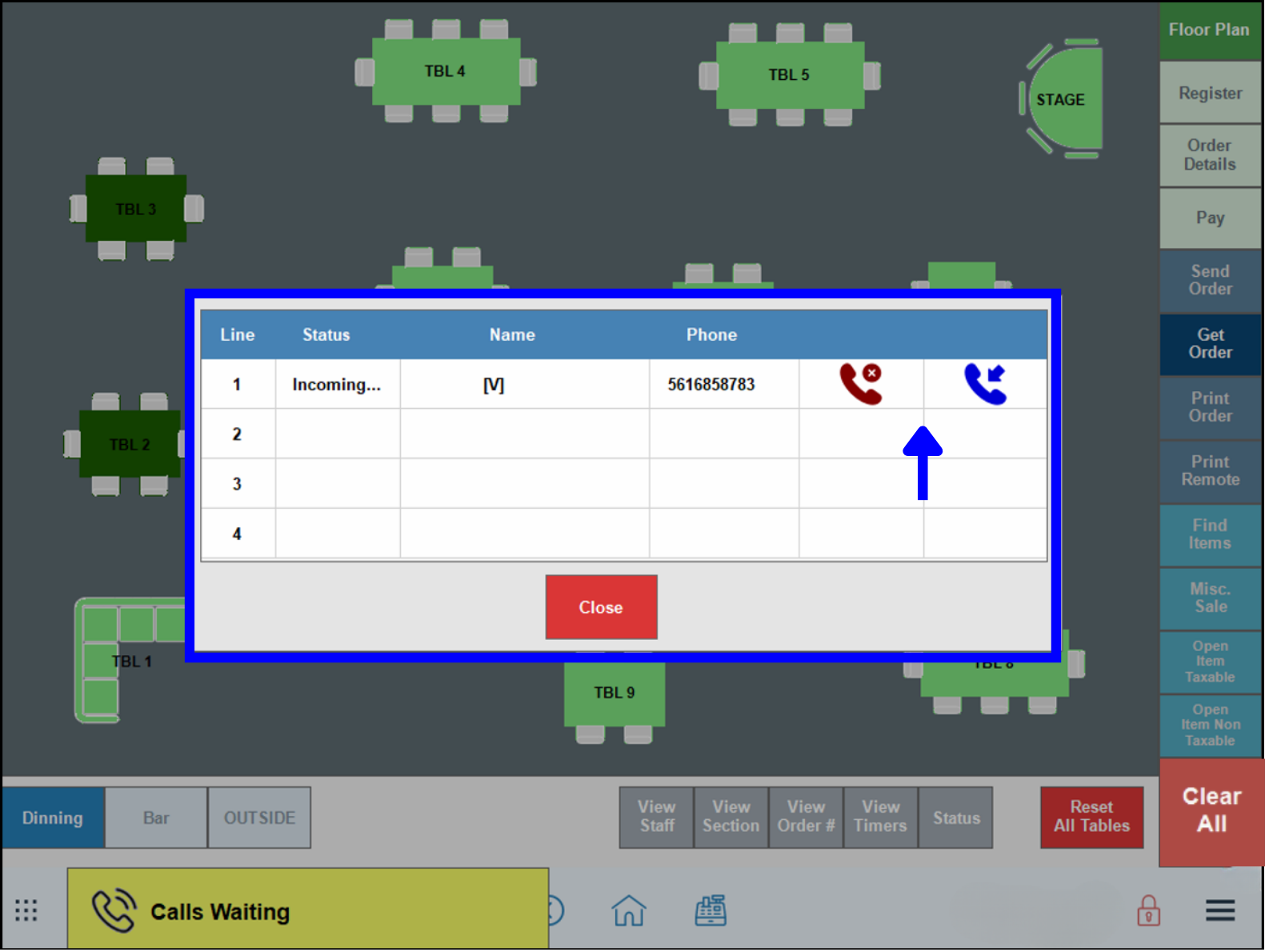
- Tap on the Calls Waiting notification box to display the call management queue.
- Tap the blue pick up icon to answer the call, or the red hang up icon to disconnect the call.
- All incoming calls will be visible in the call management queue display. Multi-line systems will display callers in the order received; calls may be answered in any order.
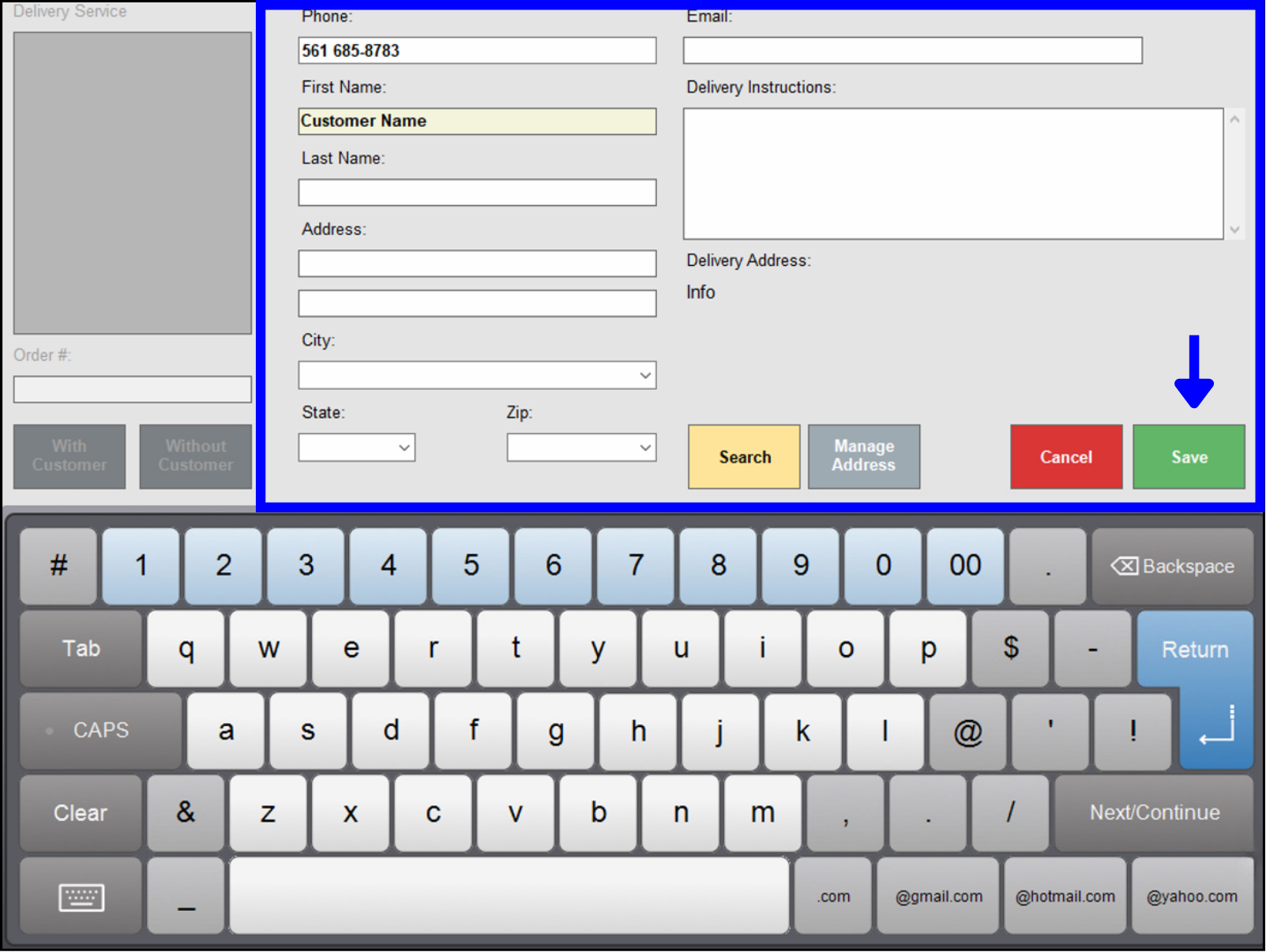
- When you select the blue pick up icon, the customer information will automatically be added to the order.
- If the customer record is already in the system, select Confirm to attach the information to the order. You can edit existing customer information, as needed (for example, if the address or preferred contact phone is no longer up to date).
- If the caller is not already in the system, add the new information and select Save to attach the new customer record to the order.
- After saving/confirming customer information on the pop-up screen, the system will go into the Register app to place the order.
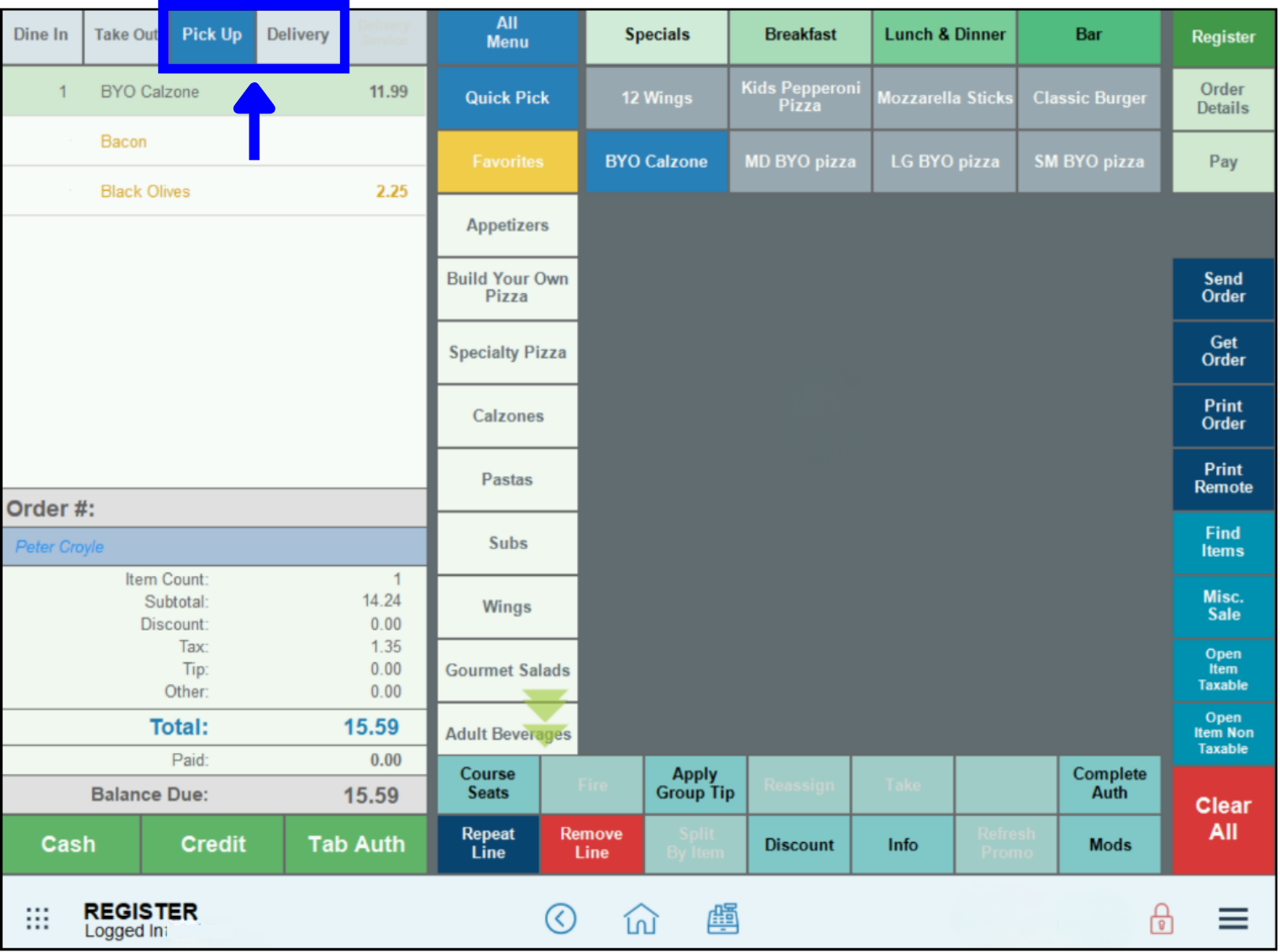
- Note: Delivery is the default tab for this process; however, you can select Pick Up at this point if the customer will be picking up the order in person.
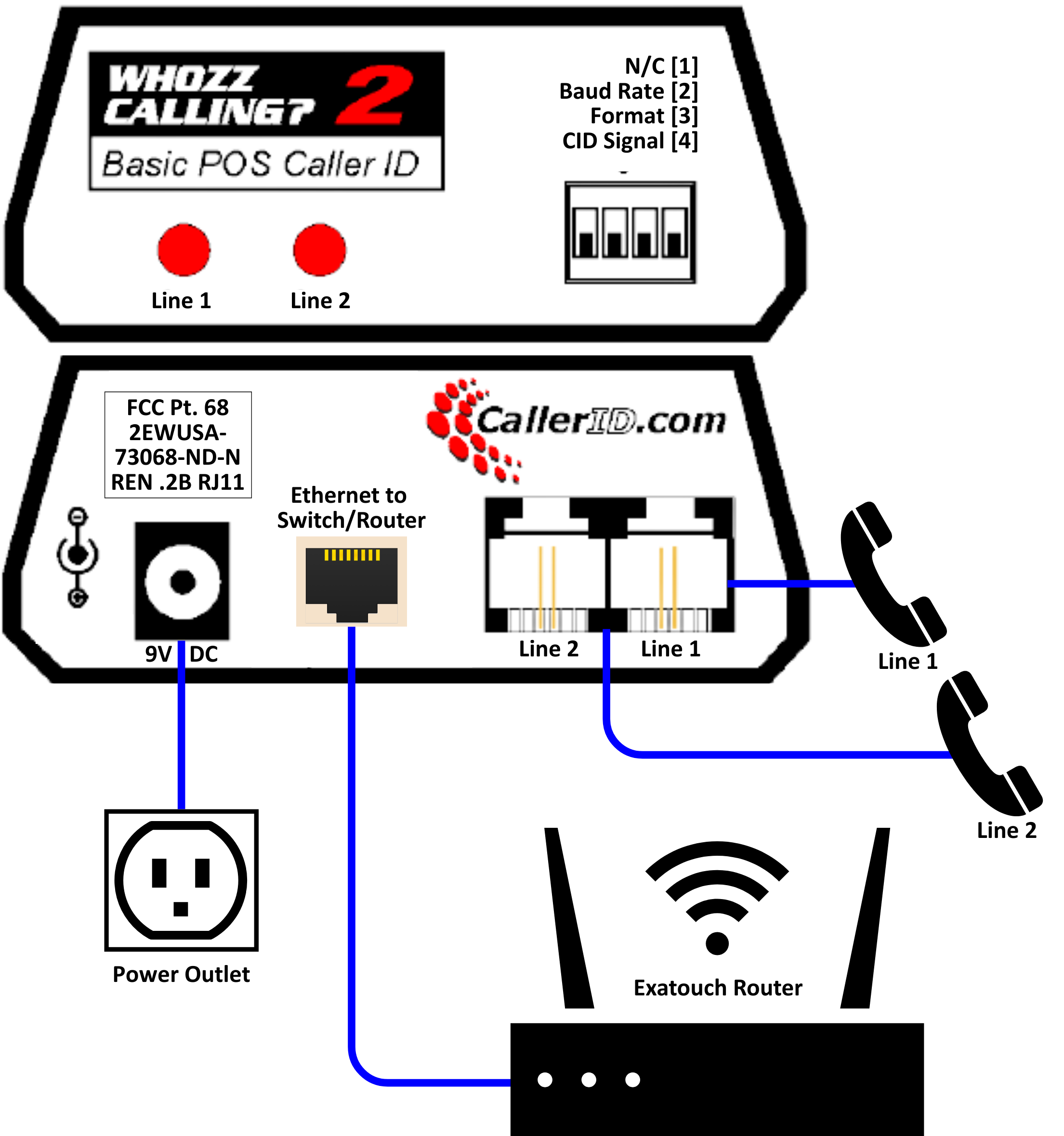
Whozz Calling Wiring Diagram
A basic wiring diagram for a two-line Whozz Calling caller ID box is below. An equipment and installation manual (included with the Whozz Calling bundle) contains additional wiring diagrams for a variety of setups.If you need assistance during setup, contact the Exatouch Technical Support Team.
How can we improve this information for you?
Registered internal users can comment. Merchants, have a suggestion? Tell us more.