
Exatouch Point of Sale’s integrated Kitchen Display System (KDS) helps restaurants and quick serve restaurants streamline operations, improve service, and increase revenues! The TrueOrder KDS offers customizable options, and the wide-screen monitor makes it easy to view incoming orders and food prep details at a glance.
The TrueOrder KDS enables you to:
- Expedite orders – submit and view orders in real-time, reducing delays in order placement and preparation.
- Improve communication – synchronize front and back-of-house workflows, minimizing communication time and improving customer service.
- Ensure accuracy – reliable digital tickets and timers help you serve the right food the first time, never missing an order.
- Maximize kitchen efficiency – quickly send orders to appropriate prep station, and easily monitor order status.
- Optimize guest experience – give waitstaff more time to focus on customers, allows kitchen staff time to perfect.
- Save paper – eliminate paper tickets with a digital KDS.
Verify all hardware components are present and not damaged before beginning installation. In case of missing or damaged parts (or other installation problems), contact your Exatouch representative. Exact models of some equipment and configurations may vary. Additional hardware is also listed.
The TrueOrder KDS is available with a touchscreen or a standard screen with a bump bar.
- Note: The Epson TrueOrder KDS software comes preloaded on these components.
Touchscreen Setup
The following equipment comes with your Exatouch TrueOrder KDS Touchscreen Bundle:
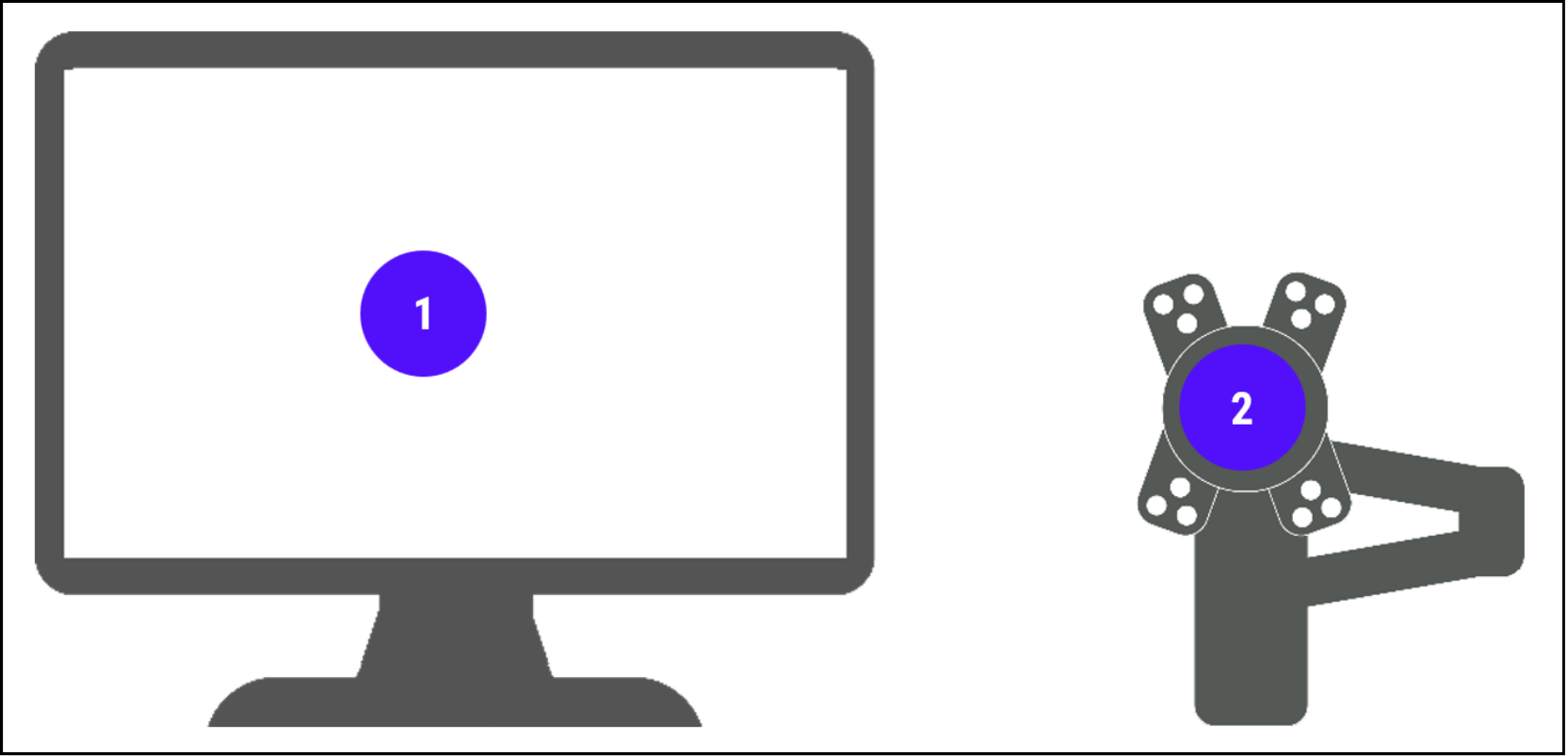
- Microtouch All-in-One 21.5” Touchscreen: IC-215P-AA2-A016 (one per KDS station)
- 22” KDS Monitor Wall Mount (one per KDS station) (optional)
Use this schematic to help set up the touchscreen system. 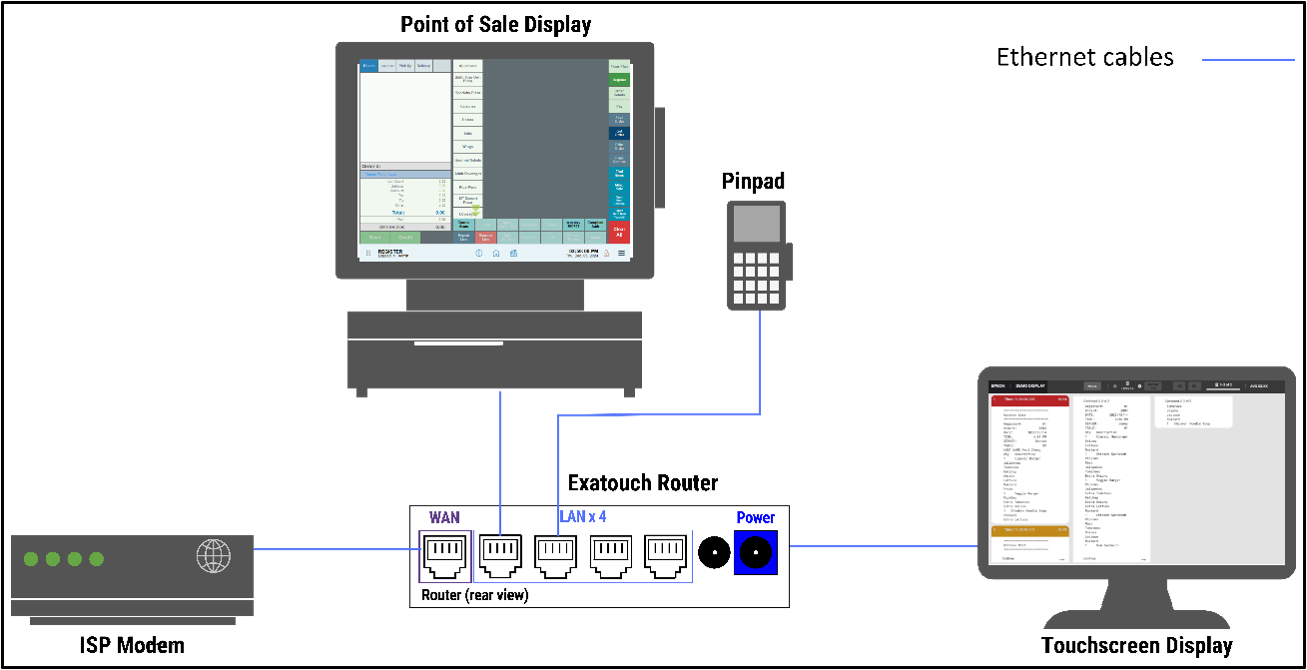
Standard Screen Setup
The following equipment comes with your Exatouch TrueOrder KDS Standard Screen Bundle:
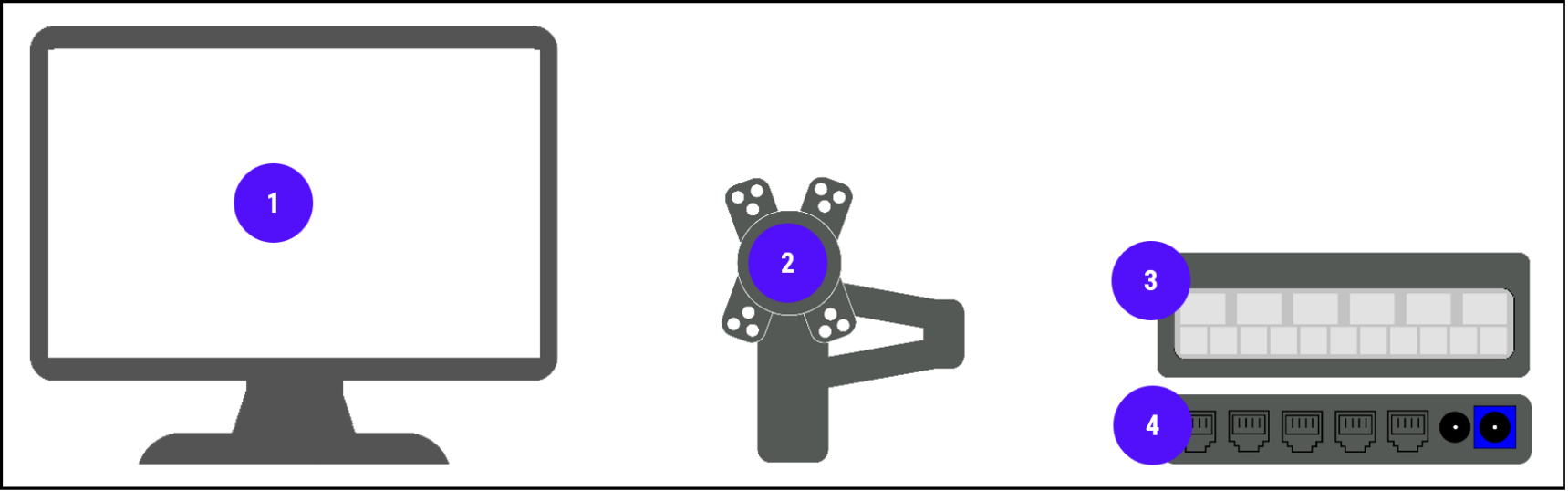
- Standard Monitor (one per KDS station)
- 22” KDS Monitor Wall Mount (one per KDS station) (optional)
- Logic Controls KB1700U-BK USB Bump Bar
- Microtouch Media Player: MP-000-AA2-A017 (one per KDS station)
Use this schematic to set up the standard screen system.
- Important: Call the Exatouch Technical Support Team at (800) 966-5520 – Option 3 for assistance installing the TrueOrder KDS, then follow the steps below to continue the installation process.
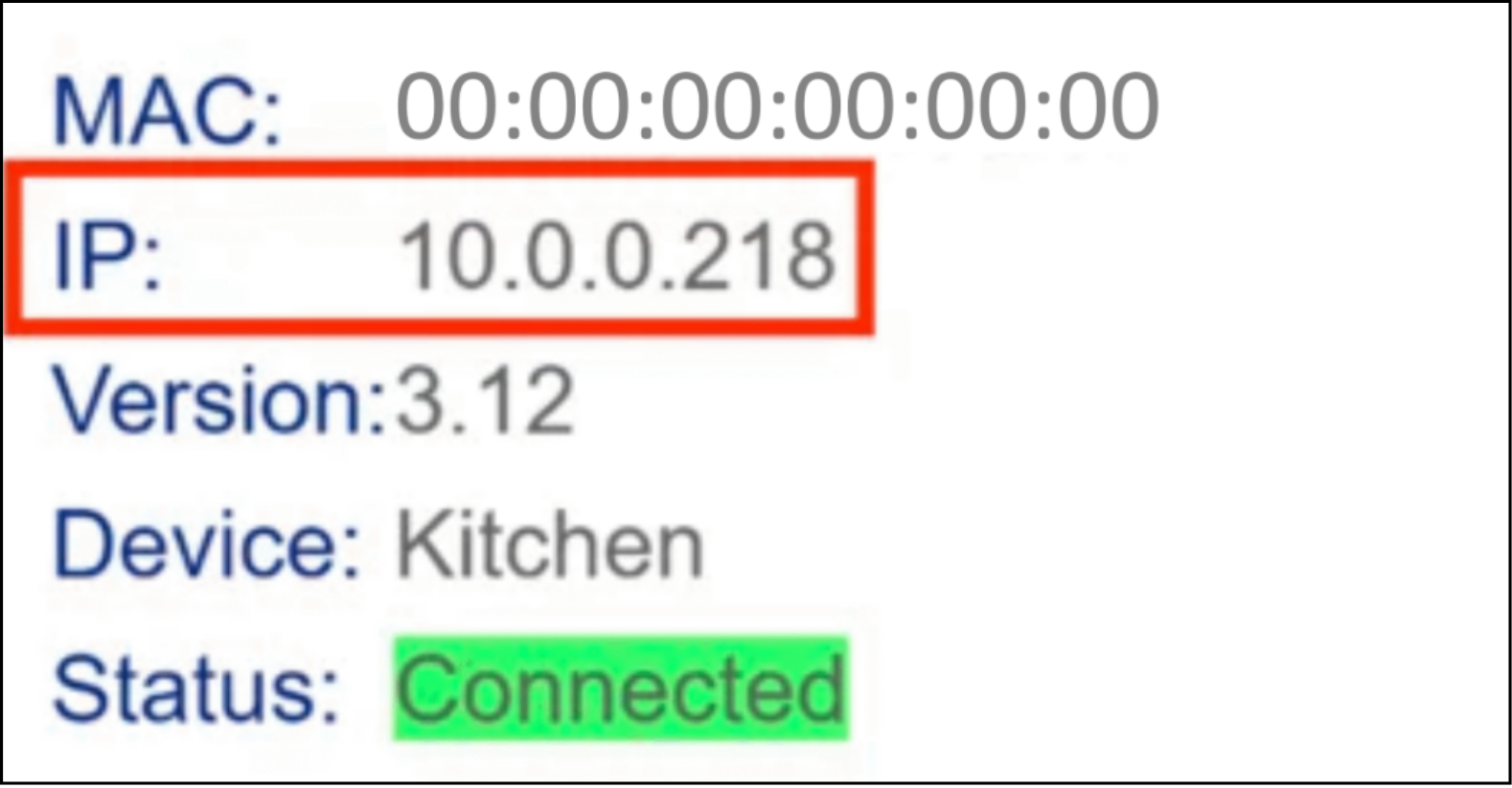
- Find the IP address by powering on the KDS and clicking on EPSON in the upper left corner.
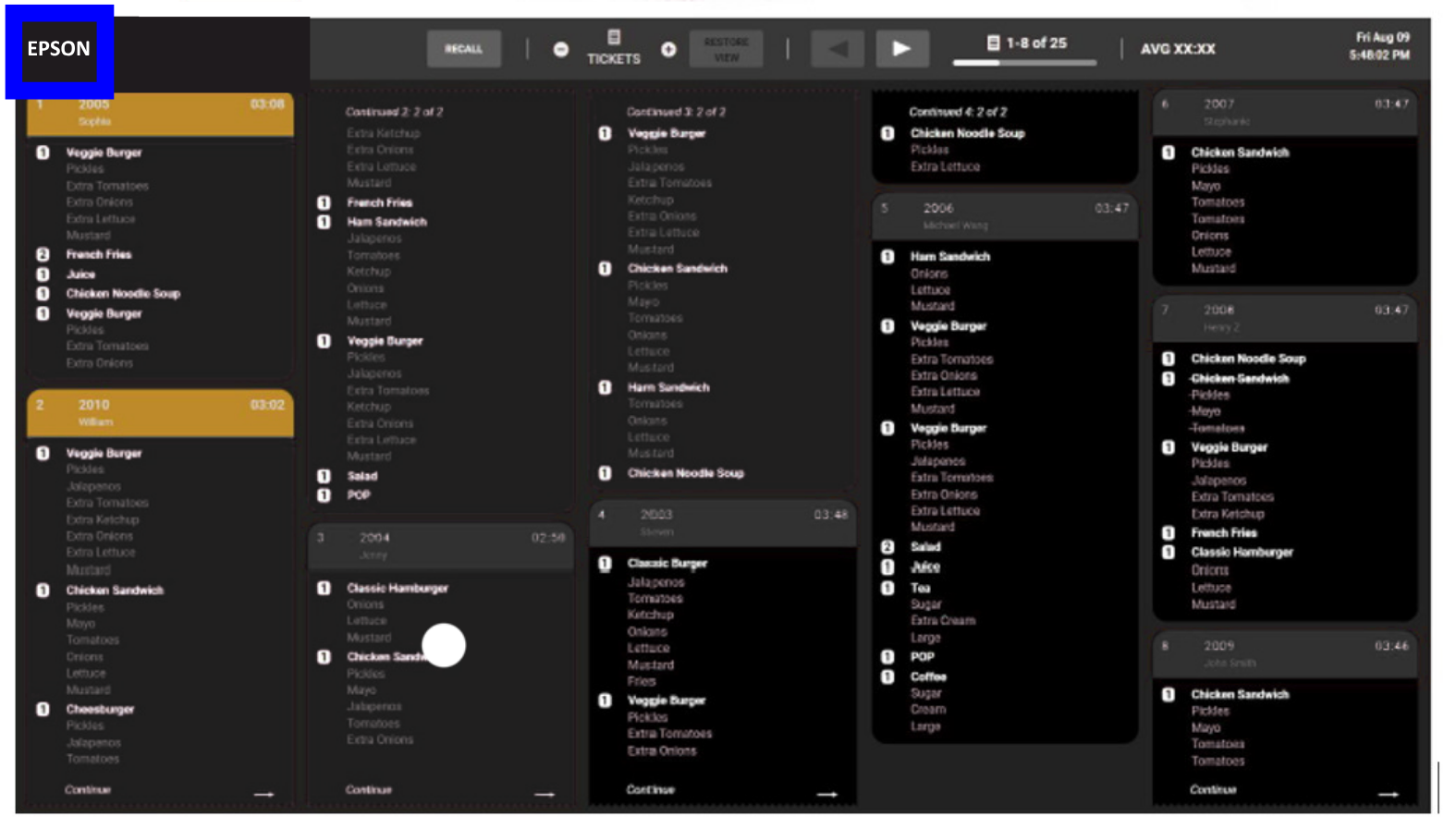
- This will bring up the IP address assigned to the KDS device.
- Note: Each device will have a different IP address.
- From a computer on the same network, type the IP address into the web browser.

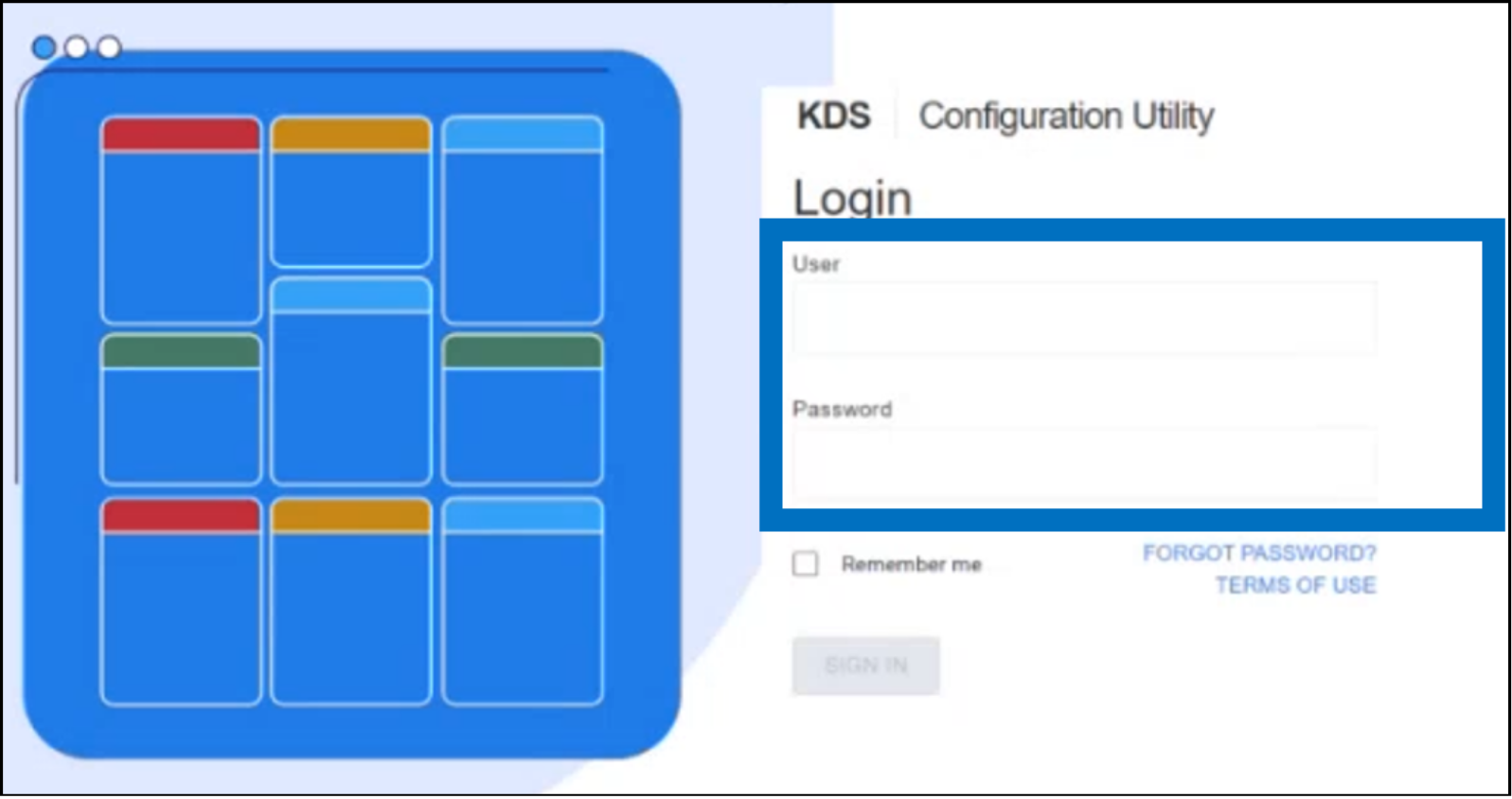
- The login screen will immediately display.
- Login using the following credentials:
- Username: Epson.admin.all@epson.epson
- Password: 123456
- Username: Epson.admin.all@epson.epson
- Important: Do not create a customized password.
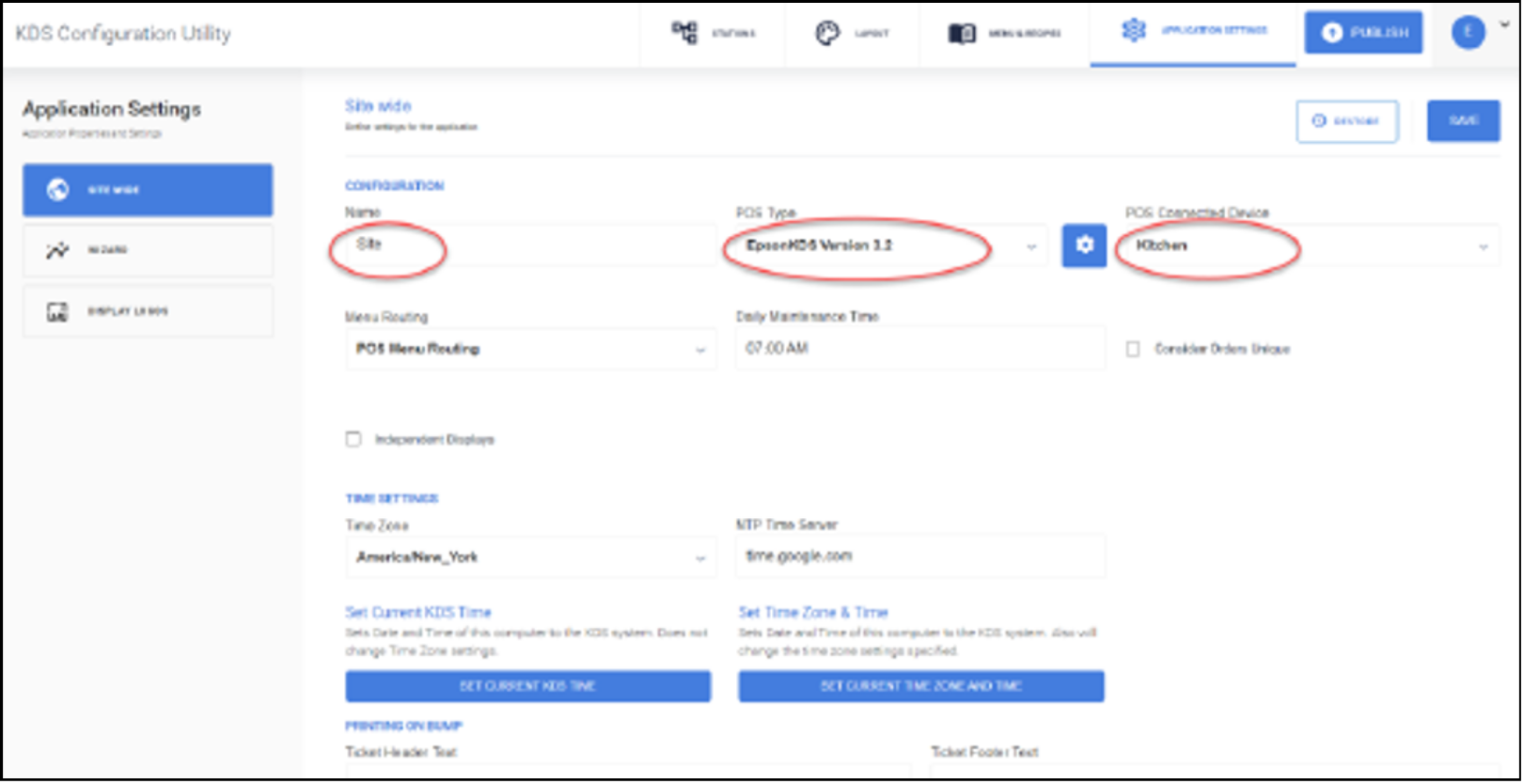
- Click Application Settings > Site Wide:
- POS Type: Select the POS that is sending orders so the KDS can parse them.
- Note: If the POS does not appear in the list, contact Exatouch Technical Support for guidance.
- POS Connected Device: From the dropdown list select “Kitchen.”
- Consider Order Unique: Any changes to an order will cause that order to show up in its own tile.
- Set Current KDS Time: Allows the clock on the KDS display to be set to the same time as the configurator device.
- POS Type: Select the POS that is sending orders so the KDS can parse them.
- Click Save.
Application Settings (Site-Wide Settings)
Perform the following steps, in order, to configure the first station, typically the Kitchen display.
Discover the Device
- Select Stations > Device Config.
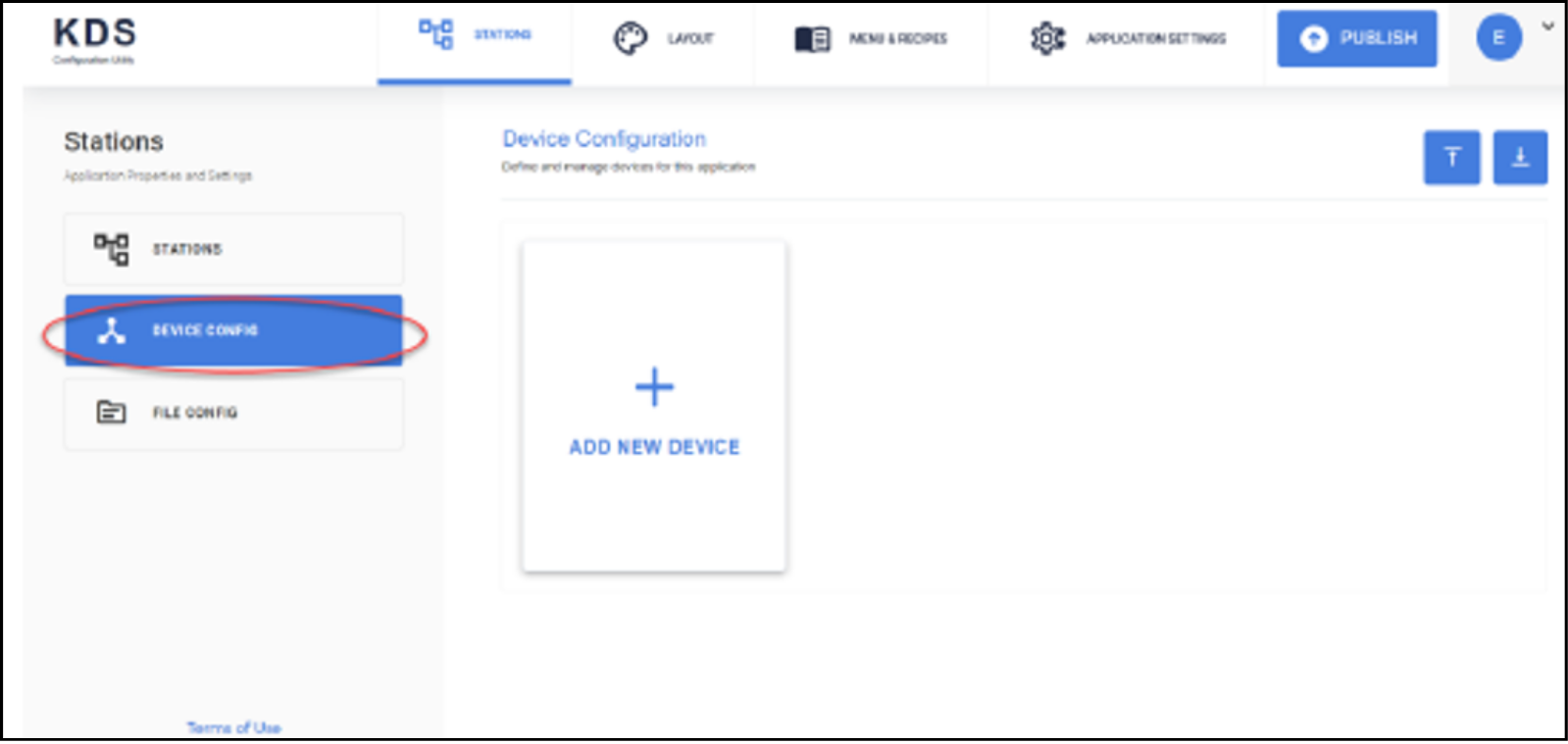
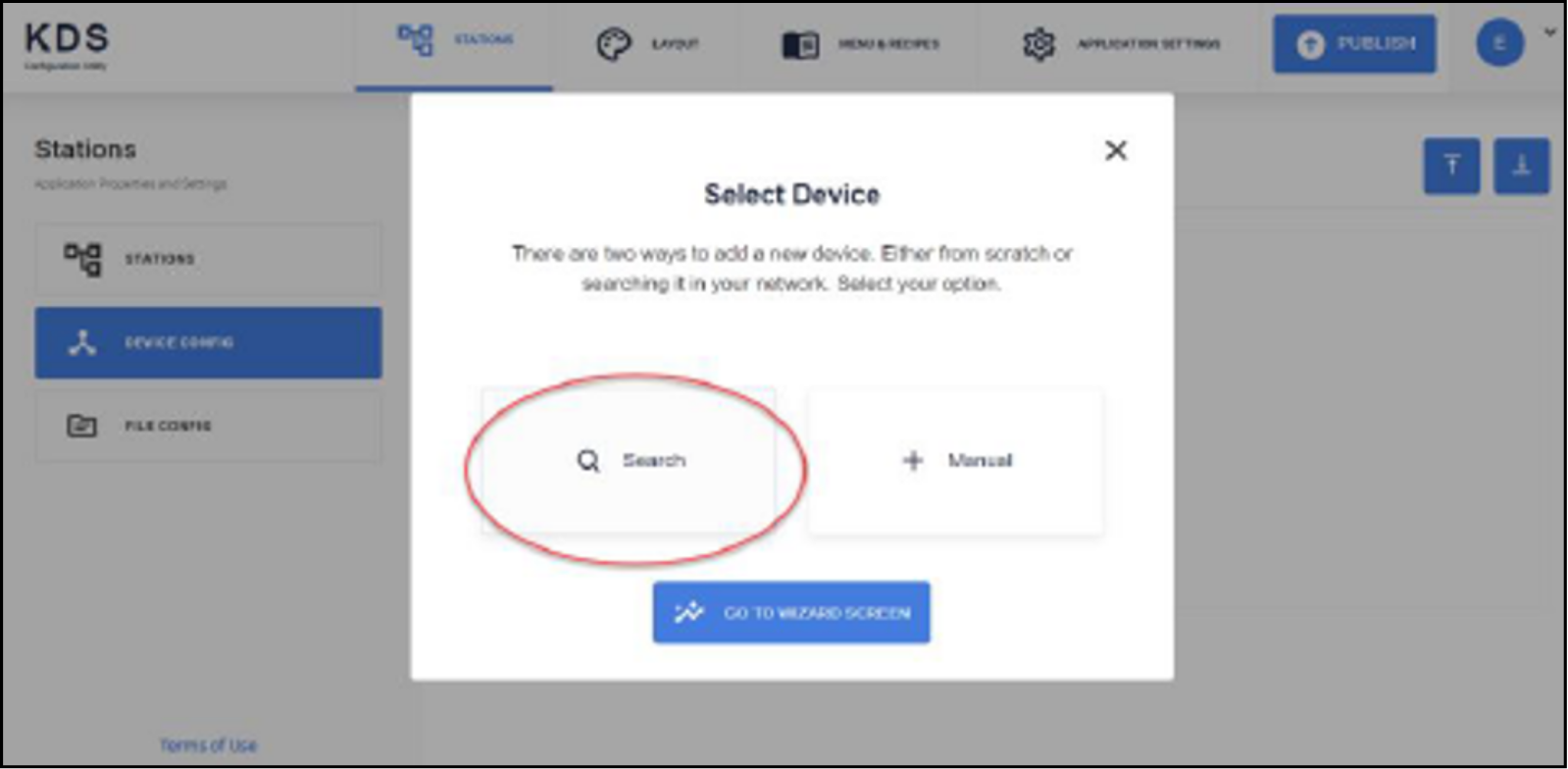
- Click OK to start device discovery.
- Click Search.
- If there is more than one KDS device, multiple KDS devices will be discovered. Click on the device to be configured first.
- Note: If setting up multiple display stations, do not try to configure the Expeditor display first. It is not findable until after an order display station is configured.
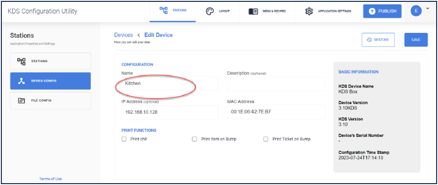
- Name the device. In the following example, it is named “Kitchen.”
- Click Save. The Kitchen device is now available.
Create Ticket Layouts
Perform the following steps to customize how your tickets display.
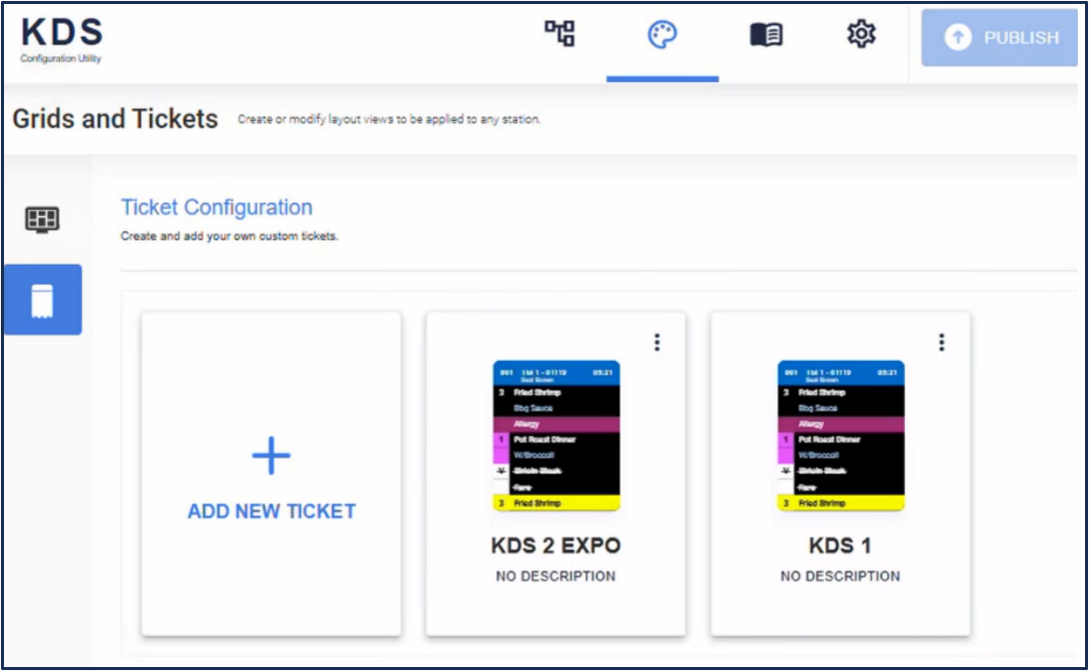
- Select Palette > Ticket Configuration
- Click Add New Ticket.
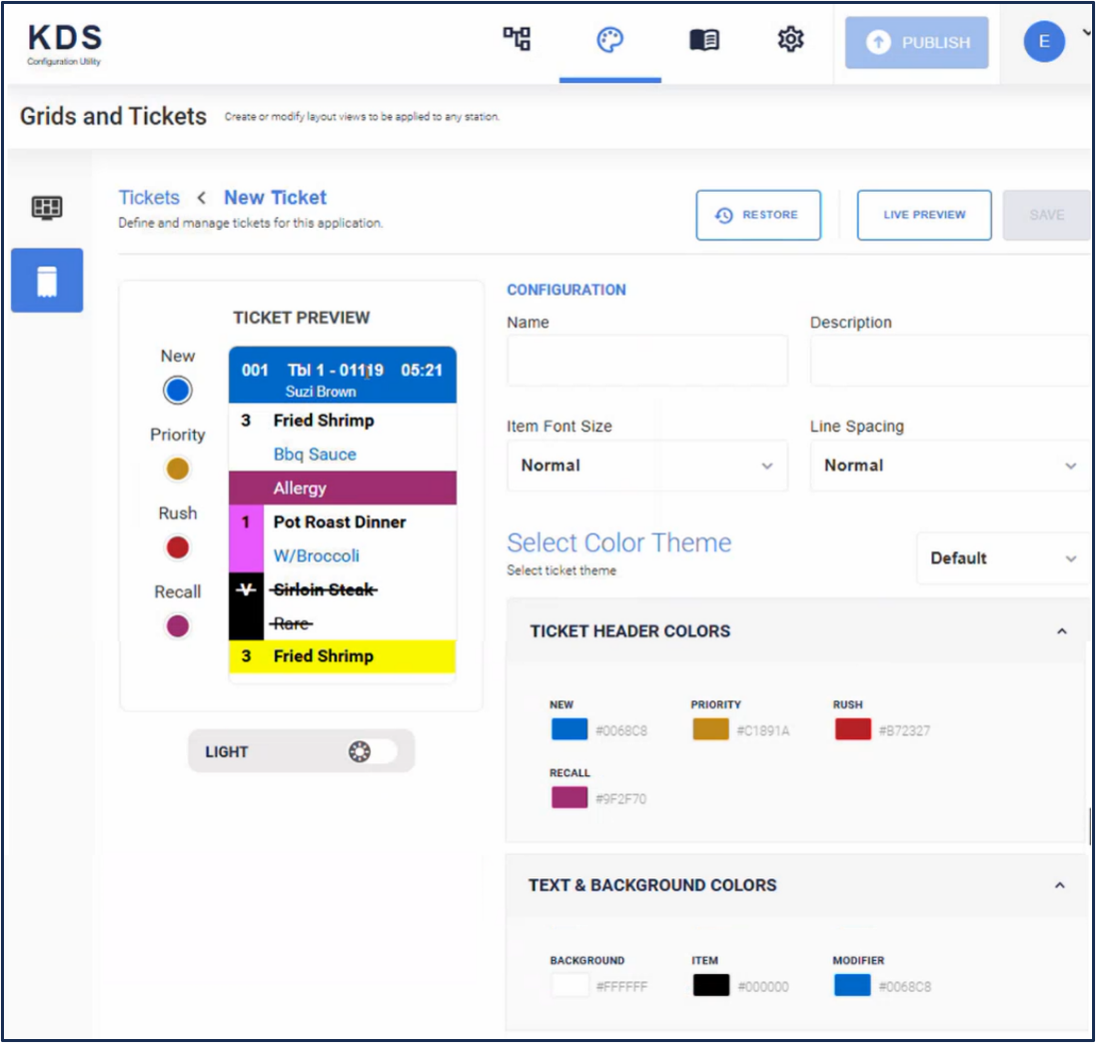
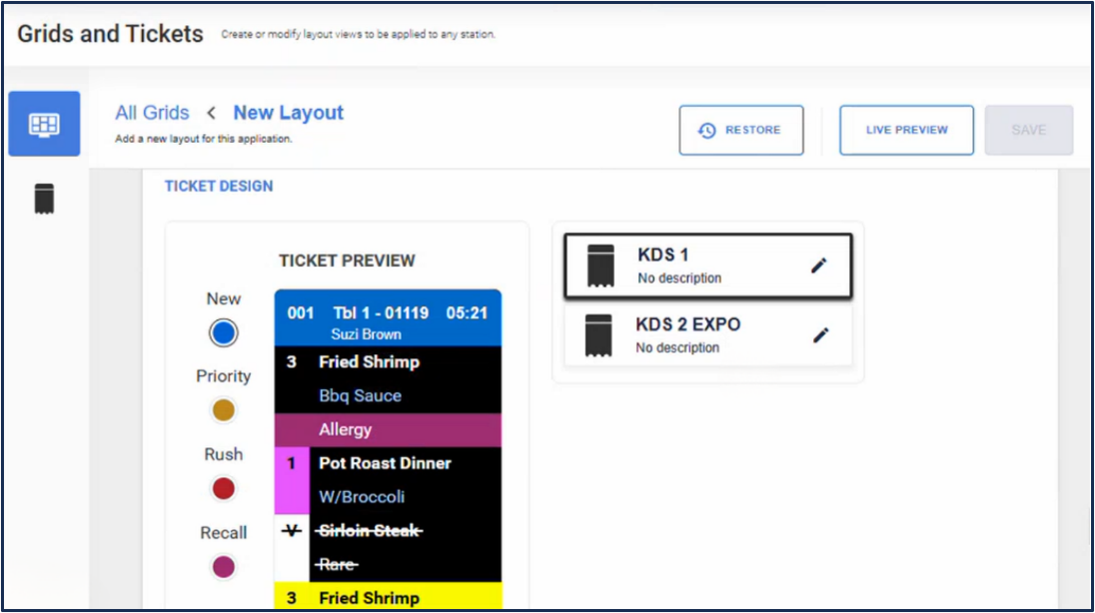
- Keep the defaults or customize the ticket configuration.
- Name: Create a name for this ticket.
- Description: Write a short description of the ticket.
- Item Font size: Choose the font size for your needs.
- Line Spacing: Choose the line spacing for your needs.
- Ticket Header Colors: This color appears at the top of each ticket. In the example, it is blue for a new ticket.
- Text & Background Colors: In the example, the background of the ticket is white, items (like Fried Shrimp) are black, and modifiers (like Bbq Sauce) are blue.
- Click Save.
Create Grid Layouts
Perform the following steps to customize how your tickets display.
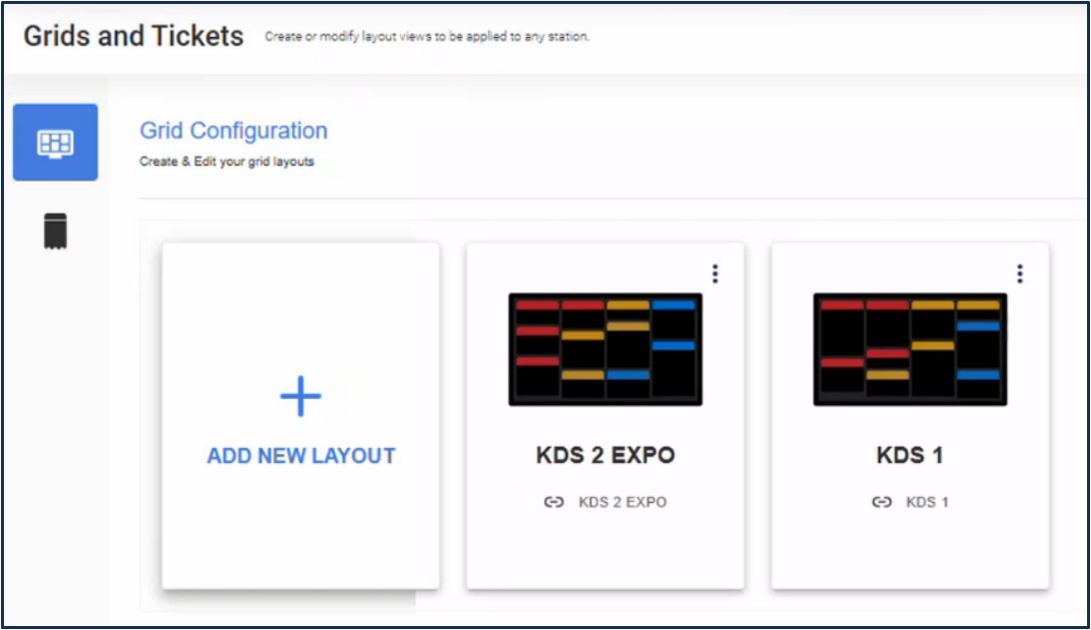
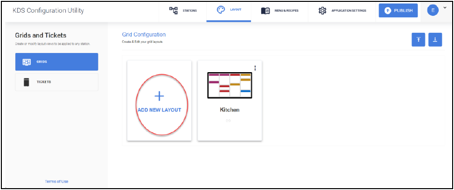
- Select Grid > Grid Configuration.
- Click Add New Layout.
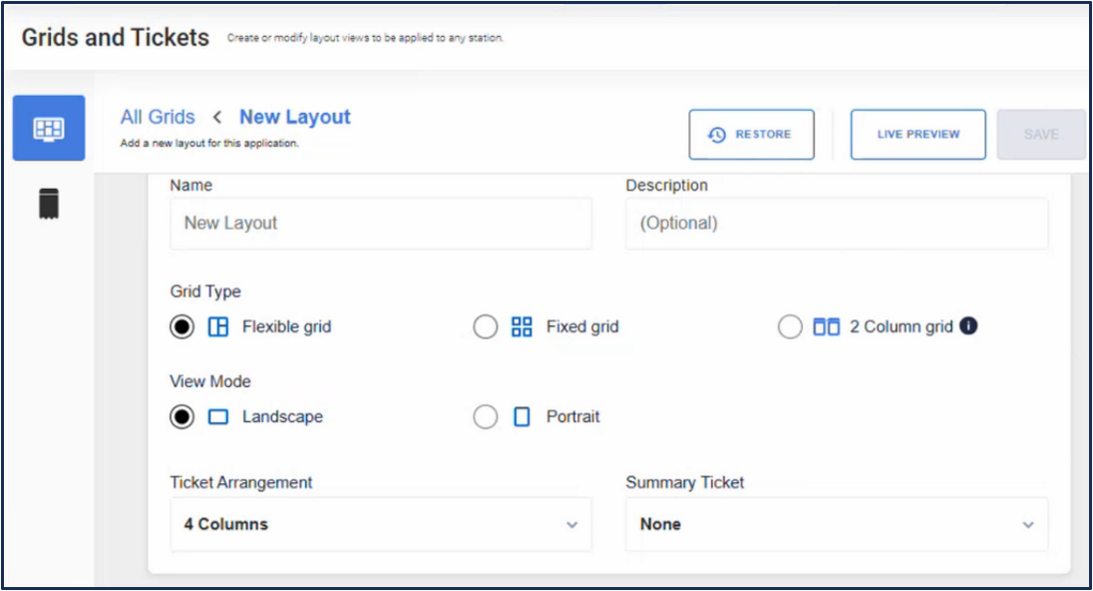
- Grid Type (keep defaults or make changes):
- Flexible grid: Allows for more tickets on the screen, but if there isn’t enough room for the whole ticket, the bottom part will automatically move to the top of the next column.
- Fixed grid: Displays one ticket per column, which allows you to only see as many tickets as you have columns.
- Note: 2-column grid is not available for Exatouch.
- Landscape: Offers a horizontal view, allowing for more columns of tickets.
- Portrait: Offers a vertical view, allowing for longer columns.
- Choose the number of columns for your station, remembering that column width is dependent on the number of columns.
- If you choose to use a Summary Ticket, the display will tally the number of specific items that you choose for a total needed for specific items. This works well for best-sellers or sale items.
- Priority Time: The amount of time before the order header will change to the Priority Color.
- Rush Time: The amount of time before the order header will change to the Rush Color.
- Summary Ticket: Allows you to configure a tile as a Summary tile for menu items.
- New Order Sound (optional) : Choose a sound to be played on an incoming order to the KDS from an attached USB audio device.
Create Station Configuration
Perform the following steps to customize how your tickets display.
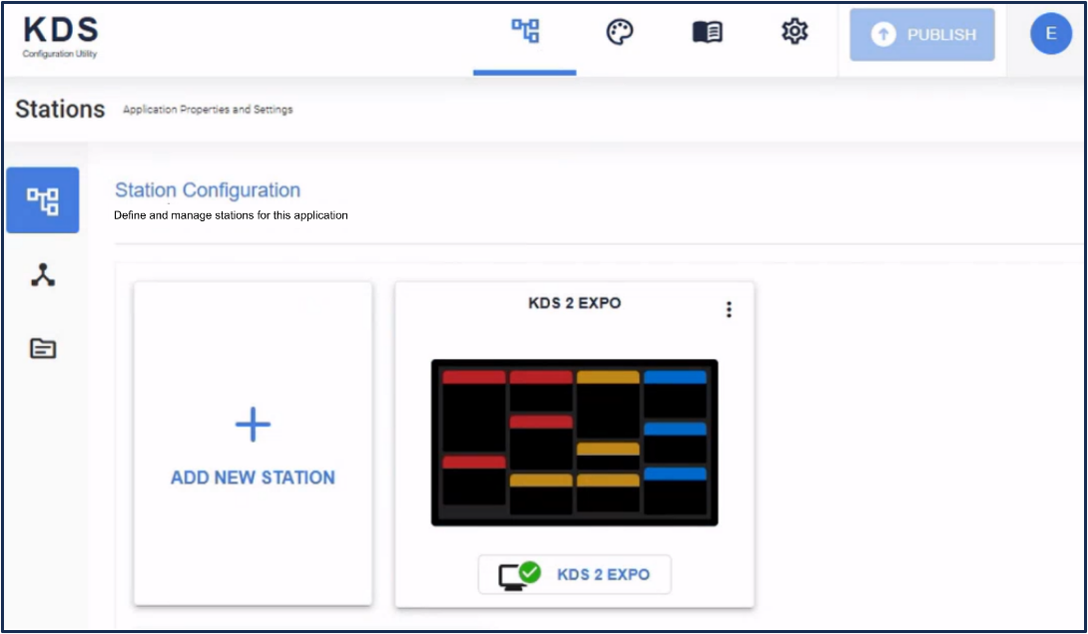
- Select Stations > Station Configuration.
- Click Add New Station.
- Name the station. You also have the option of adding a short description.
- Choose the Layout for which you want the newly-created ticket to appear.
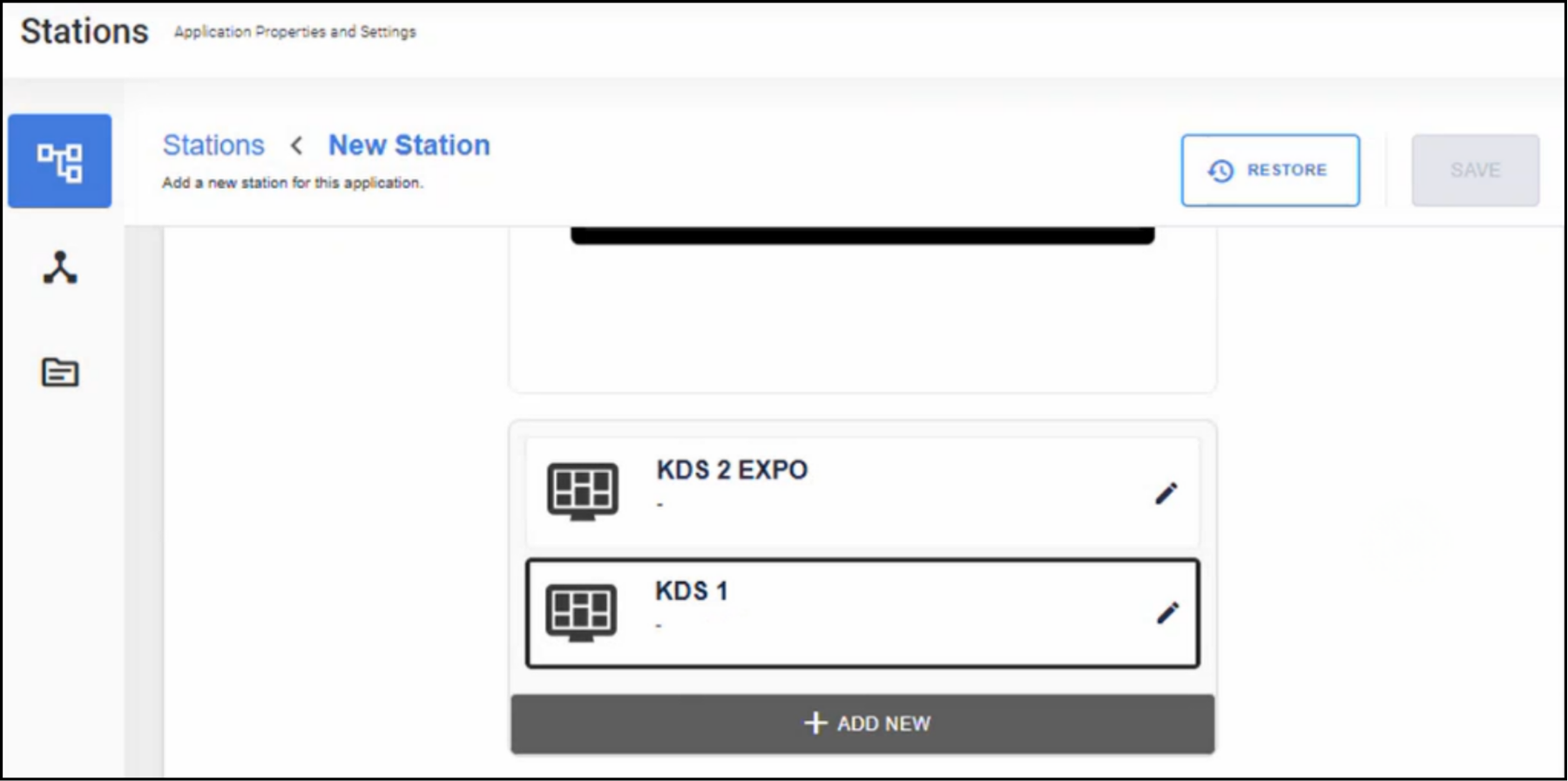
- Preview the layout and make any necessary edits by returning to ticket configuration.
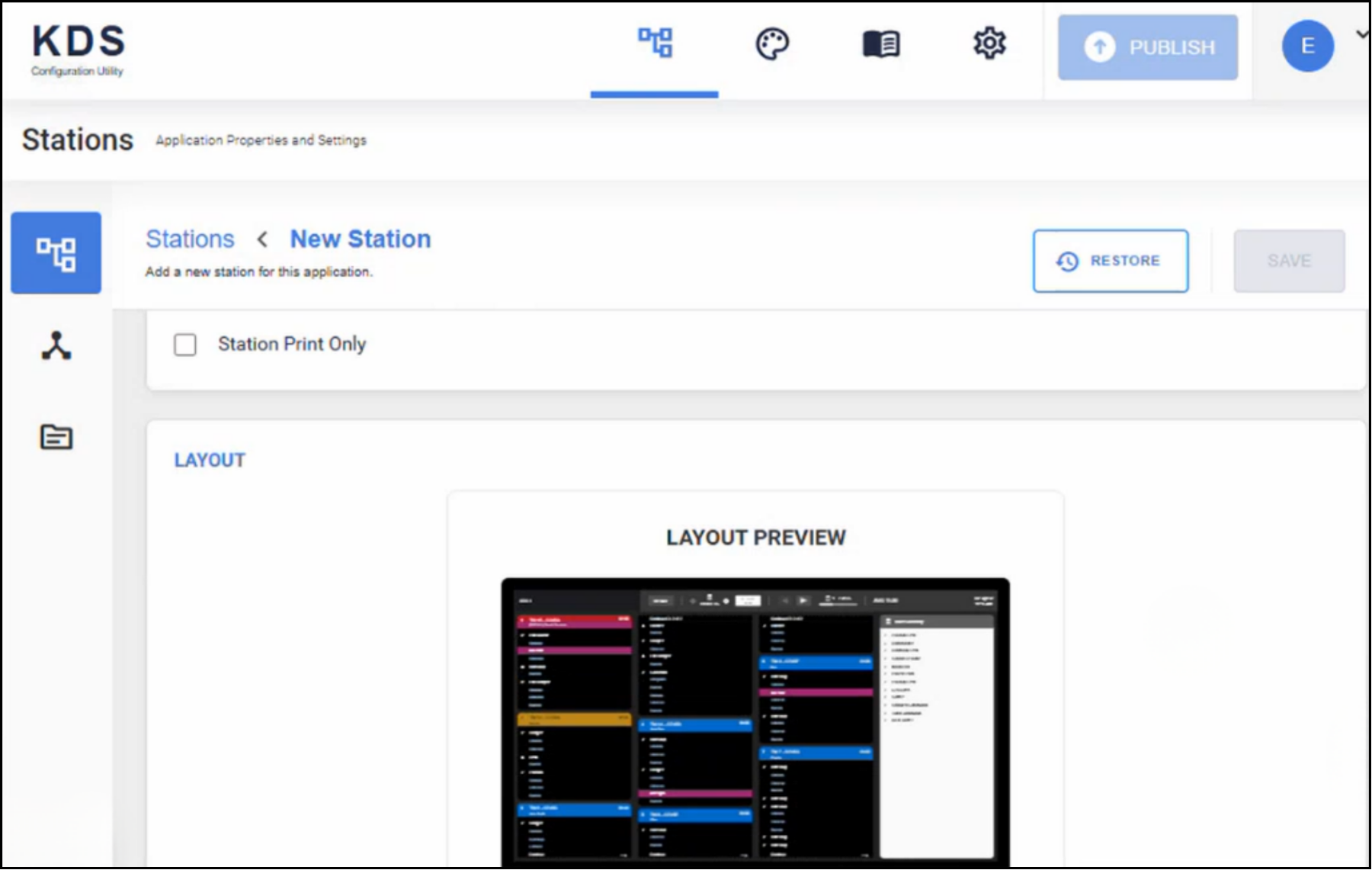
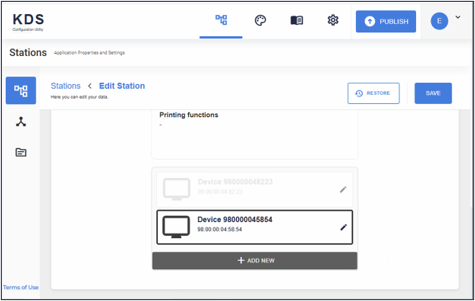
- Choose the Device for which you want the newly-created ticket to appear.
- Click Save.
Publish the Configuration Settings
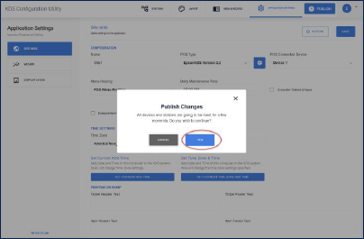
- Click Publish, then confirm with Yes to apply the settings to system.
Expeditor Stations are configured like regular Kitchen Stations, but they function differently with Exatouch. Expeditor KDS stations receive orders that are bumped from other KDS stations in the environment.
- Note: When configuring printers in Exatouch, do not send orders directly to an Expeditor KDS system.
Discover the Device
Follow the instructions from the Discover the Device section earlier in this document.
Create Ticket Layouts
Follow the instructions from the Create Ticket Layouts section earlier in this document.
Create Grid Layouts
Follow the instructions from the Create Grid Layouts section earlier in this document.
Add New Station
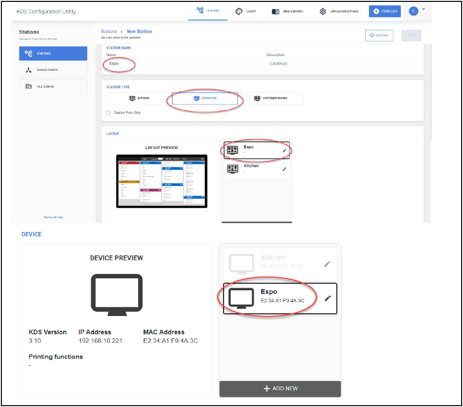
- Click Stations > Add New Station. The Kitchen station should be visible.
- Set name as Expo and station type as Expeditor.
- Select Expo in the Layout section.
- Select Expo in the Device Section.
- Click Save.
Publish the Configuration Settings
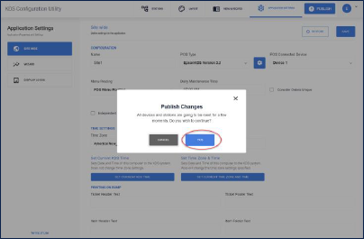
- Click Publish, then confirm with Yes to apply the settings to system.
Summary tiles let you create custom lists that track key items across all KDS tickets. Kitchen and Expeditor Station Types can have Summary Tiles.
For example, if French Fries are tracked on a Summary Tile and appear on four separate orders, the tile shows all four orders need French Fries in one place.
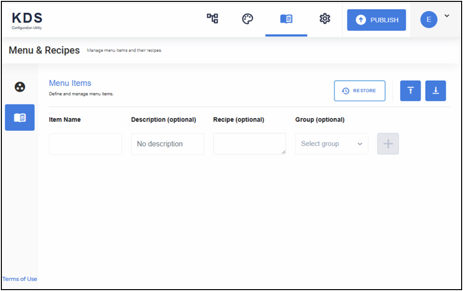
Create Group
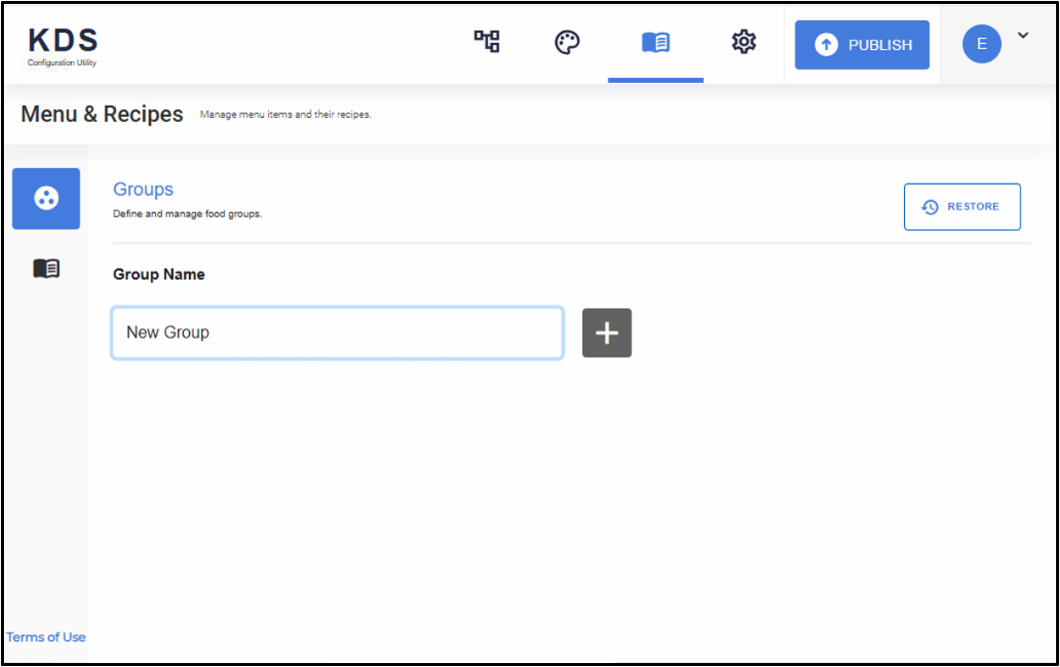
- Select Book > Groups.
- Name the Group, then click the Plus.
Adding Items to the Group
- Click Book > Menu.
- Enter the Item Name exactly how it prints on the kitchen ticket.
- Select Group, then click Plus.
Add the Summary Tile to a Screen
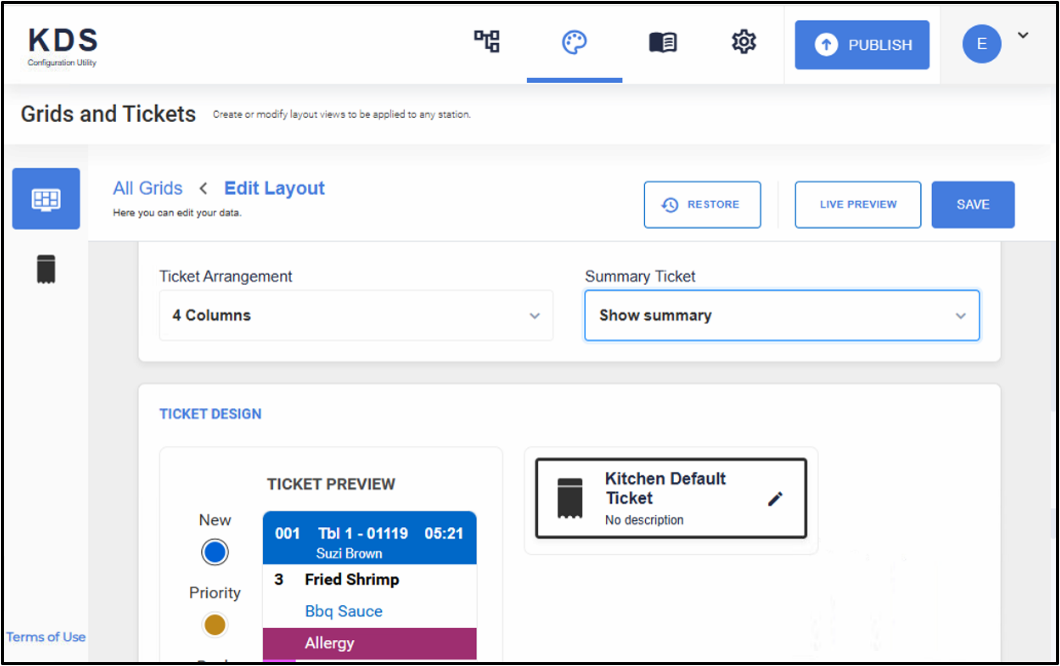
- Select Palette > Grids > Select Grid.
- Click the Summary Ticket dropdown, then select Show Summary.
- Click Save.
Publish the Configuration Settings
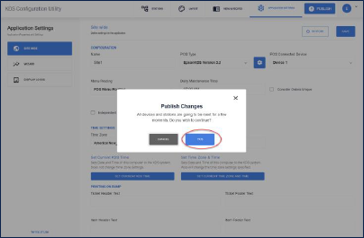
- Click Publish, then confirm with Yes to apply the settings to system.
Before orders can appear on the TrueOrder KDS, Exatouch must be configured to send the correct categories to the appropriate remote printer.
Printer Settings
- From Home, navigate to Settings > Printers.
- Tap the Printers dropdown.
- Select the KDS printer from the dropdown list.
- Tap Save.
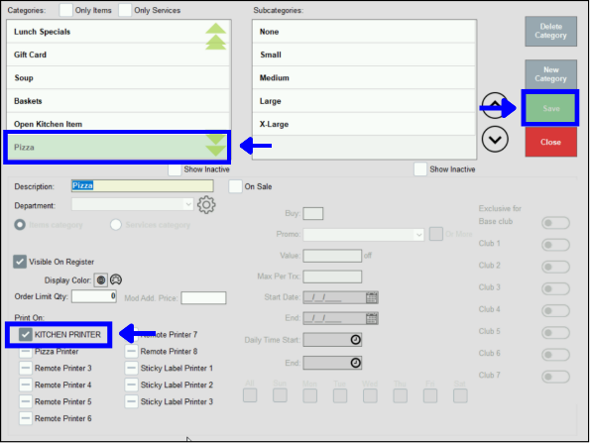
Assign a Category to a Remote Printer
- From Home, navigate to Items > Categories.
- Select the category that should send items to the KDS printer.
- In the Print On section, select the desired remote printer.
- Tap Save.
How can we improve this information for you?
Registered internal users can comment. Merchants, have a suggestion? Tell us more.