
The Clock In, Clock Out, Start Break, and End Break features are recorded for timekeeping purposes. Clock in/out from shifts and breaks with your PIN or employee ID.
- From any screen, tap the Lock icon, then select Clock In.
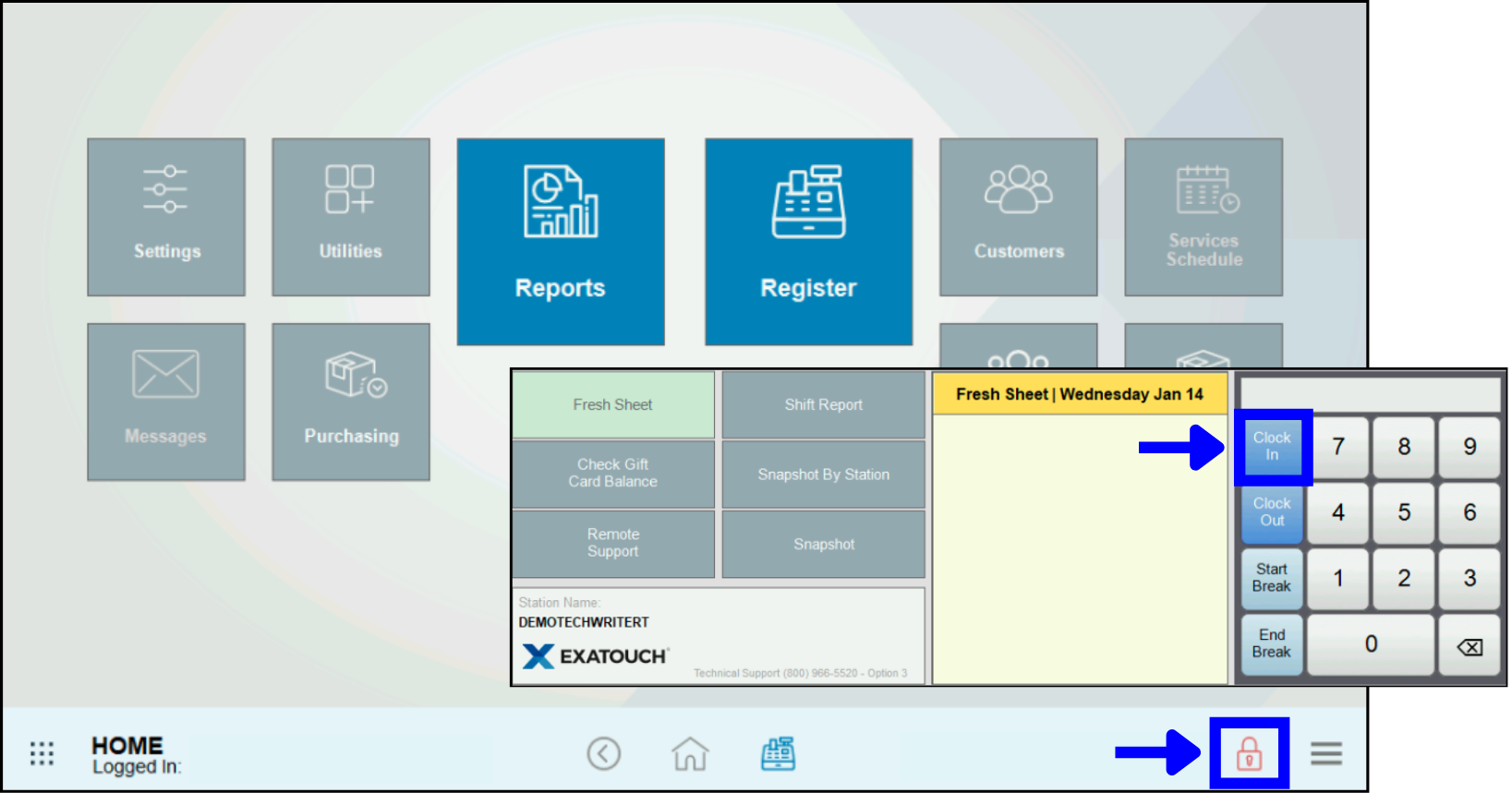
- Enter a PIN or swipe your employee ID card.
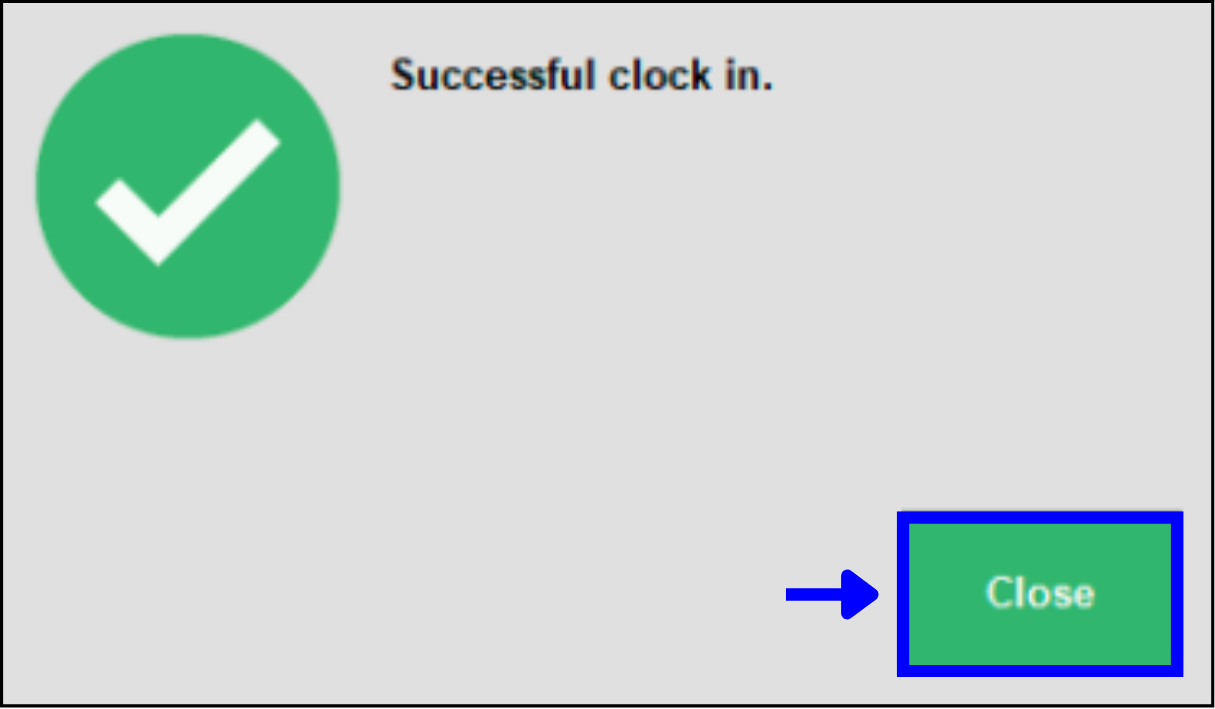
- Tap Close to confirm.
- Important: Merchants may configure Clock Out settings to automatically clock out individual employees at a preset time. Employees must check with their manager to determine the proper clock out procedure.
- From any screen, tap the Lock icon, then select Clock Out.
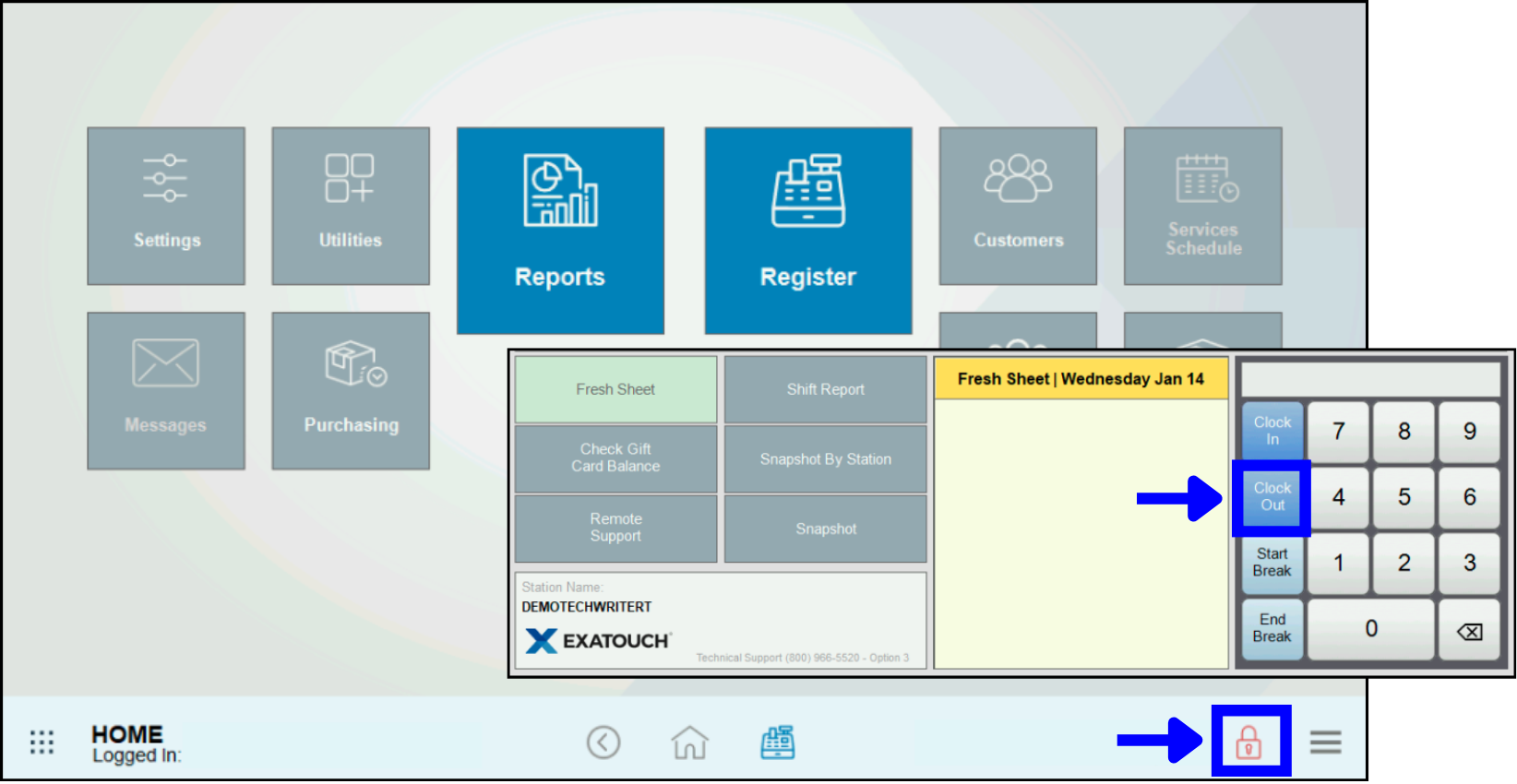
- Enter a PIN or swipe your employee ID card.
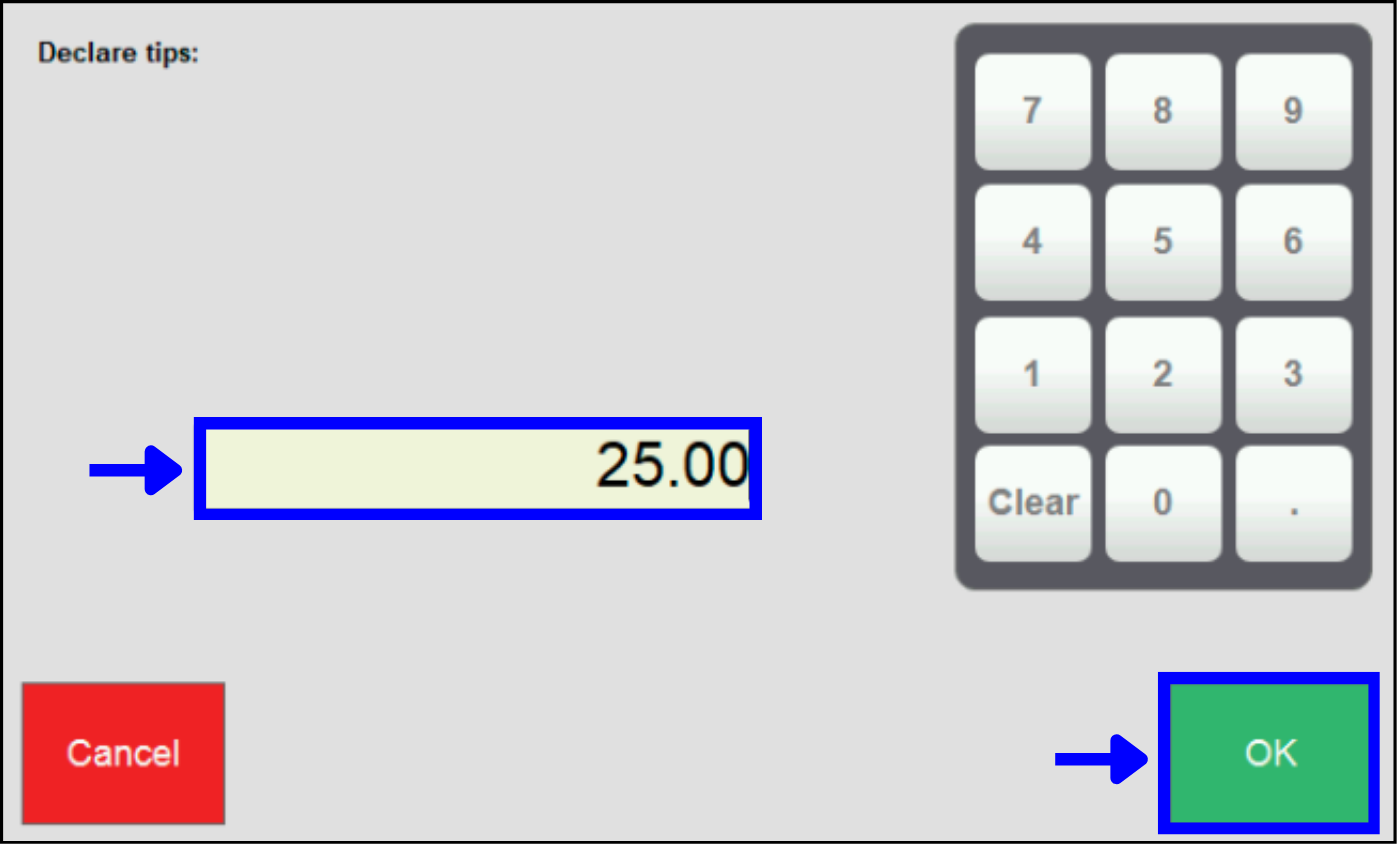
- If declaring tips, enter an amount in the Declare tips field and tap OK.
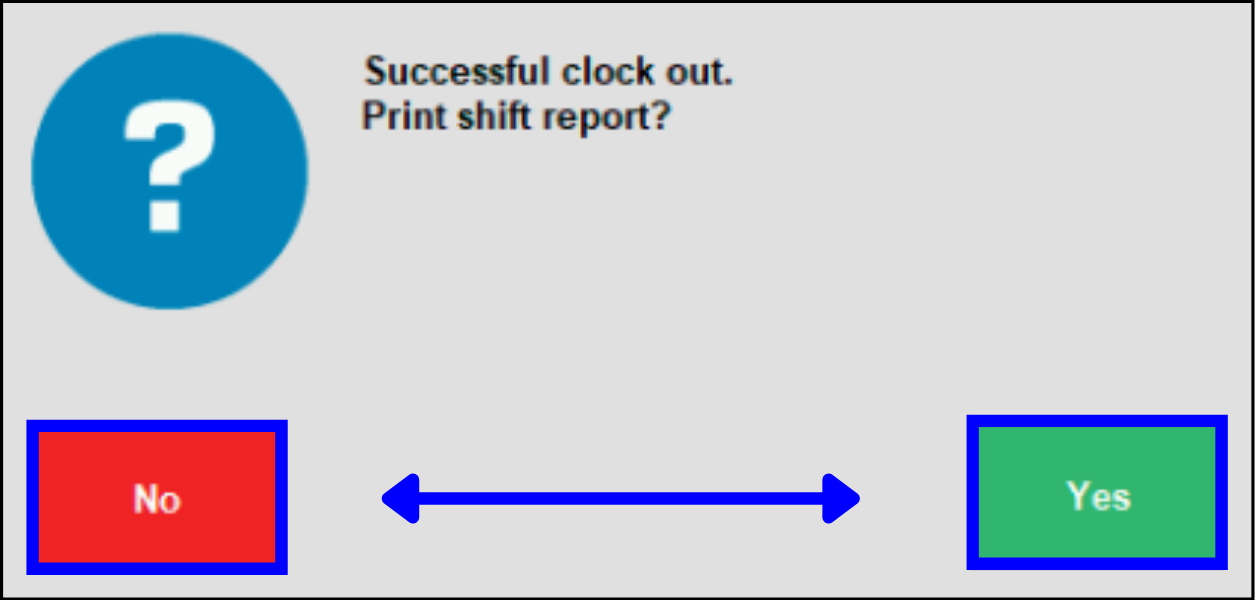
- A message displays, asking to print a shift report:
- Tap No to complete the Clock Out process without printing a shift report.
- Tap Yes to print a shift report and complete the process.
- Note: Your system must be connected to a printer to print a shift report.
- Tap Close.
- From any screen, tap the Lock icon, then select Start Break.
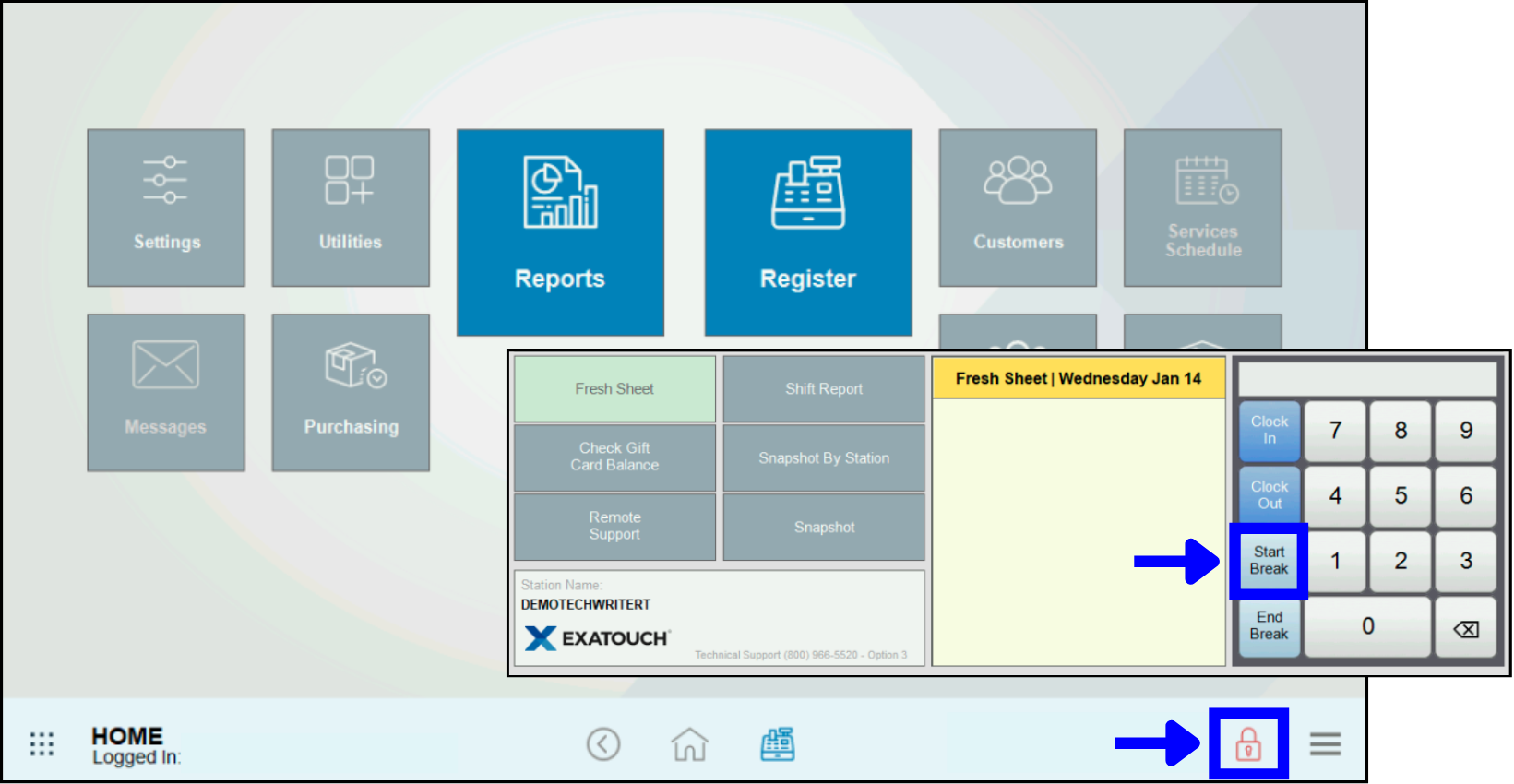
- Enter your PIN or swipe your employee ID card.
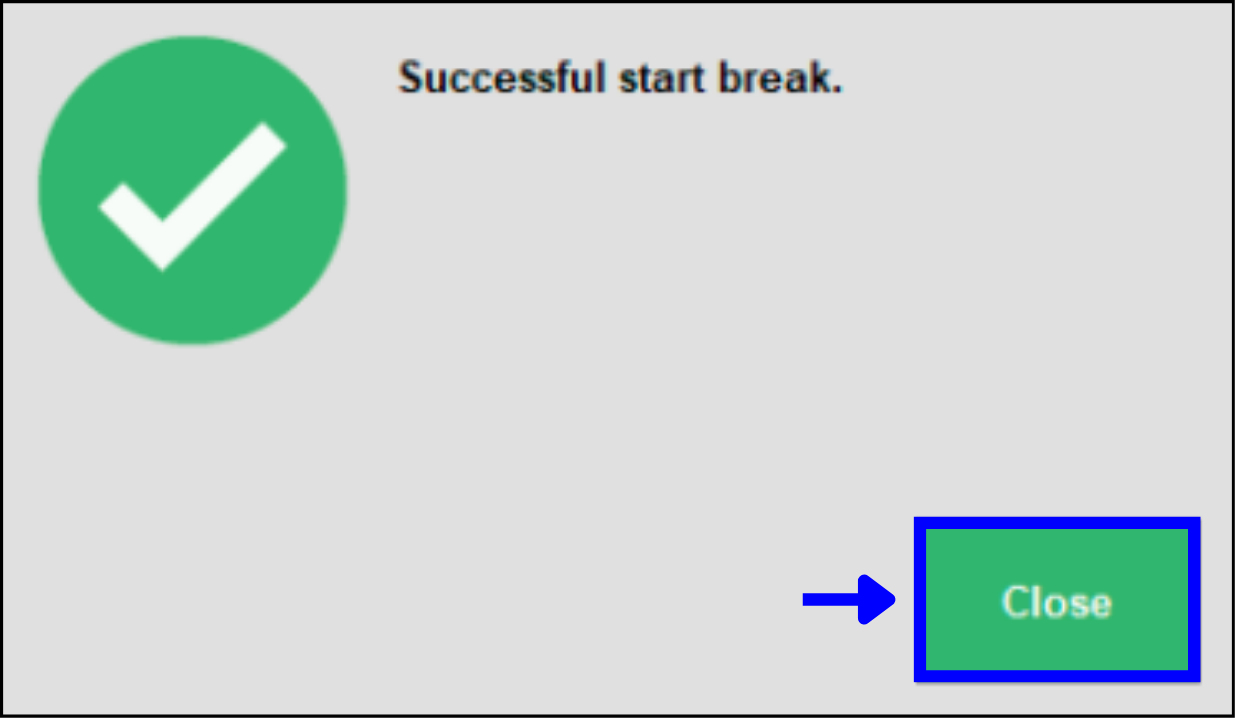
- Tap Close.
- From any screen, tap the Lock icon, then select End Break.
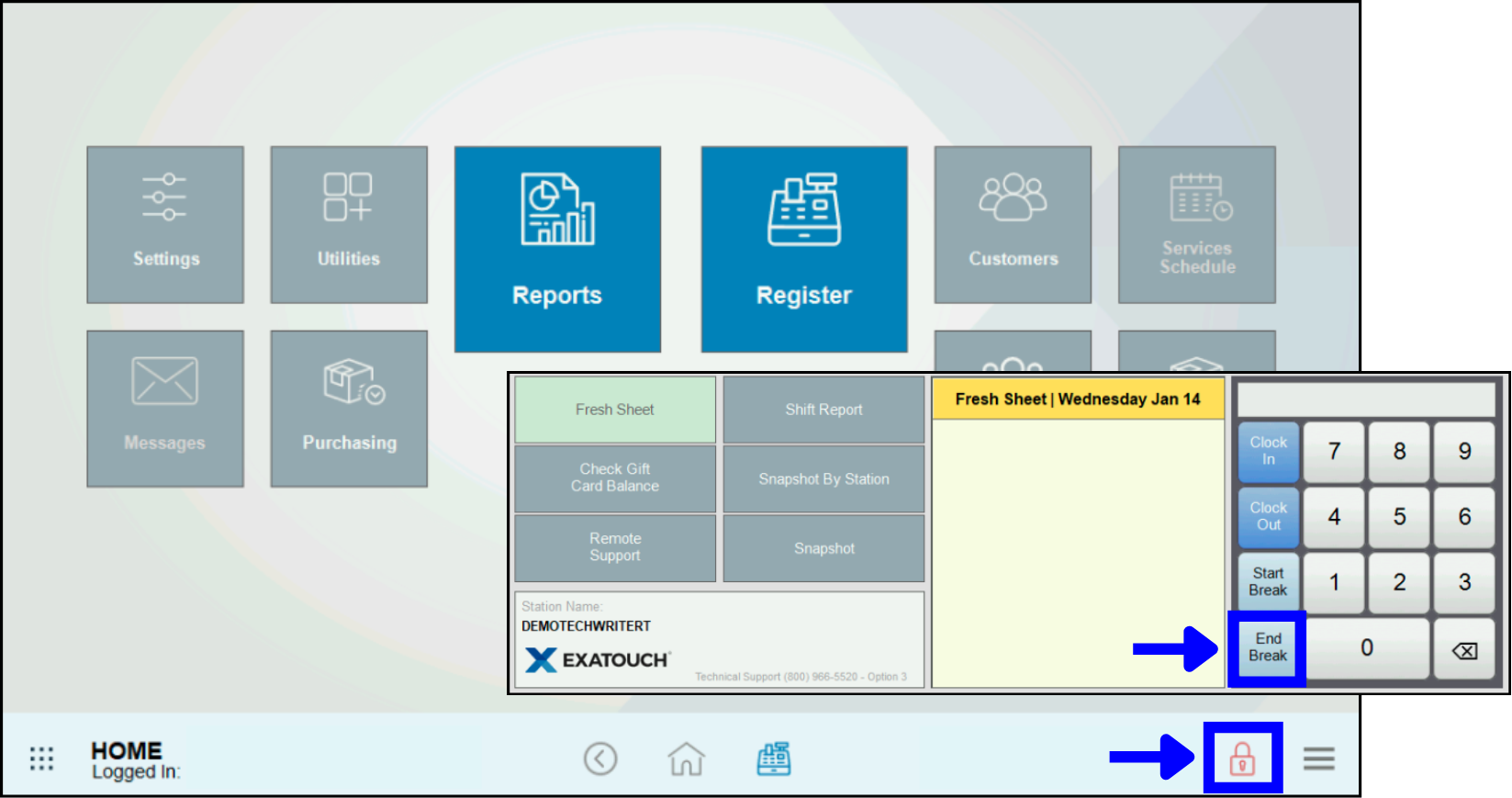
- Enter your PIN or swipe your employee ID.
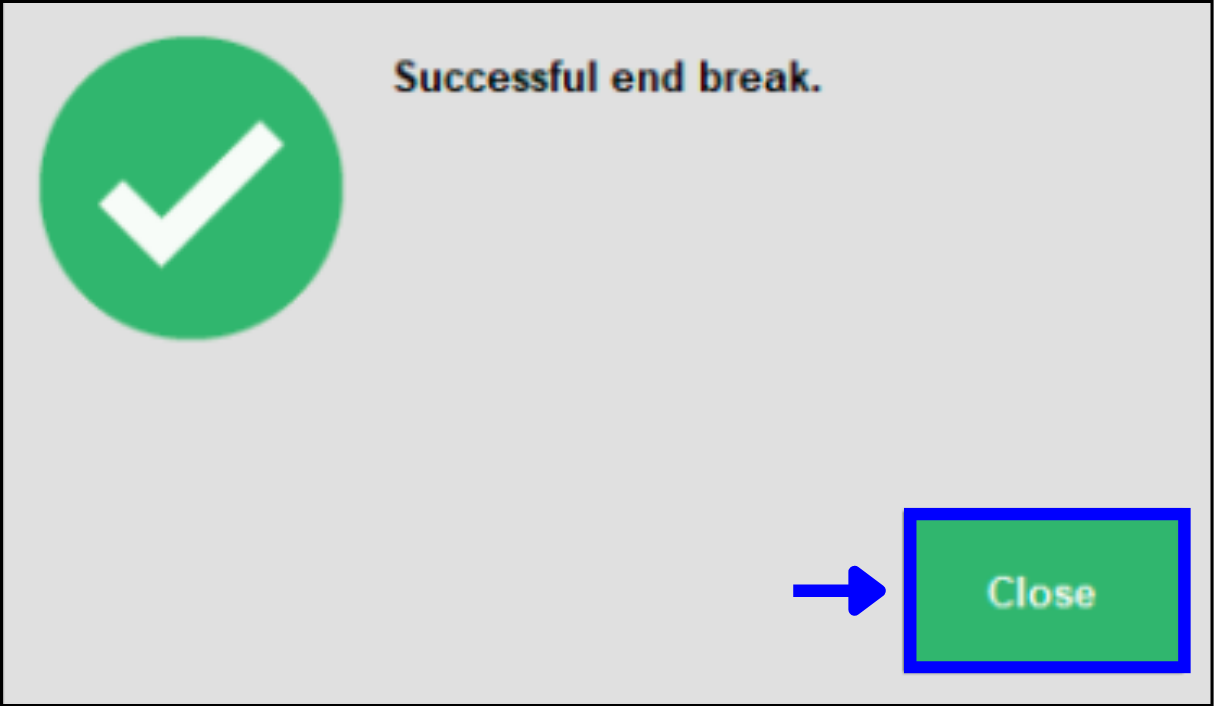
- Tap Close.
How can we improve this information for you?
Registered internal users can comment. Merchants, have a suggestion? Tell us more.