
Merchants can deactivate and reactivate items, categories, promos, staff, customers, and vendors as needed. Doing so offers several advantages:
- Less clutter on the register, easier to find what you need
- Saves space and can speed up tasks
- Easier training when extraneous items are not present
- Important: Deactivating an item does not delete it, even when using the Delete button. When an item is deactivated, it is no longer searchable in the Item List, but it will appear in reporting.
- Note: Purchase Orders (POs) cannot be deleted, but they can be voided. See: Void a Purchase Order
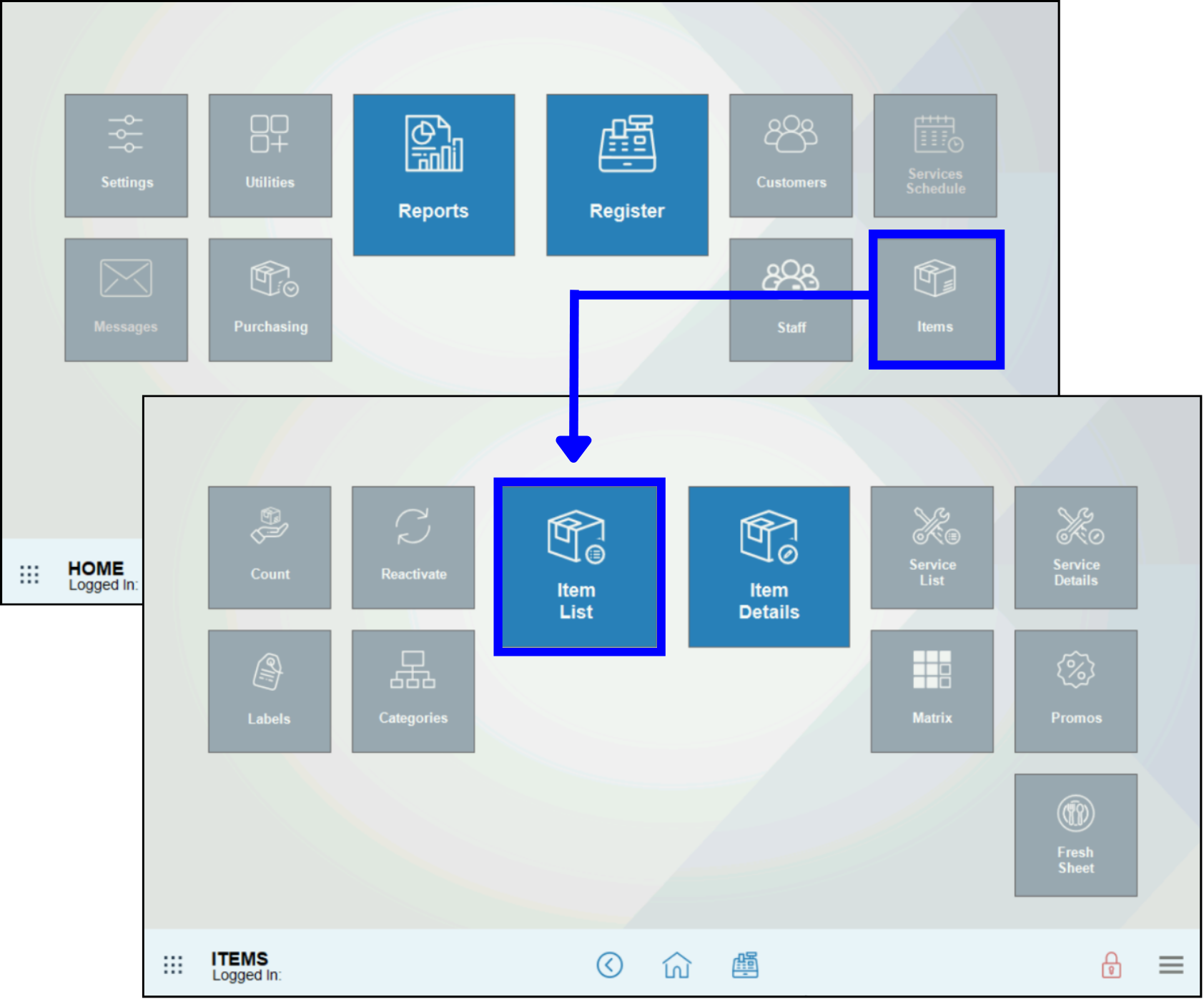
- Go to Home > Items > Item List.
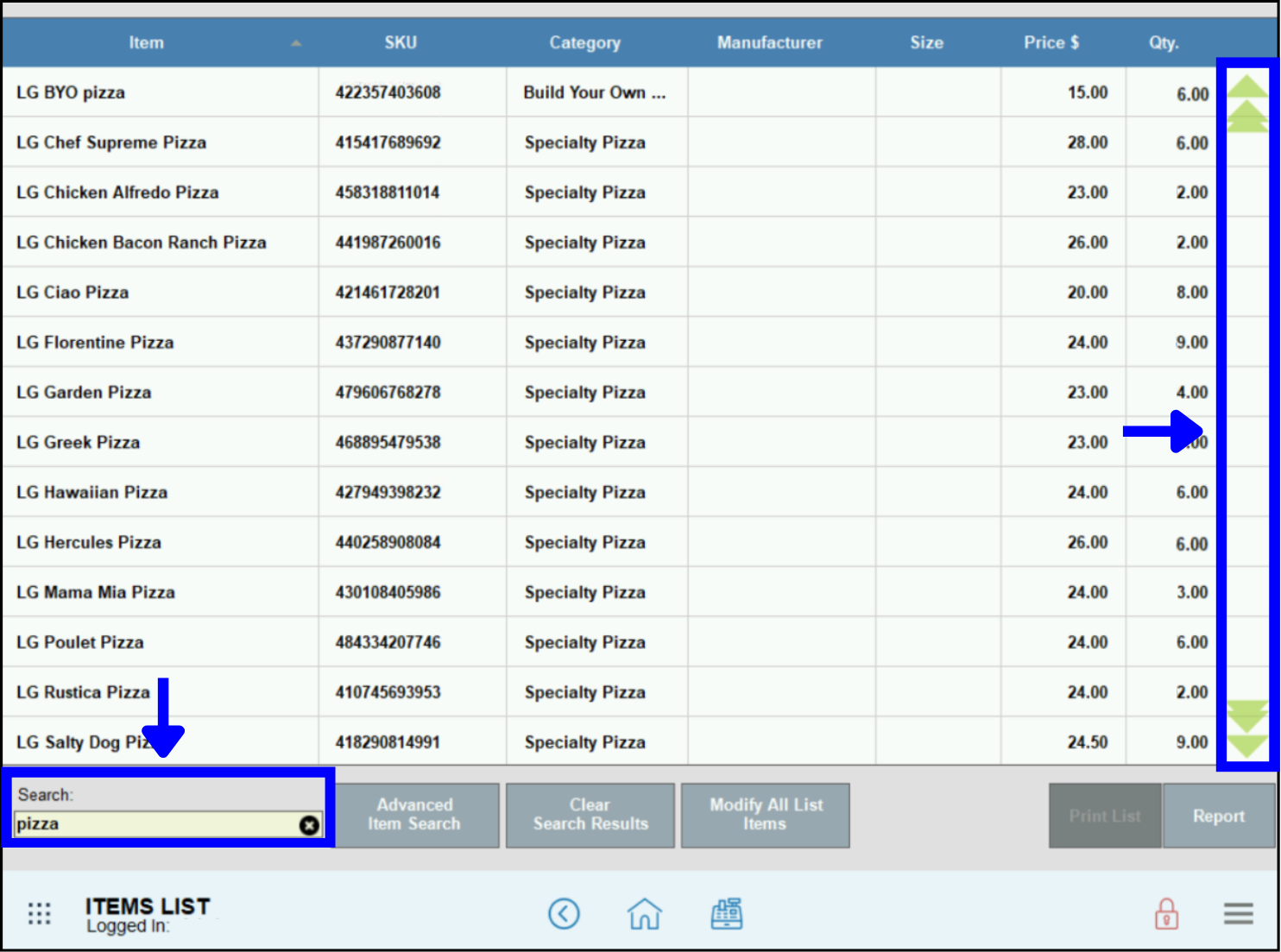
- There are two options for locating an item:
- Scroll the list to find the item to deactivate.
- Use the Filter option to find the item to deactivate.
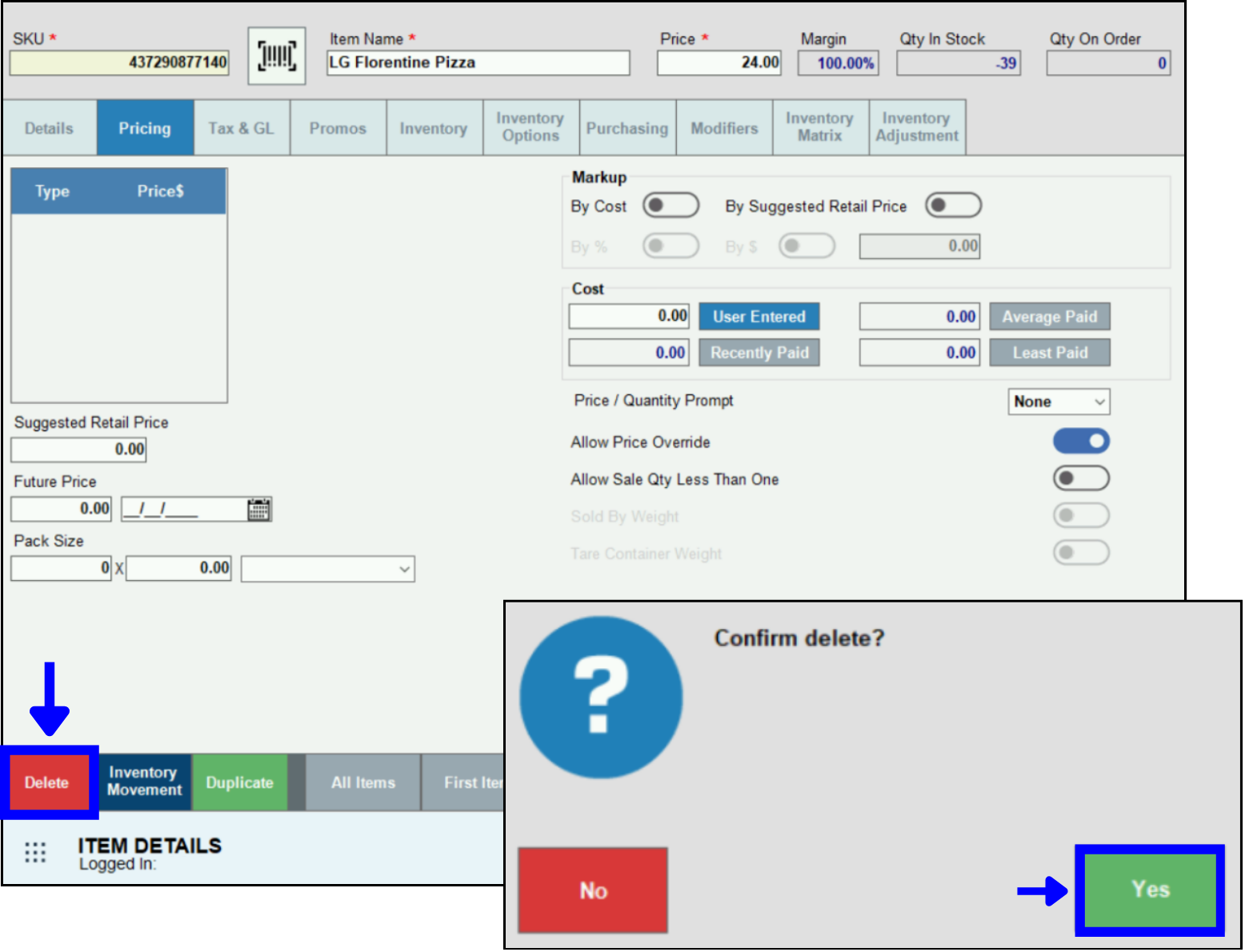
- Tap the item to open it.
- Tap Delete.
- Tap Yes in the confirmation message.
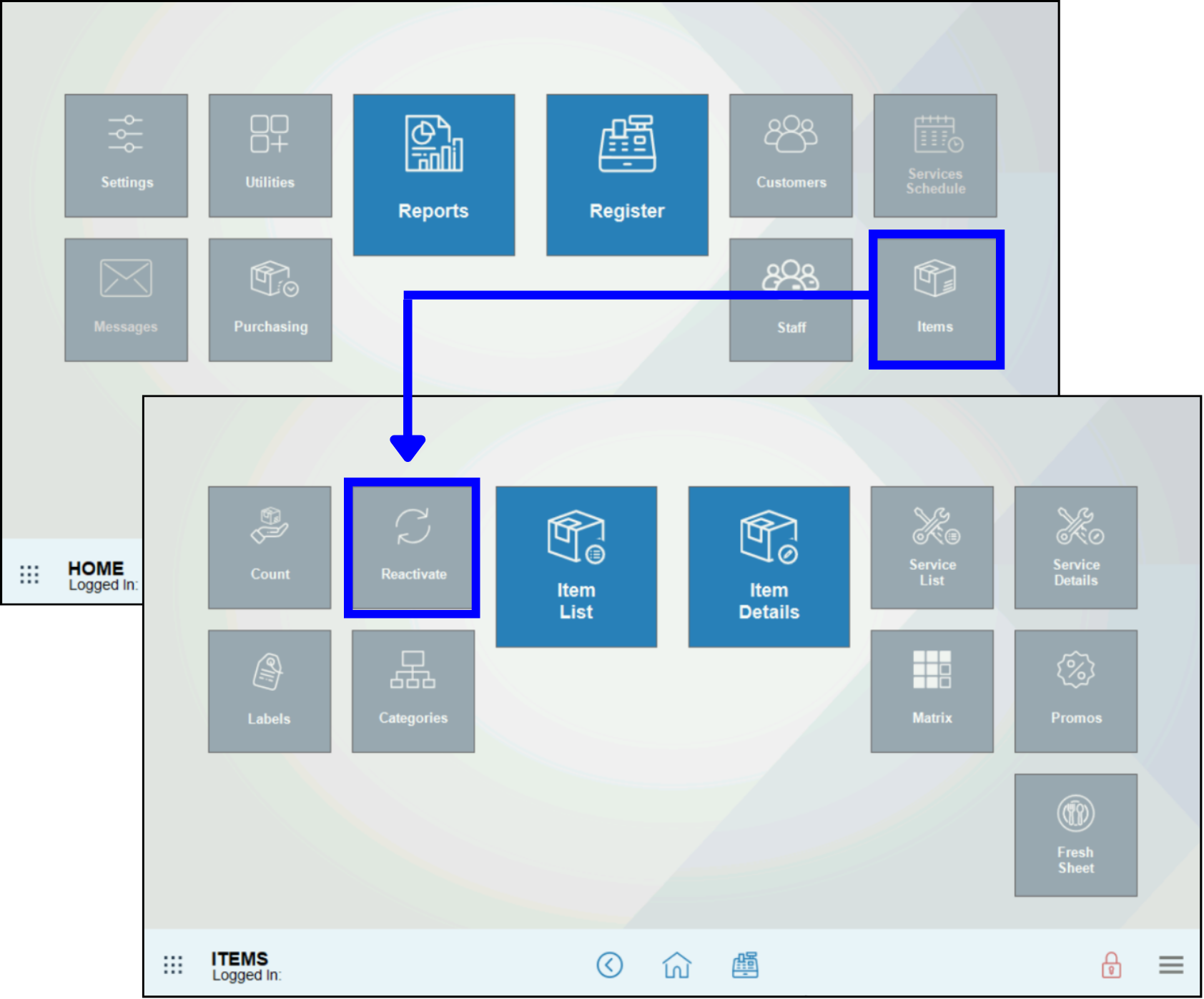
- Go to Home > Items > Reactivate .
- A list of items that can be reactivated displays.
- Scroll the list to find the item to reactivate, then tap Activate.
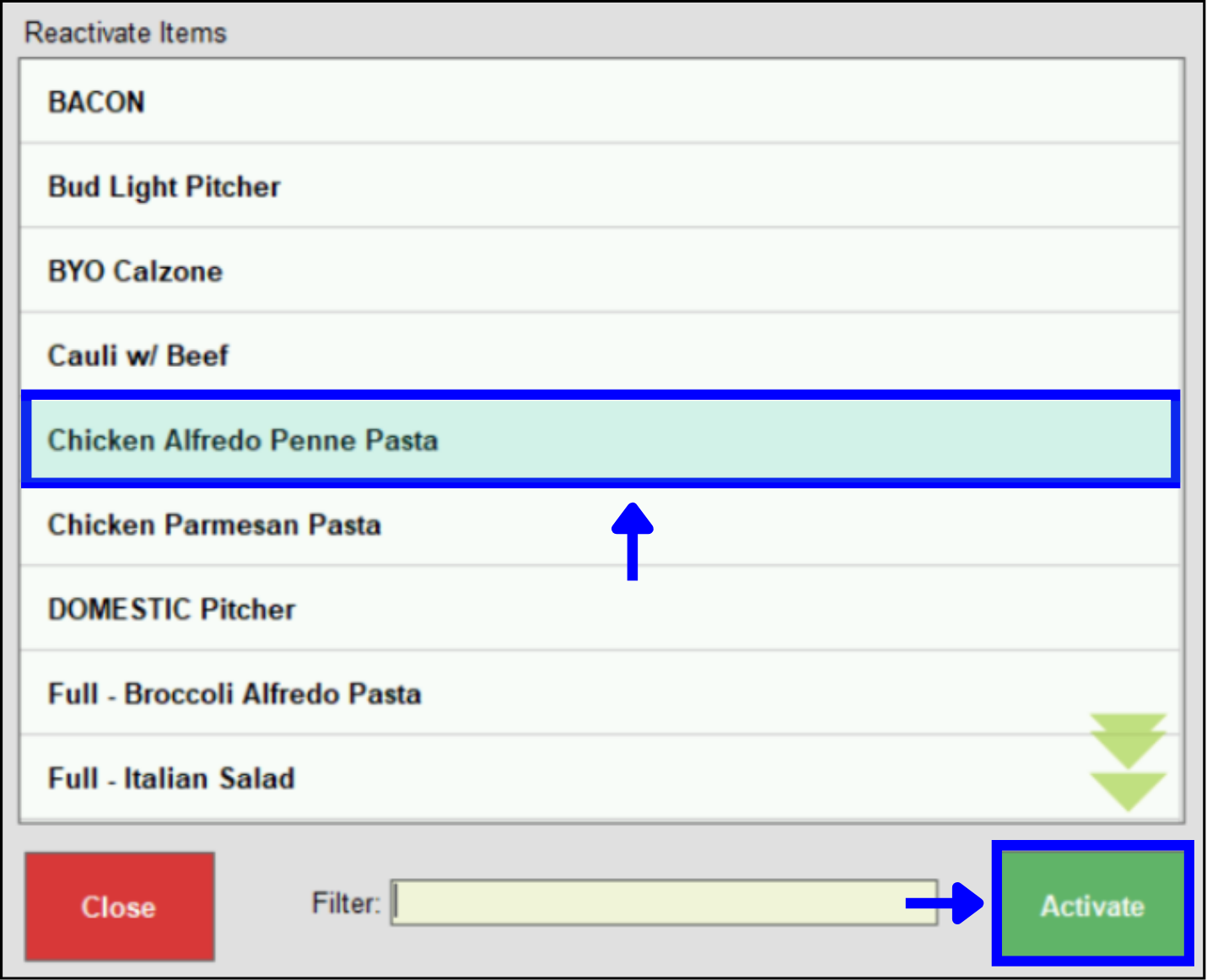
- Use the Filter option to find the item to reactivate, then tap Activate.
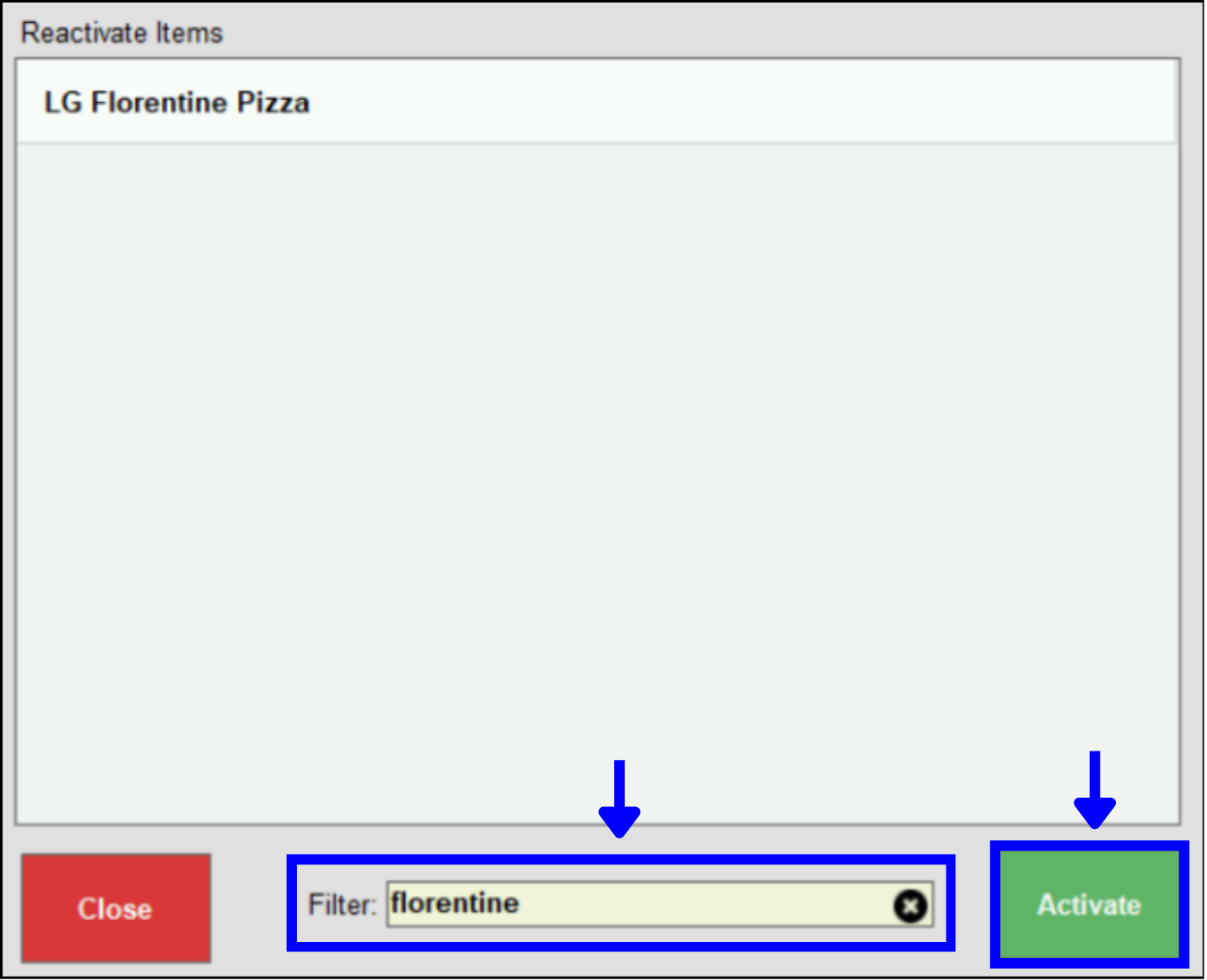
- Scroll the list to find the item to reactivate, then tap Activate.
- Note: To reactivate an item, you must be logged-in as an Administrator (not System Administrator).
- Go to Home > Items > Categories.
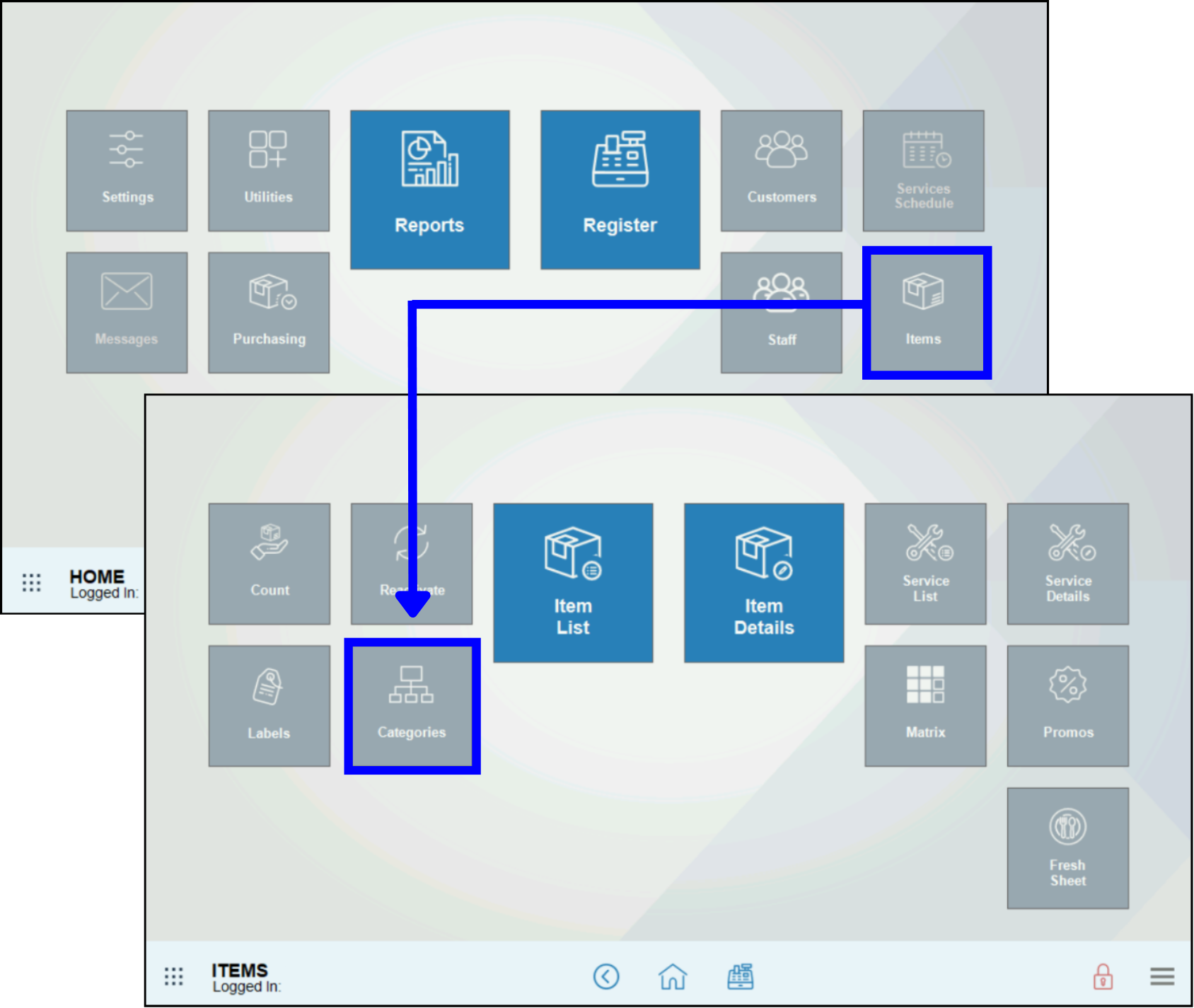
- Select a category.
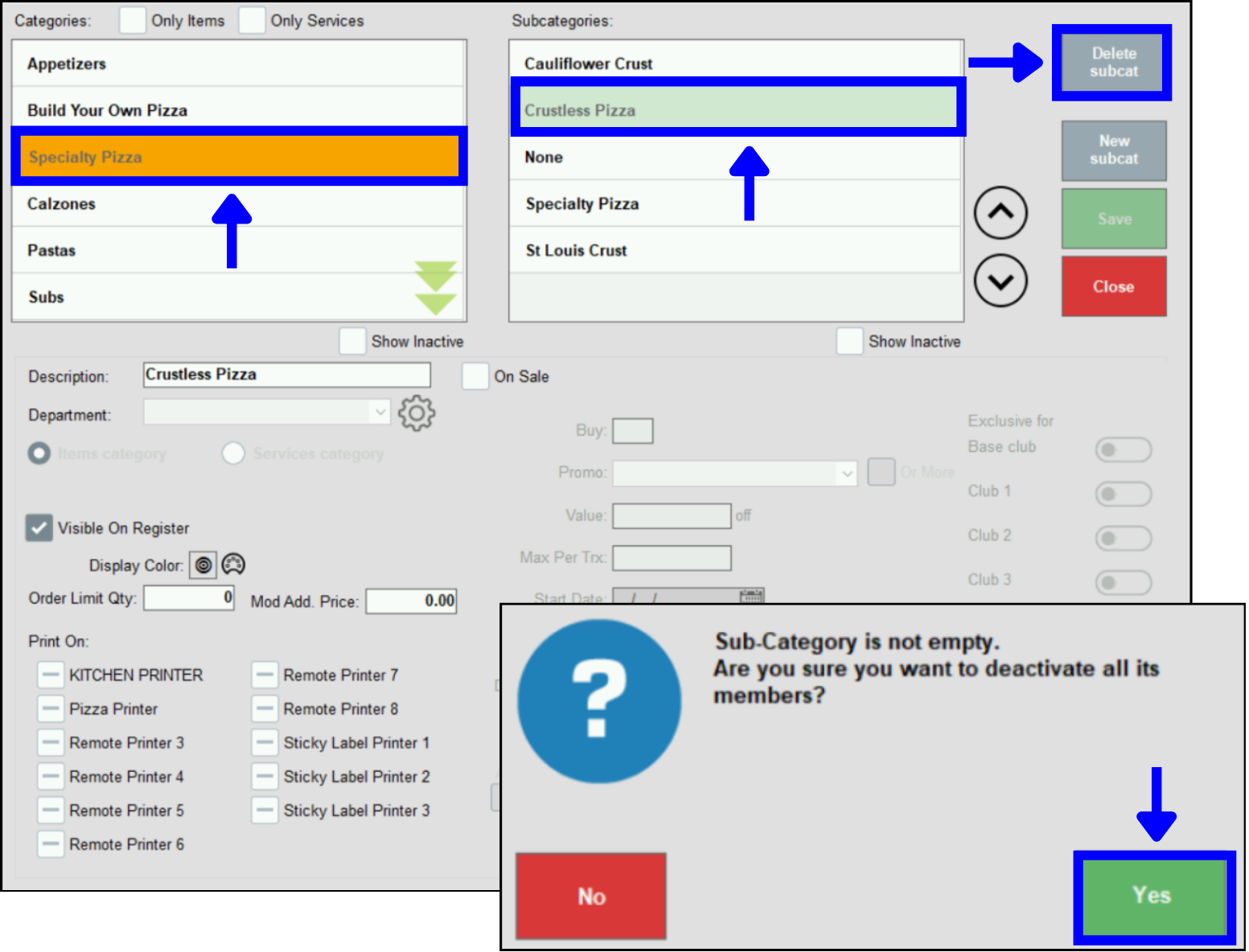
- Tap Delete Category. All subcategories and items in that category will be deactivated.
- Tap Yes in the confirmation message.
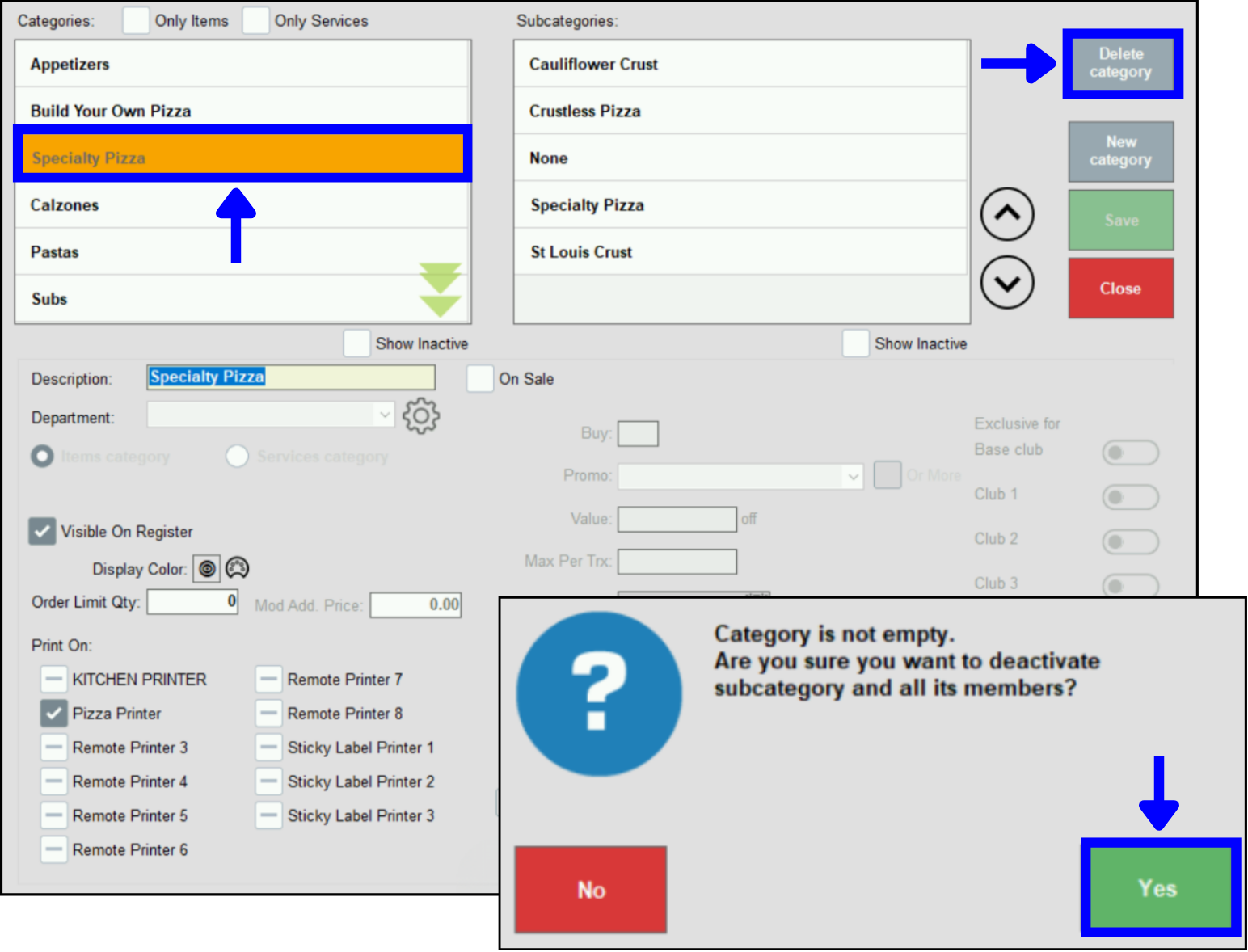
- If only a subcategory requires deactivation, tap on that subcategory.
- Tap Delete Subcat.
- Tap Yes in the confirmation message.
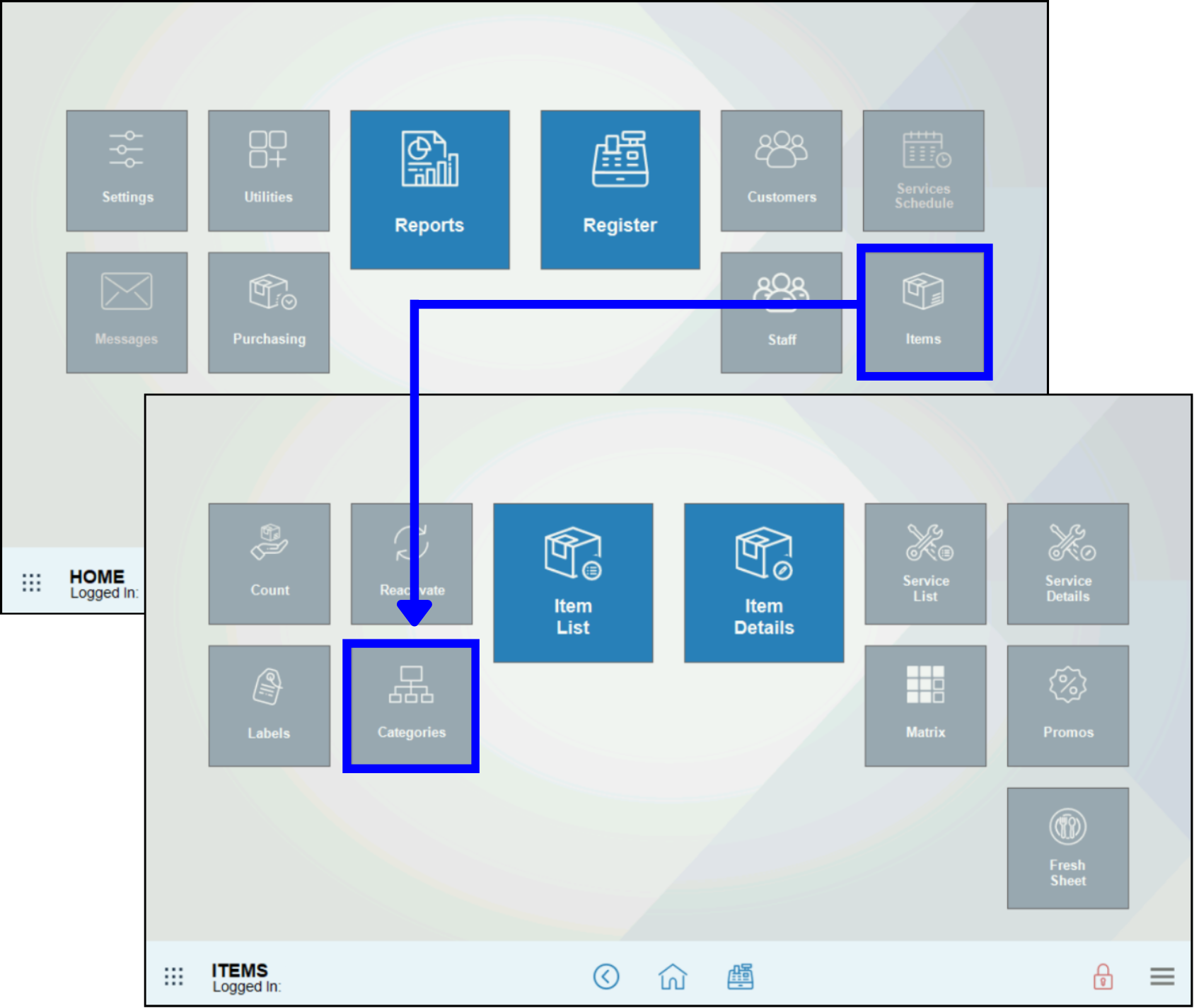
- Go to Home > Items > Categories.
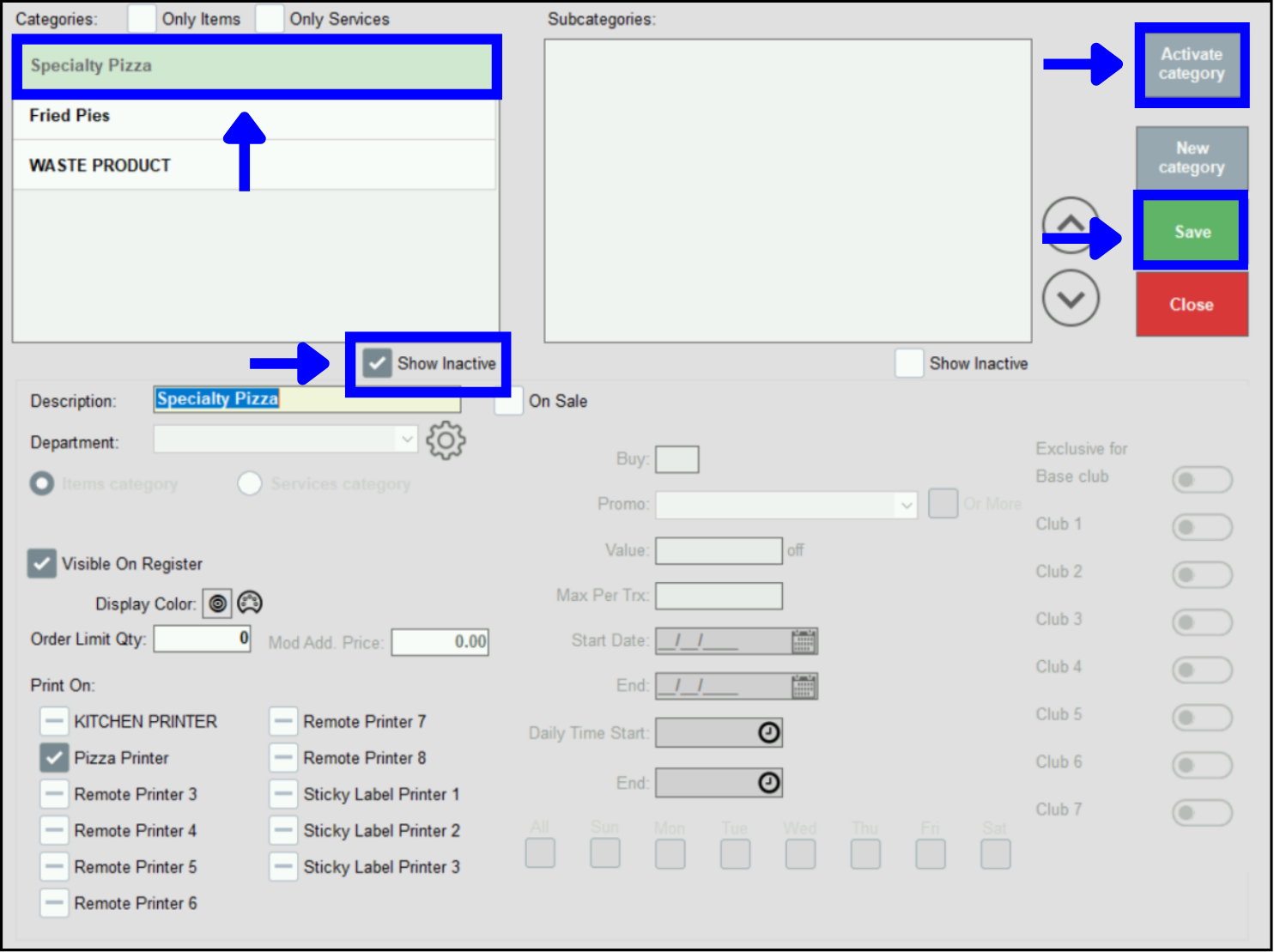
- Check the Show Inactive box under the Categories list.
- Select the category, then tap Activate Category.
- Tap Save.
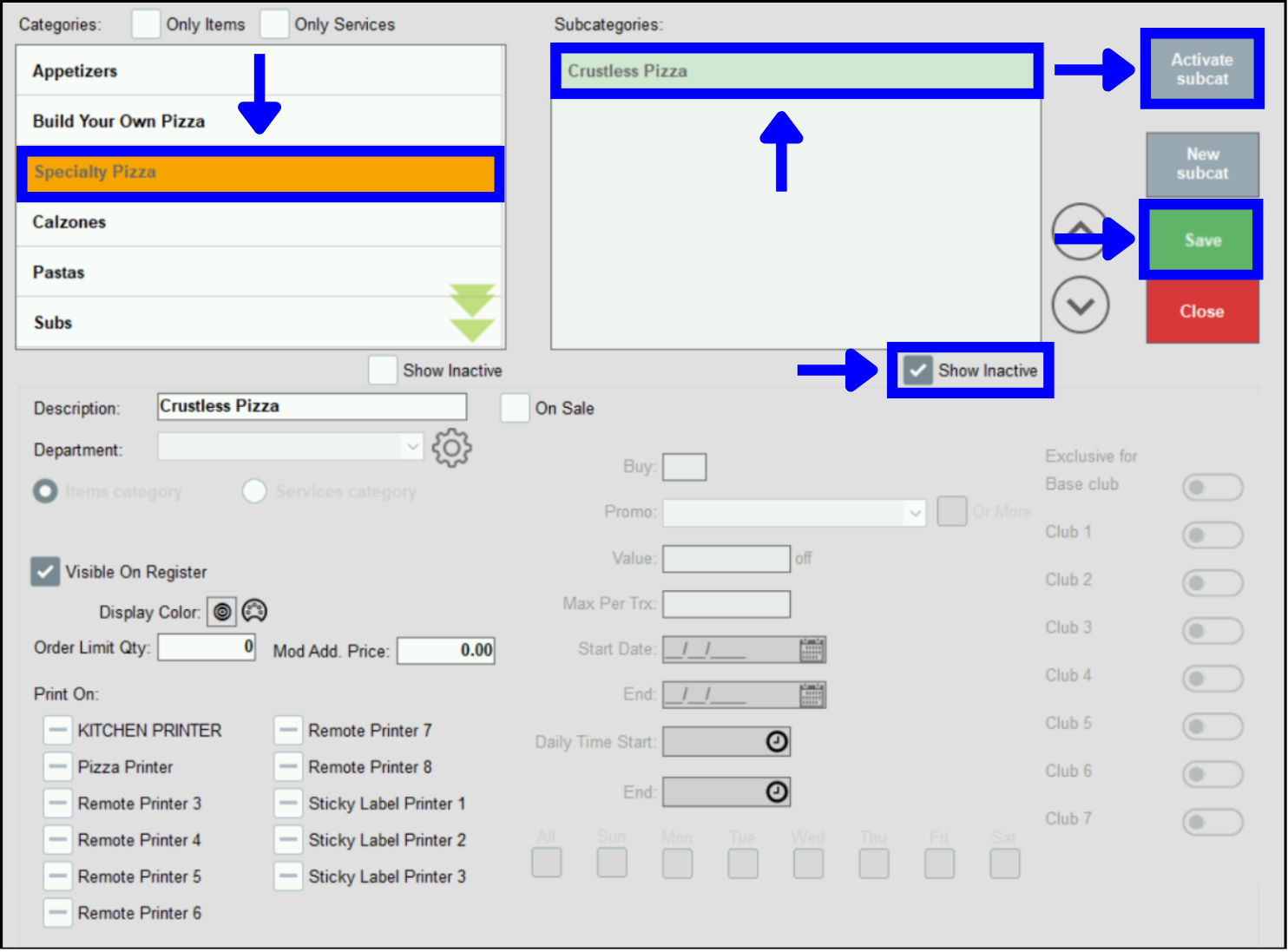
- If only a subcategory requires deactivation, tap the category where the subcategory lives.
- Check the Show Inactive box under the Subcategories list.
- Select the subcategory, then tap Activate Subcat.
- Tap Save.
- Go to Home > Items > Promos.
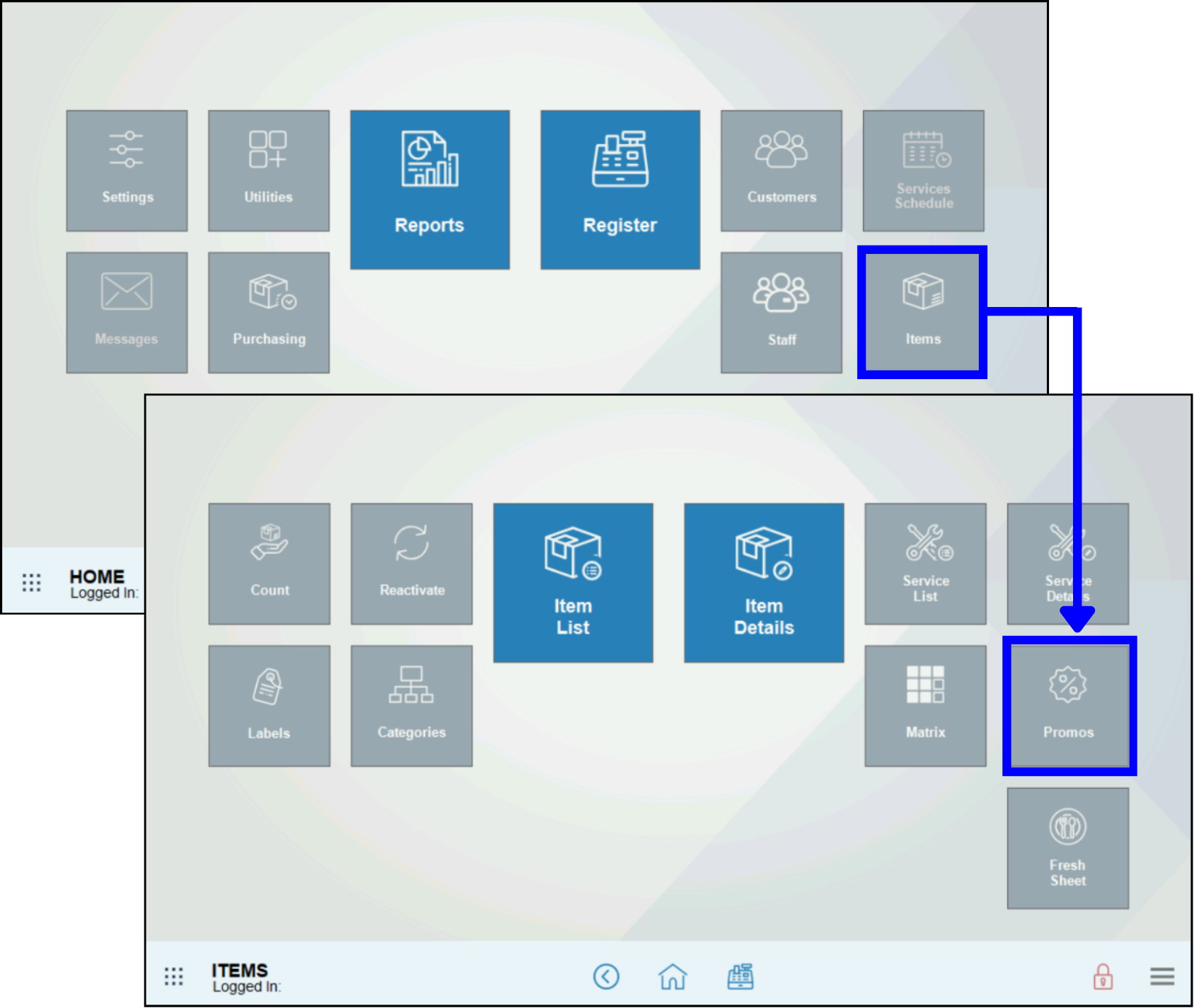
- Select the promo to deactivate.
- Uncheck the Active box. This causes the selected promo to automatically disappear from the listing of active promos.
- Tap Save.
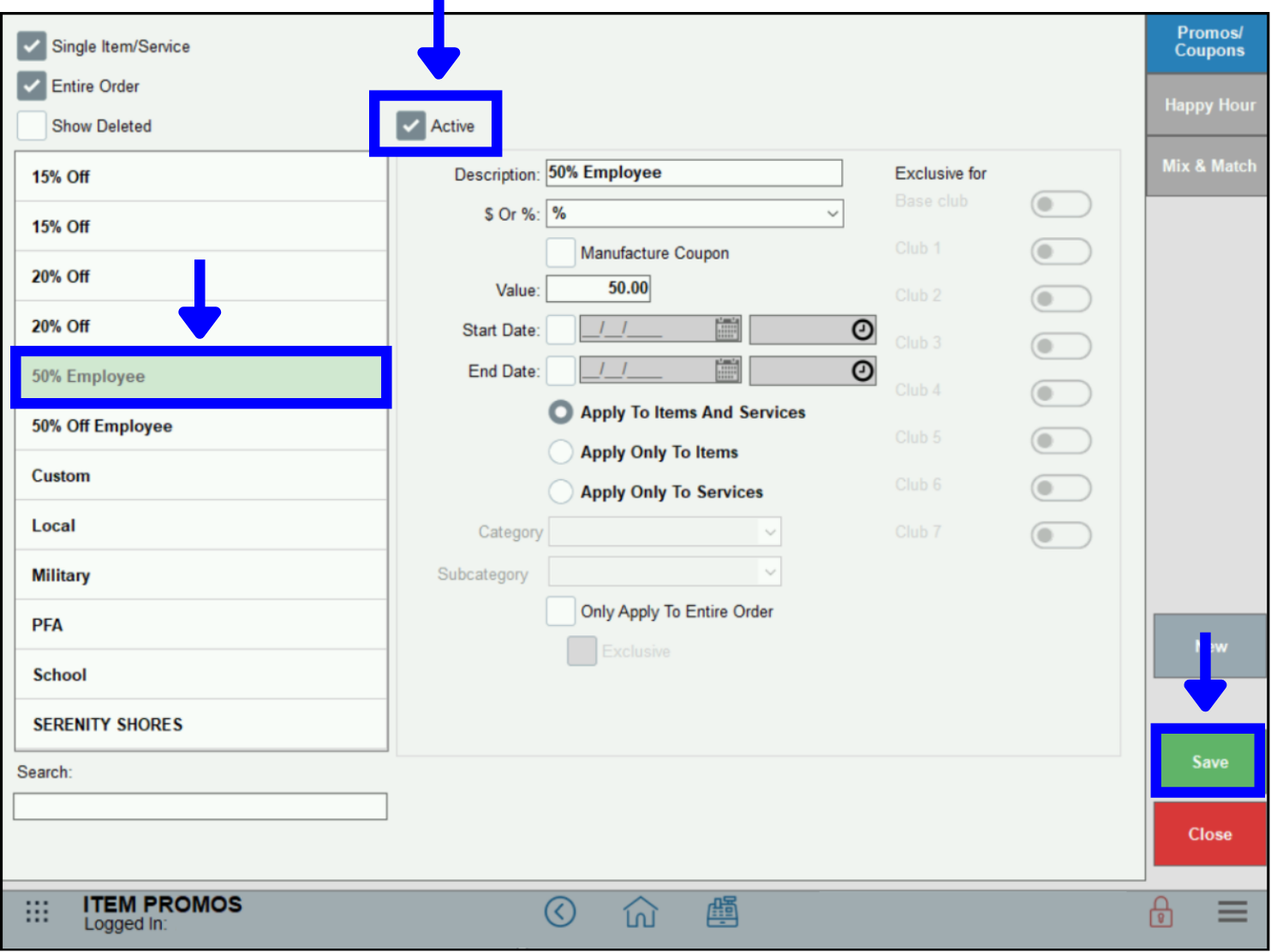
- Go to Home > Items > Promos
- Check the Show Deleted box to see all deactivated promos.
- Select the promo to reactivate.
- Check the Active box. This causes the selected promo to automatically disappear from the listing of deactivated promos.
- Tap Save.
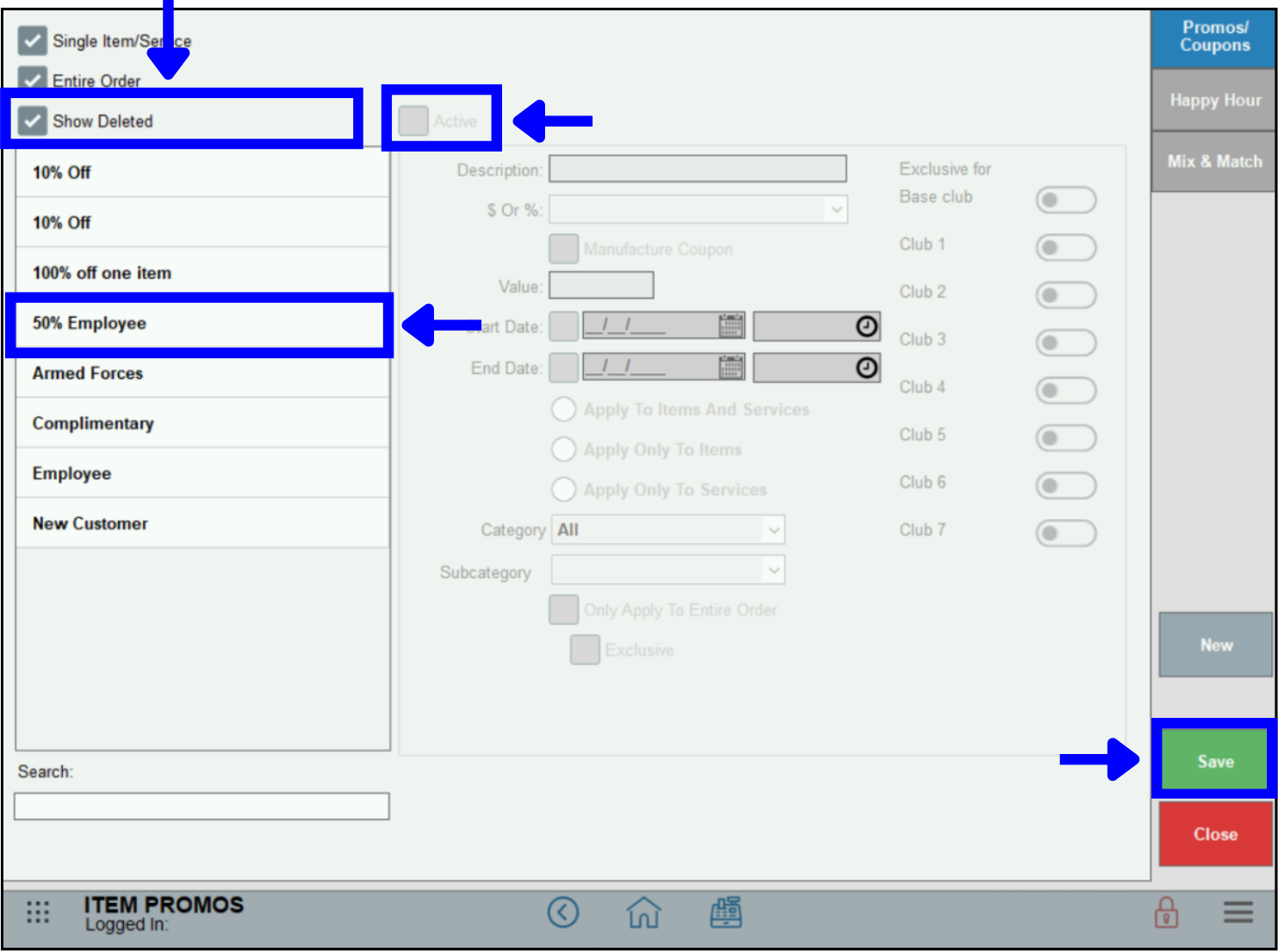
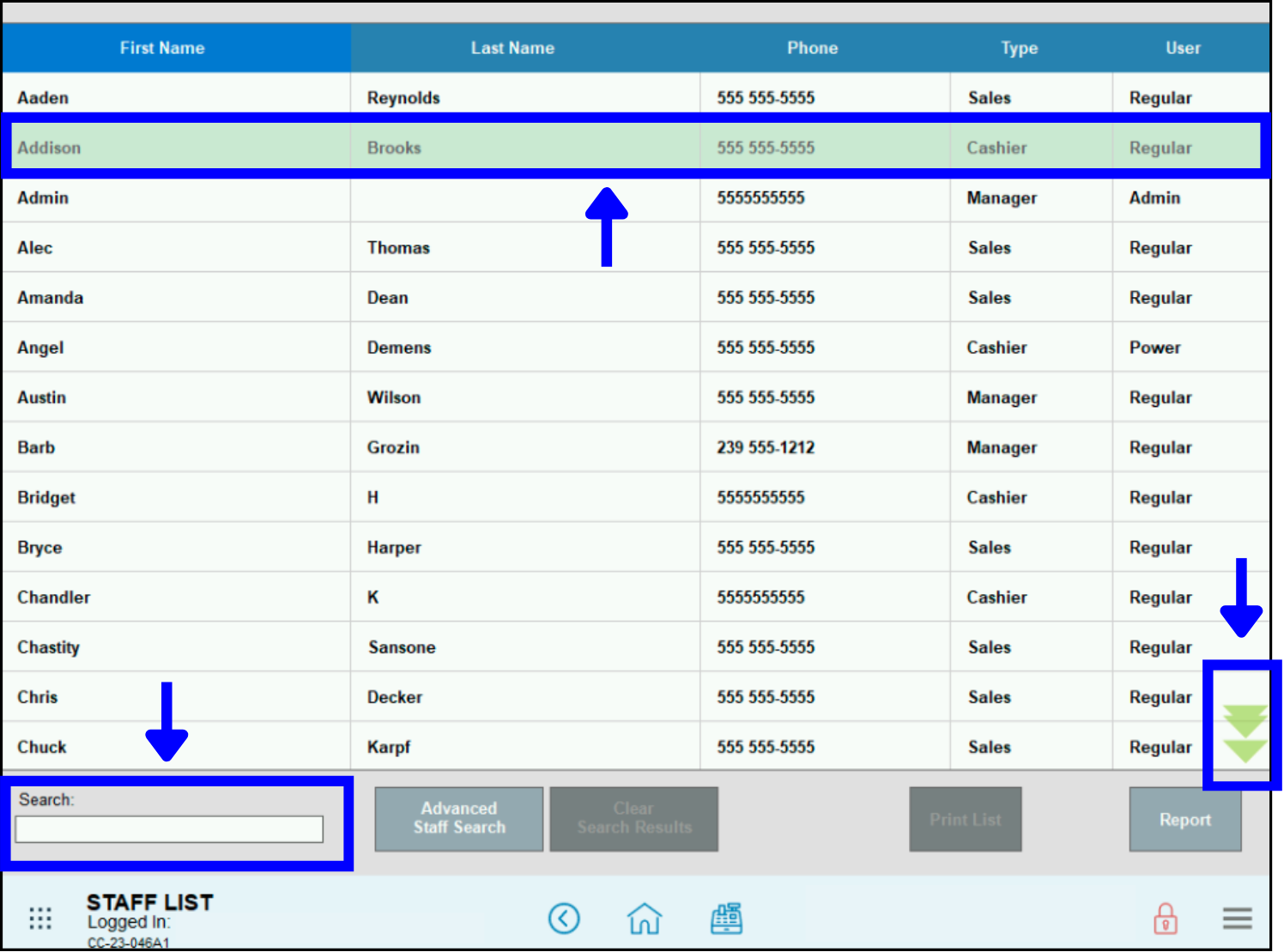
- Go to Home > Staff > Staff List.
- There are two options for locating an item:
- Scroll the list to find the staff name to deactivate.
- Use the Search option to find the staff name to deactivate.
- Note: Tapping on Advanced Staff Search will give you additional search fields.
- Tap the staff name to open it.
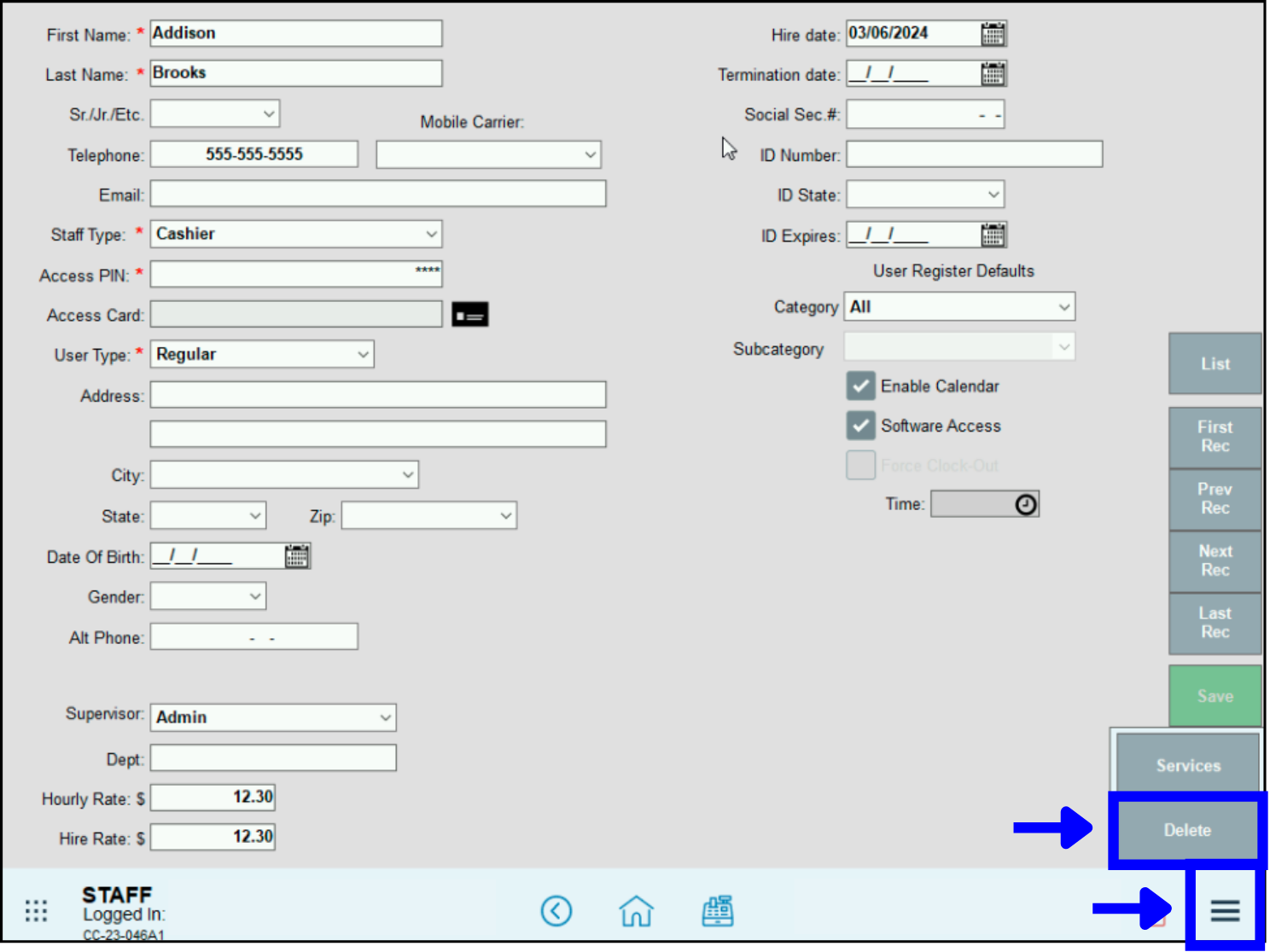
- Tap the Menu icon at the bottom right of the screen, then tap Delete.
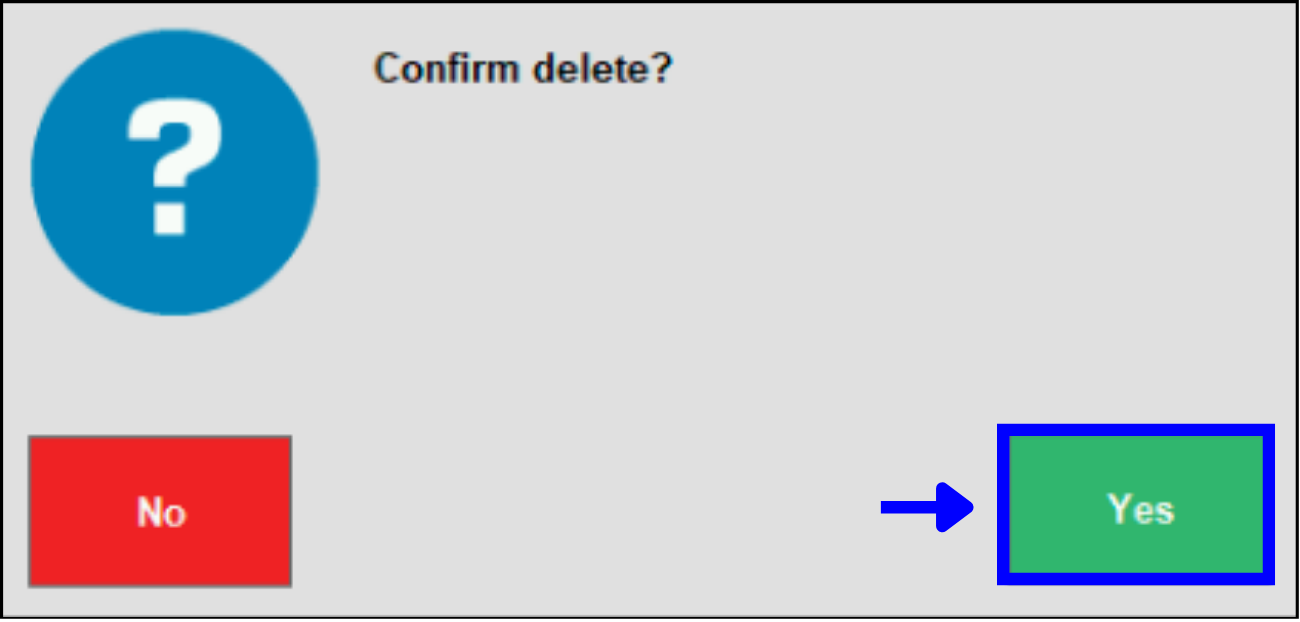
- Tap Yes in the confirmation message.
- Go to Home > Staff > Reactivate.
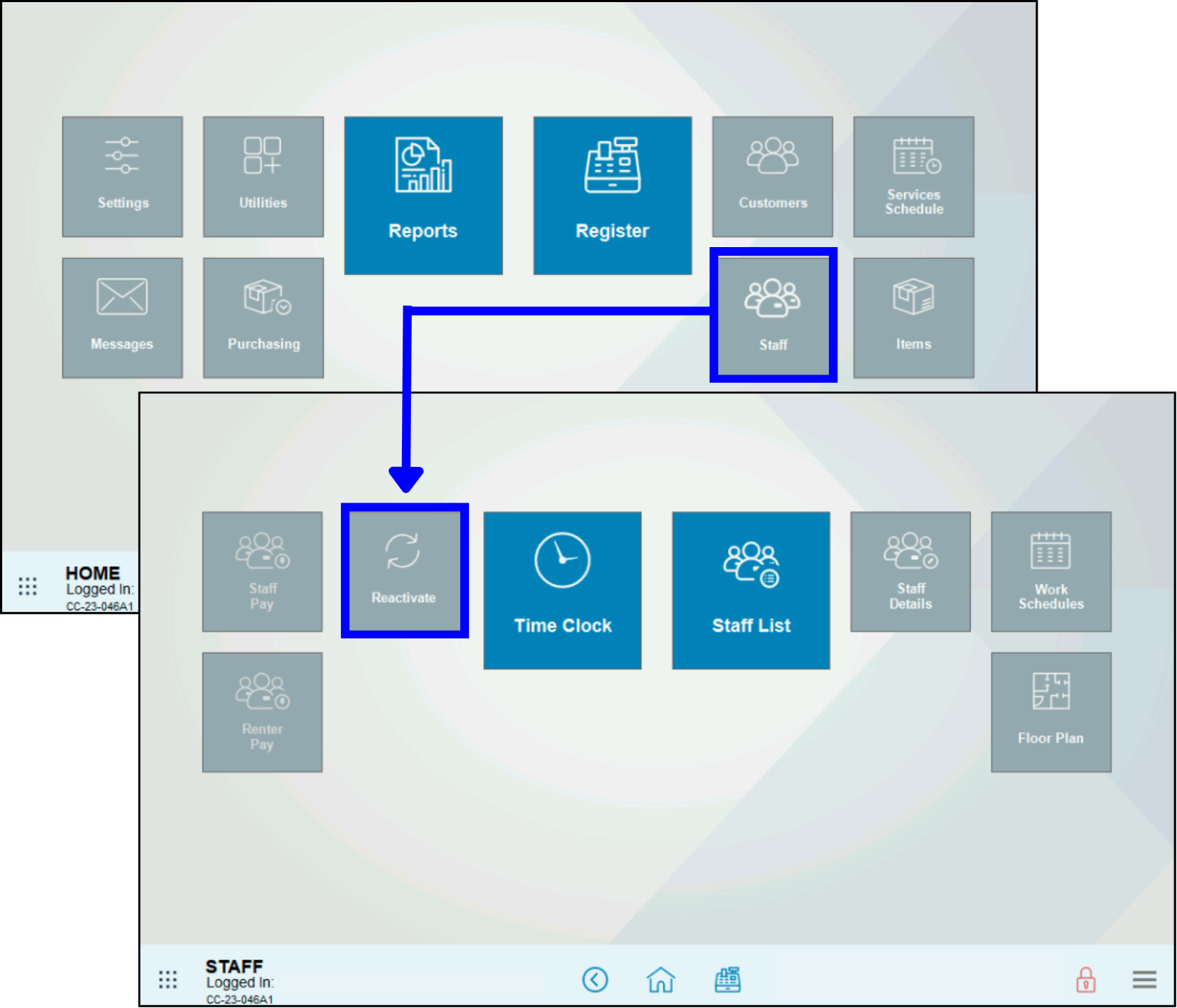
- Select the name of the staff member to reactivate, then tap Activate.
- A list of staff names that can be reactivated displays.
- Scroll the list to find the staff name to reactivate, then tap Activate.
- Use the Filter option to find the staff name to reactivate, then tap Activate.
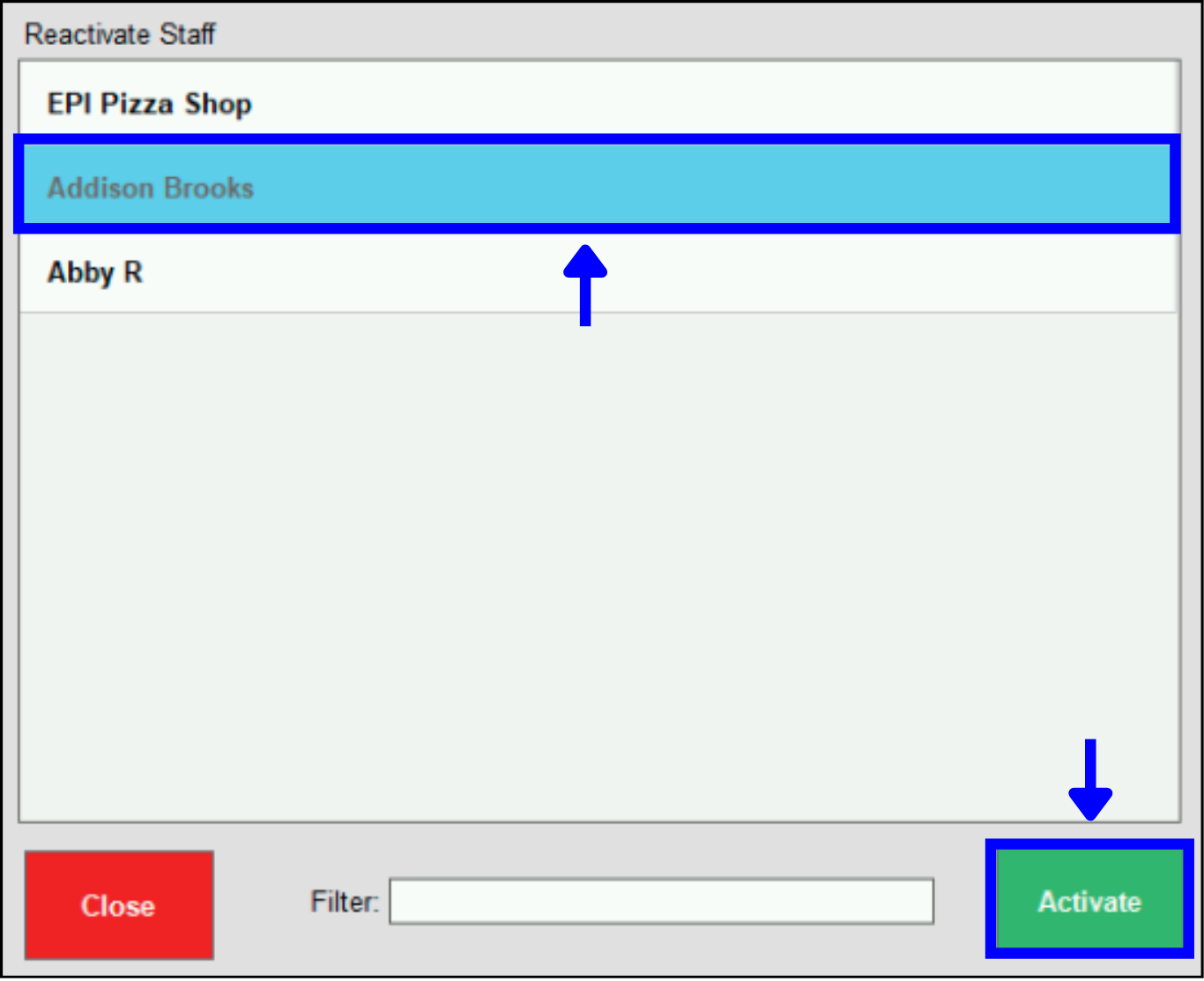
- This causes the selected staff name to automatically disappear from the listing of deactivated staff.
- Go to Home > Customers > Customer List.
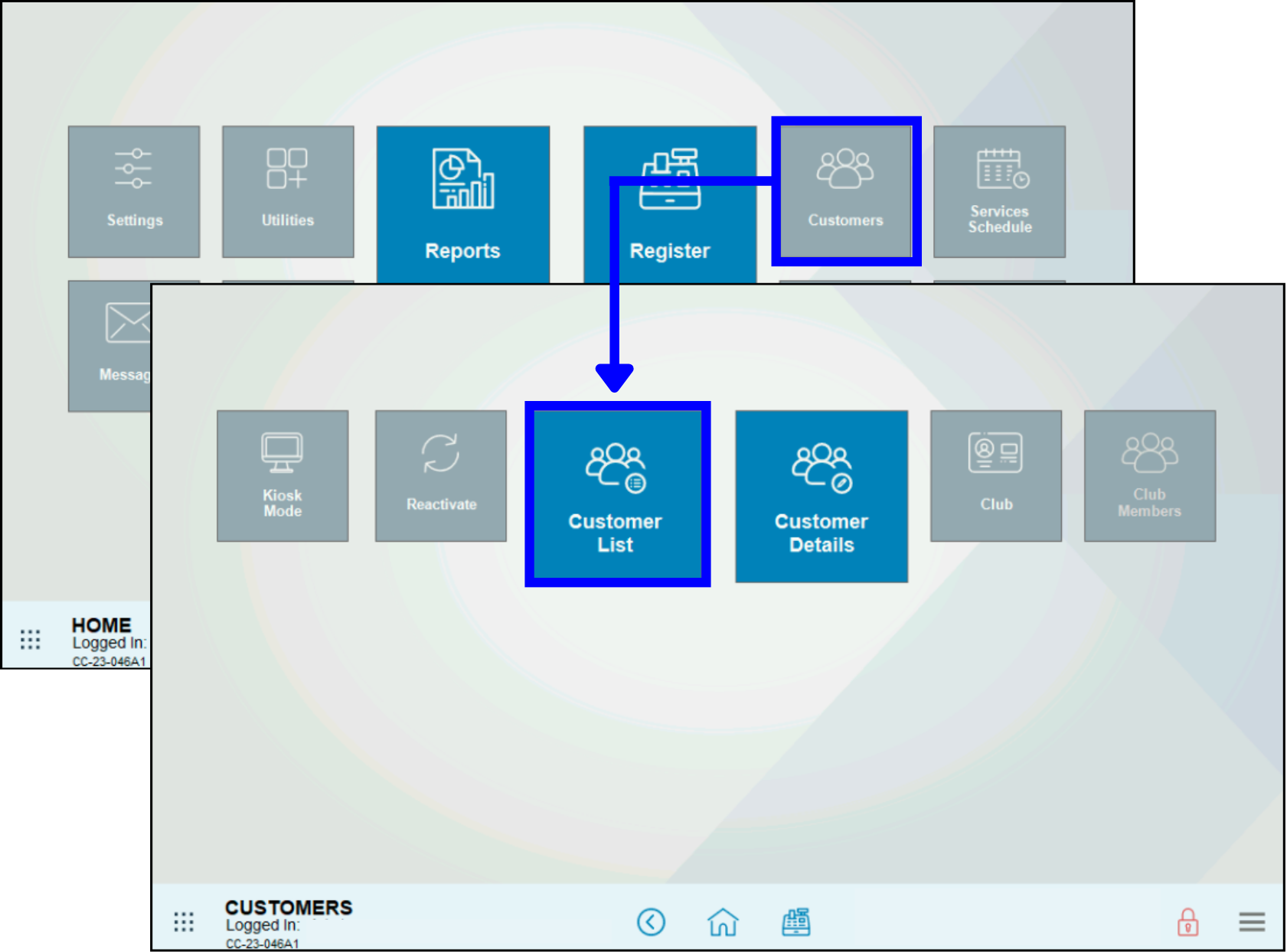
- There are two options for locating an item:
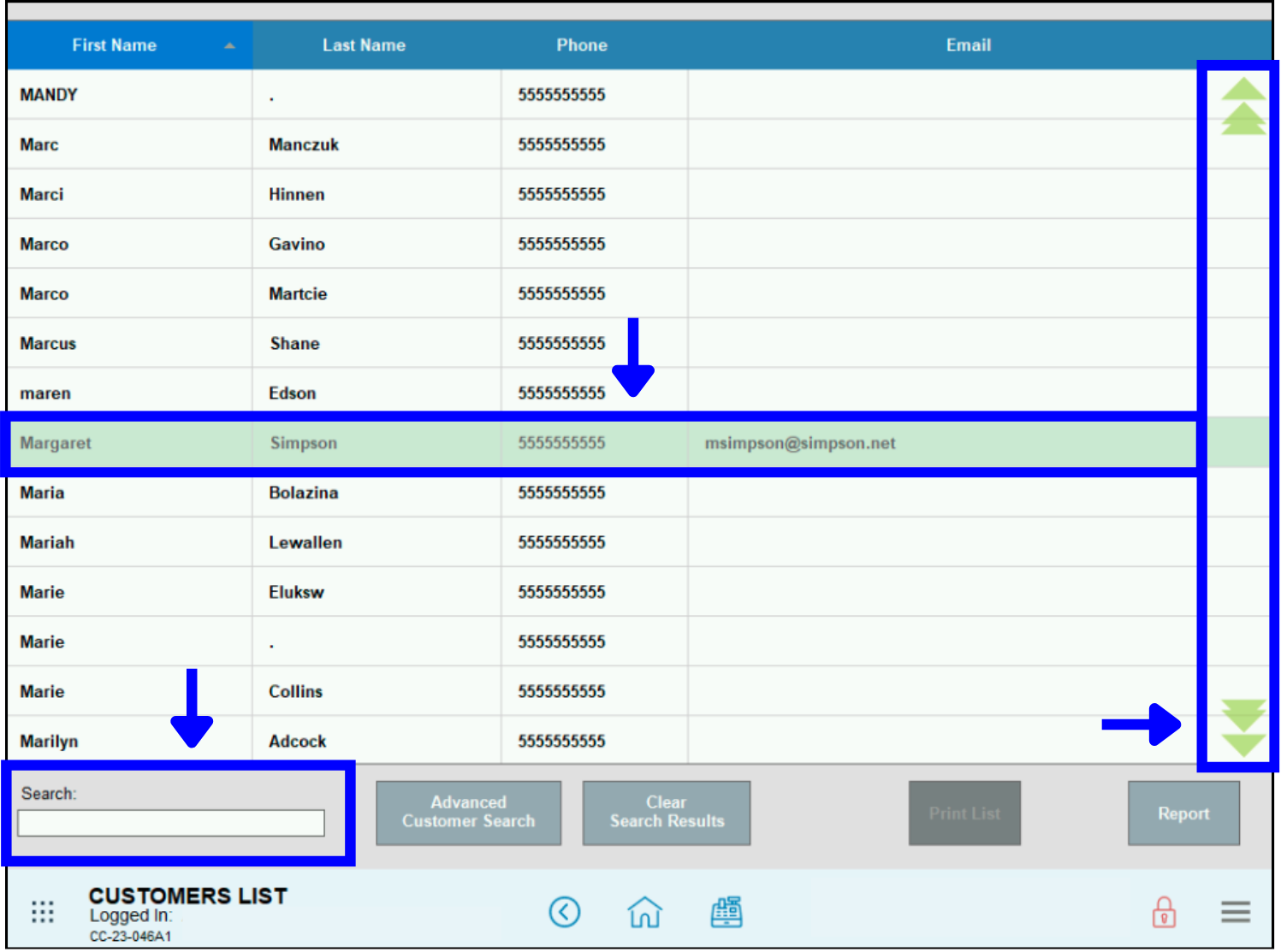
- Scroll the list to find the customer name to deactivate.
- Use the Search option to find the customer name to deactivate.
- Note: Tapping on Advanced Customer Search will give you additional search fields.
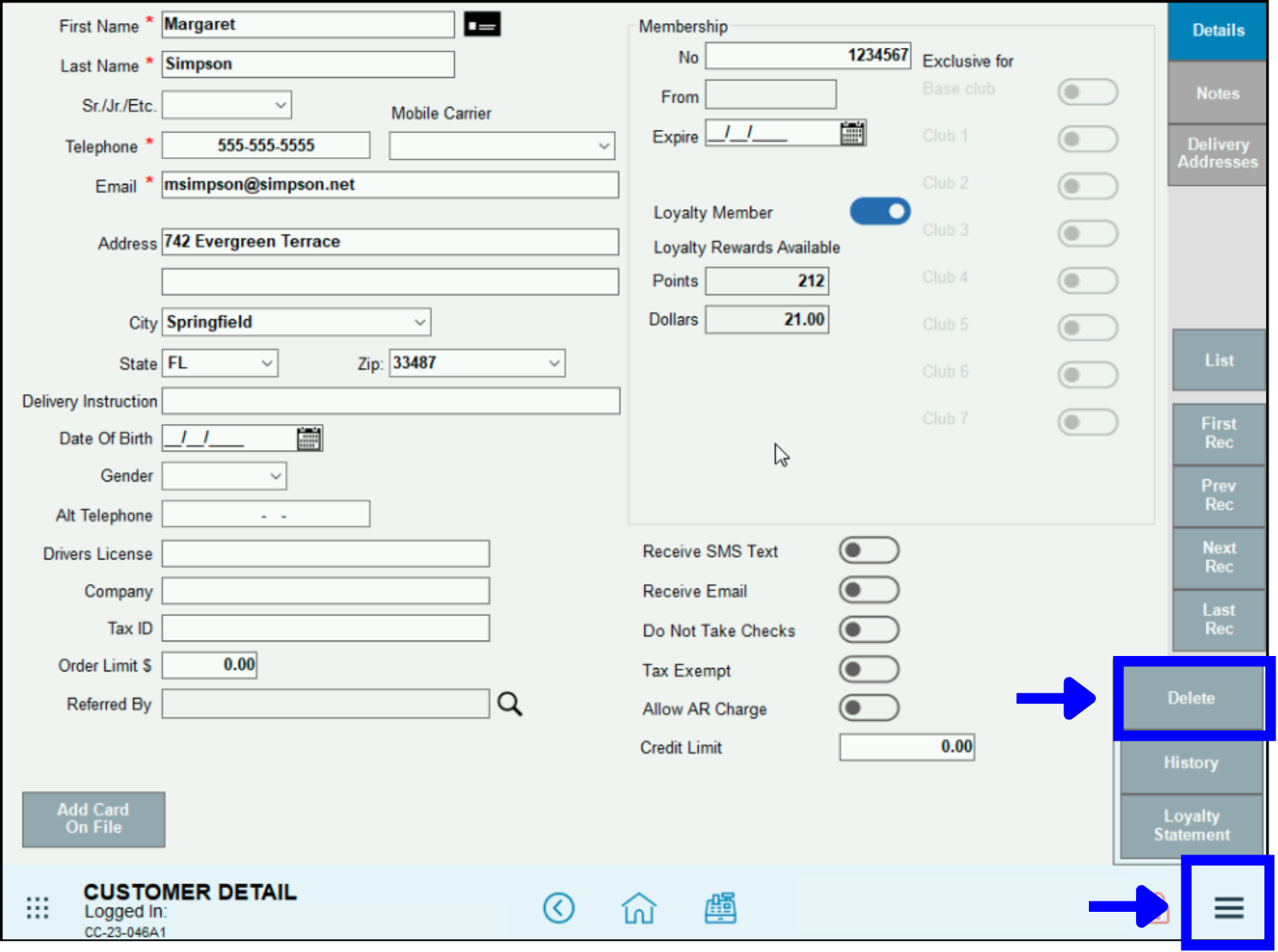
- Tap the customer name to see more information.
- Tap the Menu icon at the bottom right of the screen, then tap Delete.
- Tap Yes in the confirmation message.
- Go to Home > Customers > Reactivate.
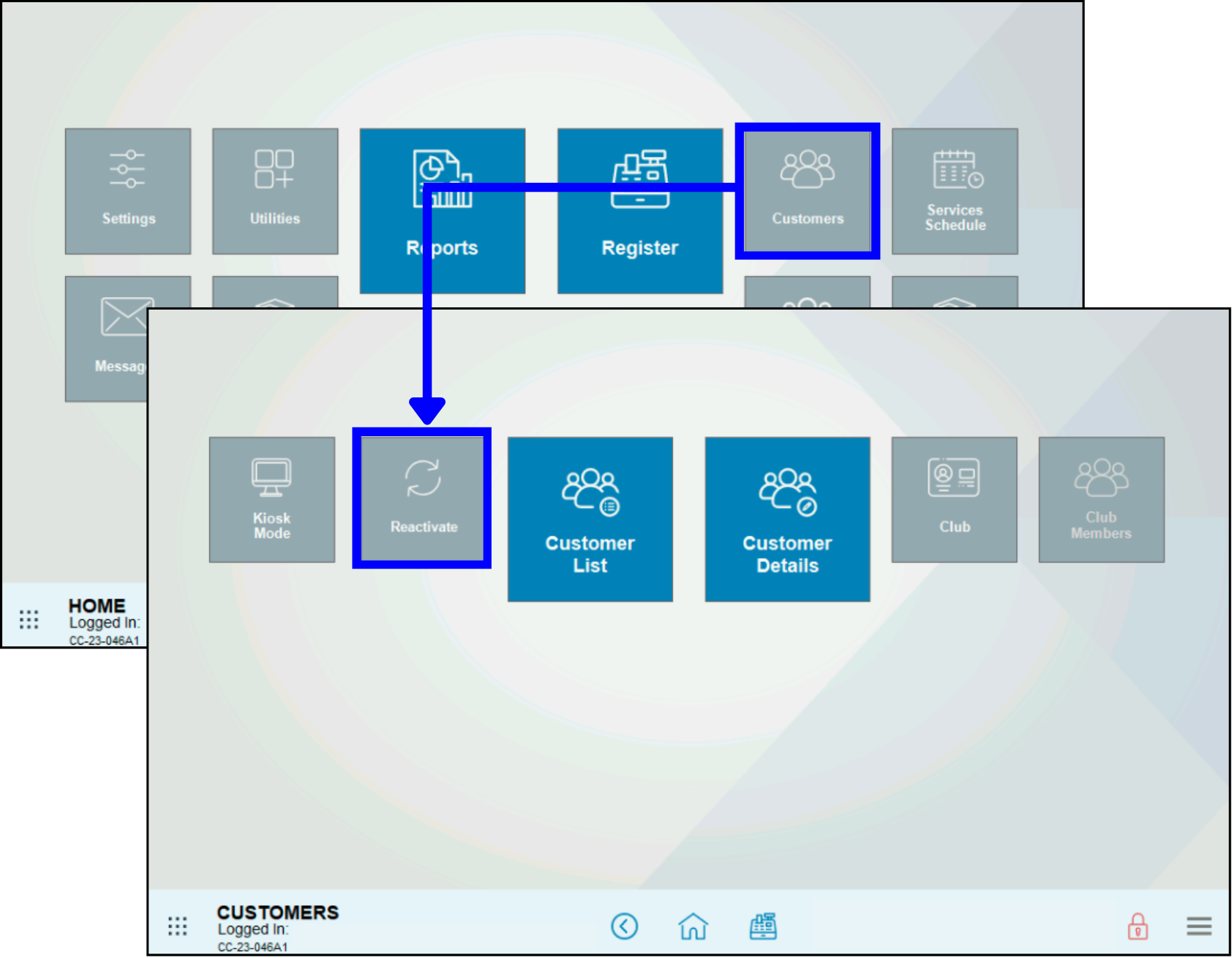
- Select the name of the customer to reactivate, then tap Activate.
- A list of items that can be reactivated displays:
- Scroll the list to find the customer name to reactivate, then tap Activate.
- Use the Filter option to find the customer name to reactivate, then tap Activate.
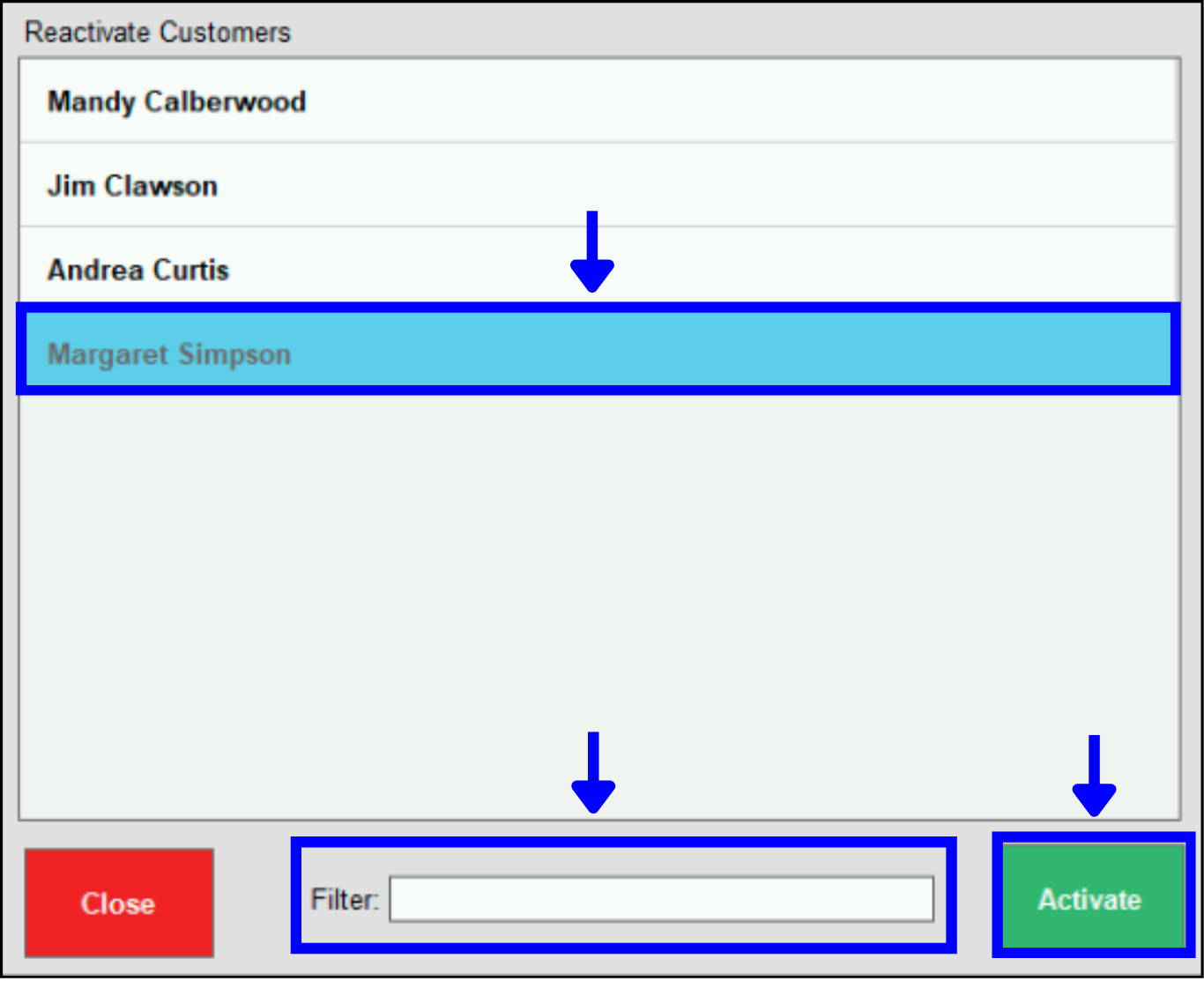
- This causes the selected customer name to automatically disappear from the listing of deactivated staff.
- Go to Home > Purchasing > Vendor List
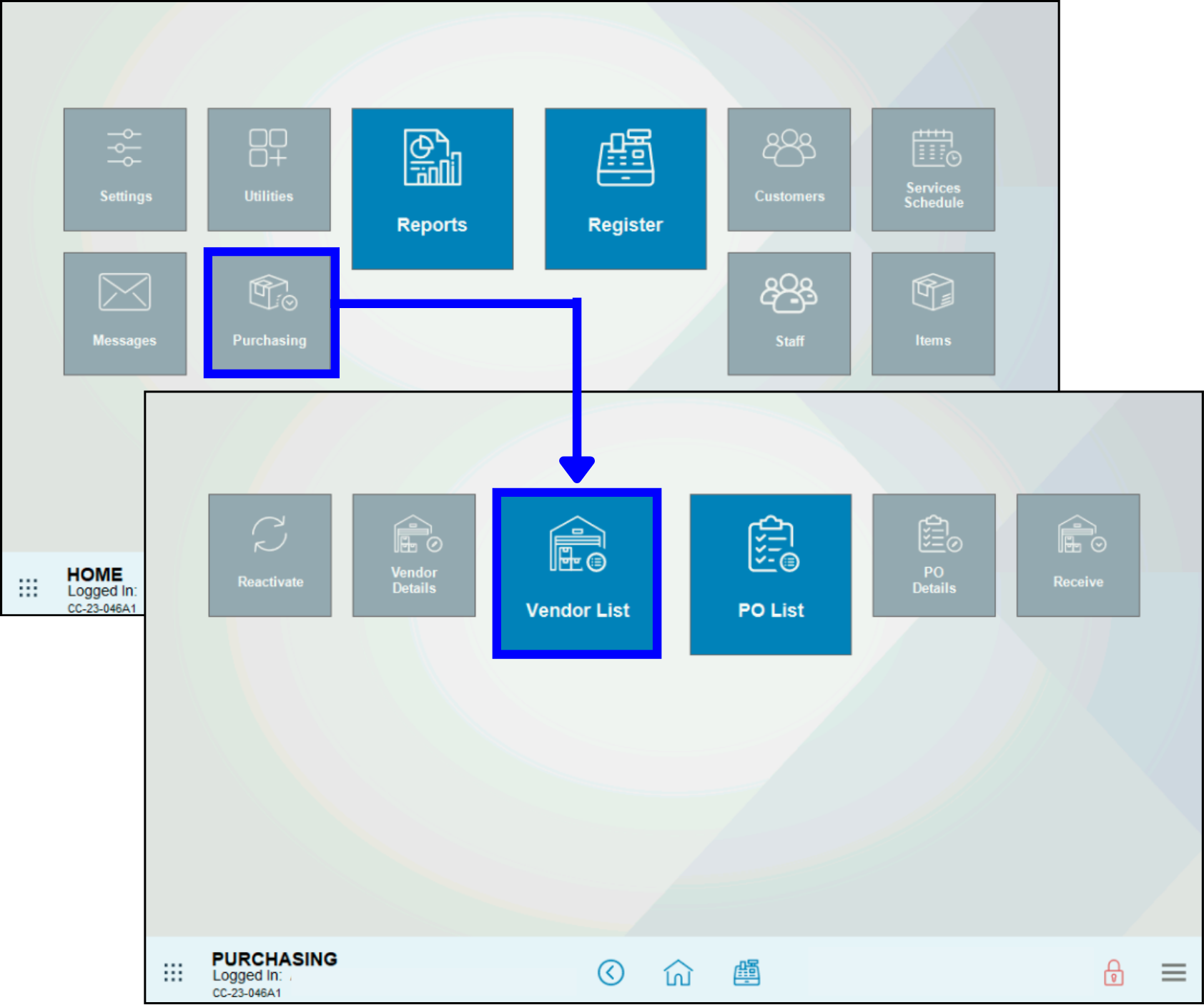 .
. - There are two options for locating an item:
- Scroll the list to find the vender name to deactivate.
- Use the Search option to find the vendor name to deactivate.
- Note: Tapping on Advanced Vendor Search will give you additional search fields.
- Tap the vendor name to open it.
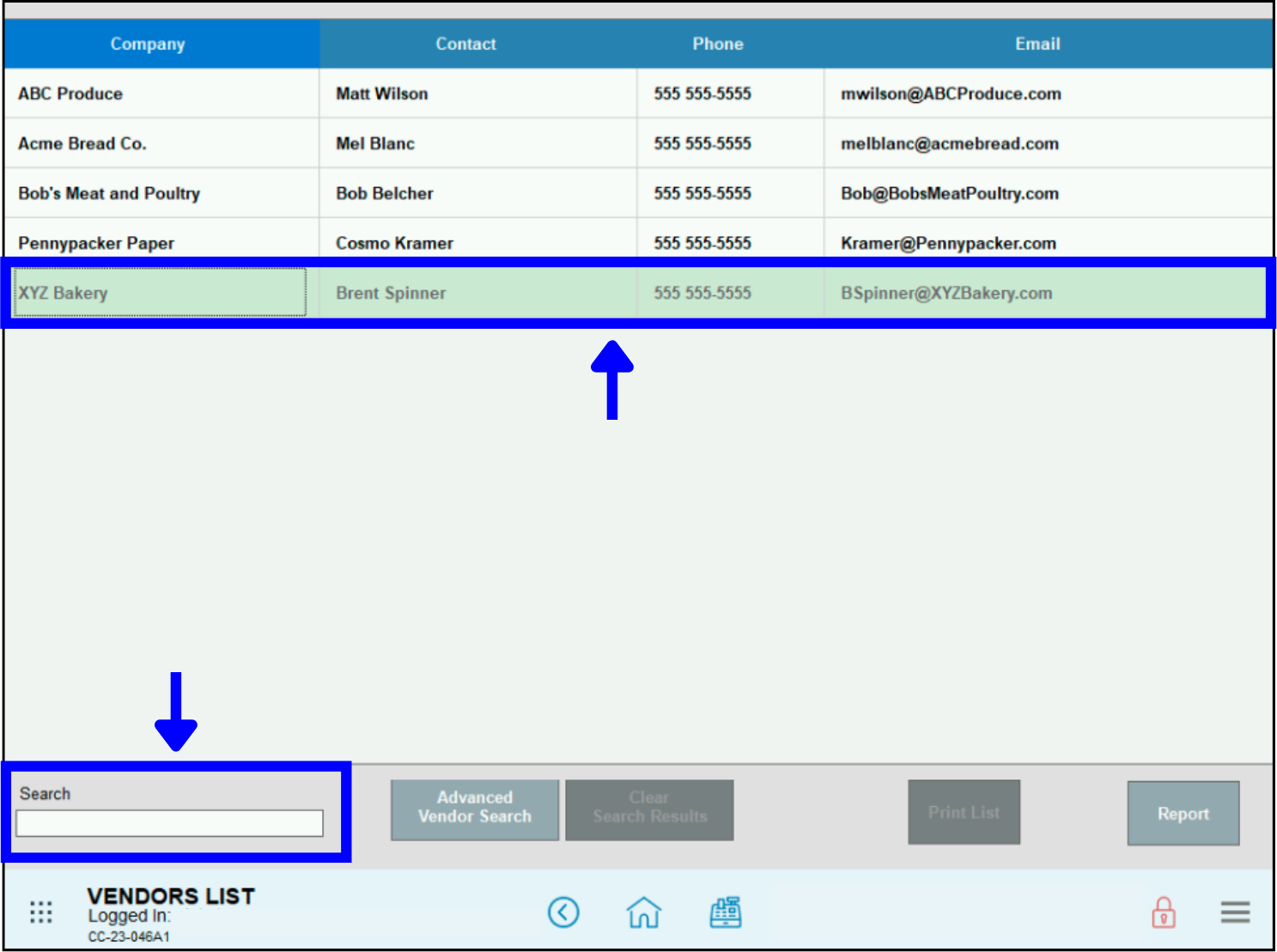
- Tap the Menu icon at the bottom right of the screen, then tap Delete.
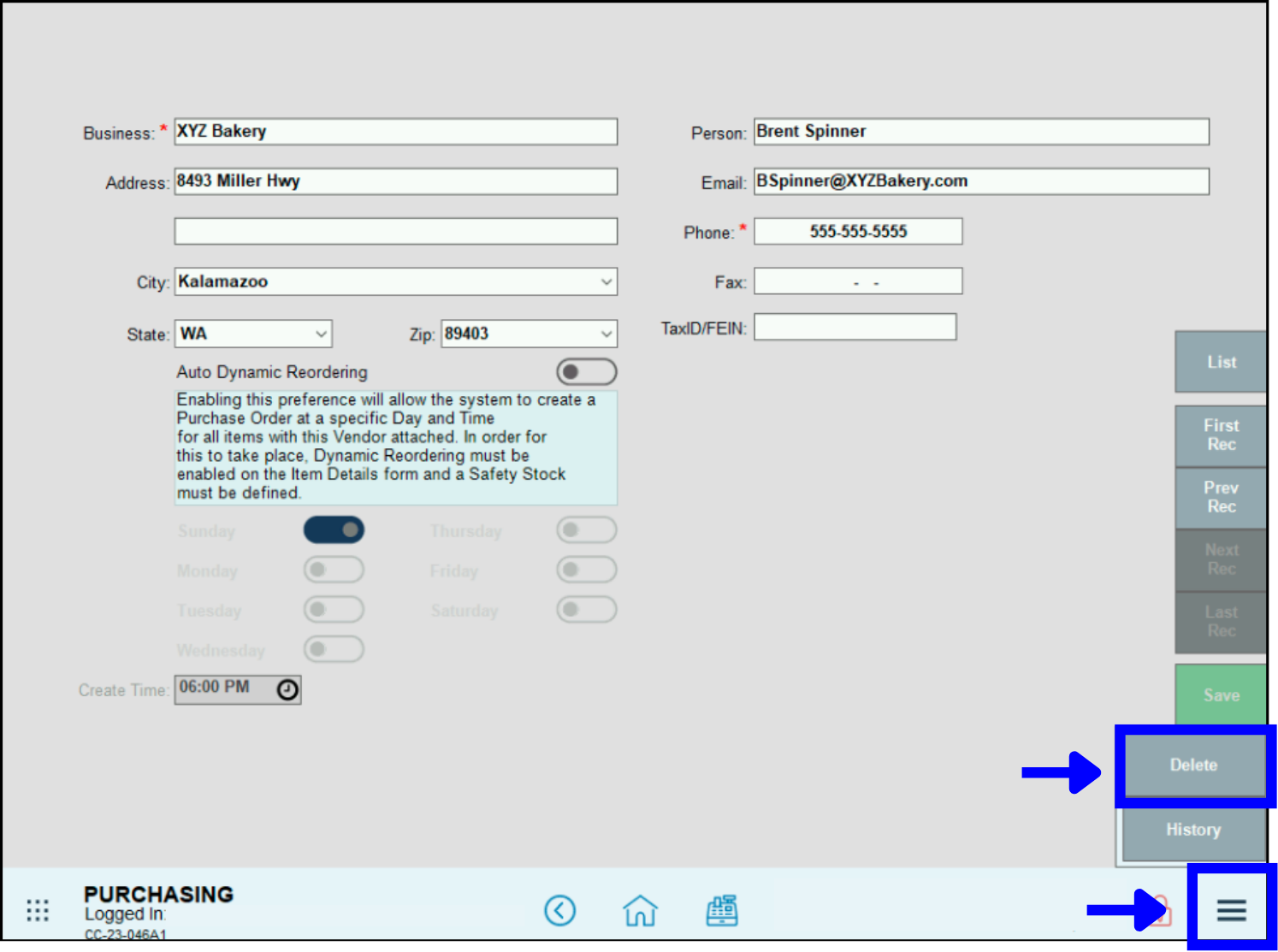
- Tap Yes in the confirmation message.
- Go to Home > Purchasing > Reactivate.
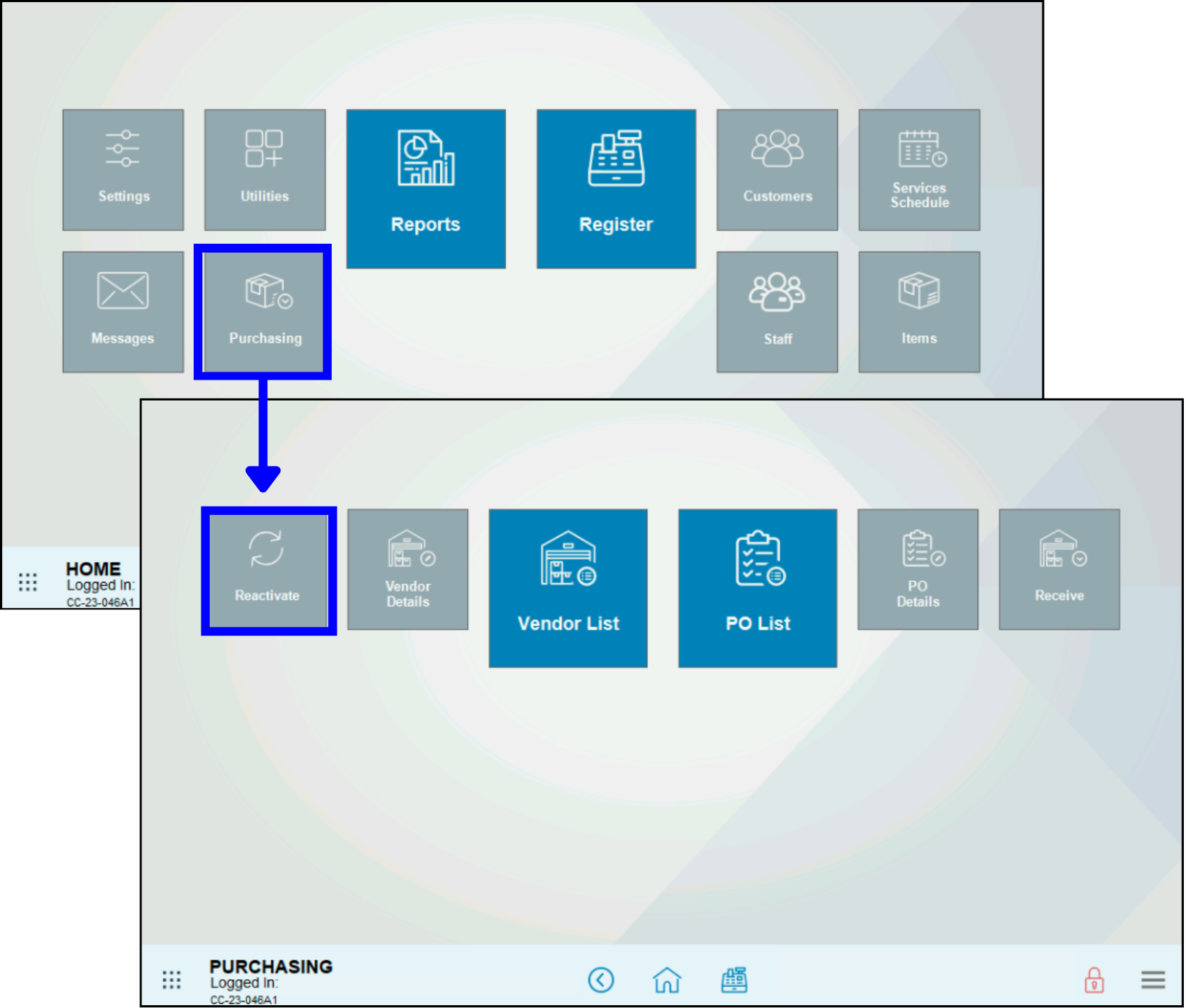
- A list of items that can be reactivated displays:
- Scroll the list to find the vendor name to reactivate, then tap Activate.
- Use the Filter option to find the vendor name to reactivate, then tap Activate.
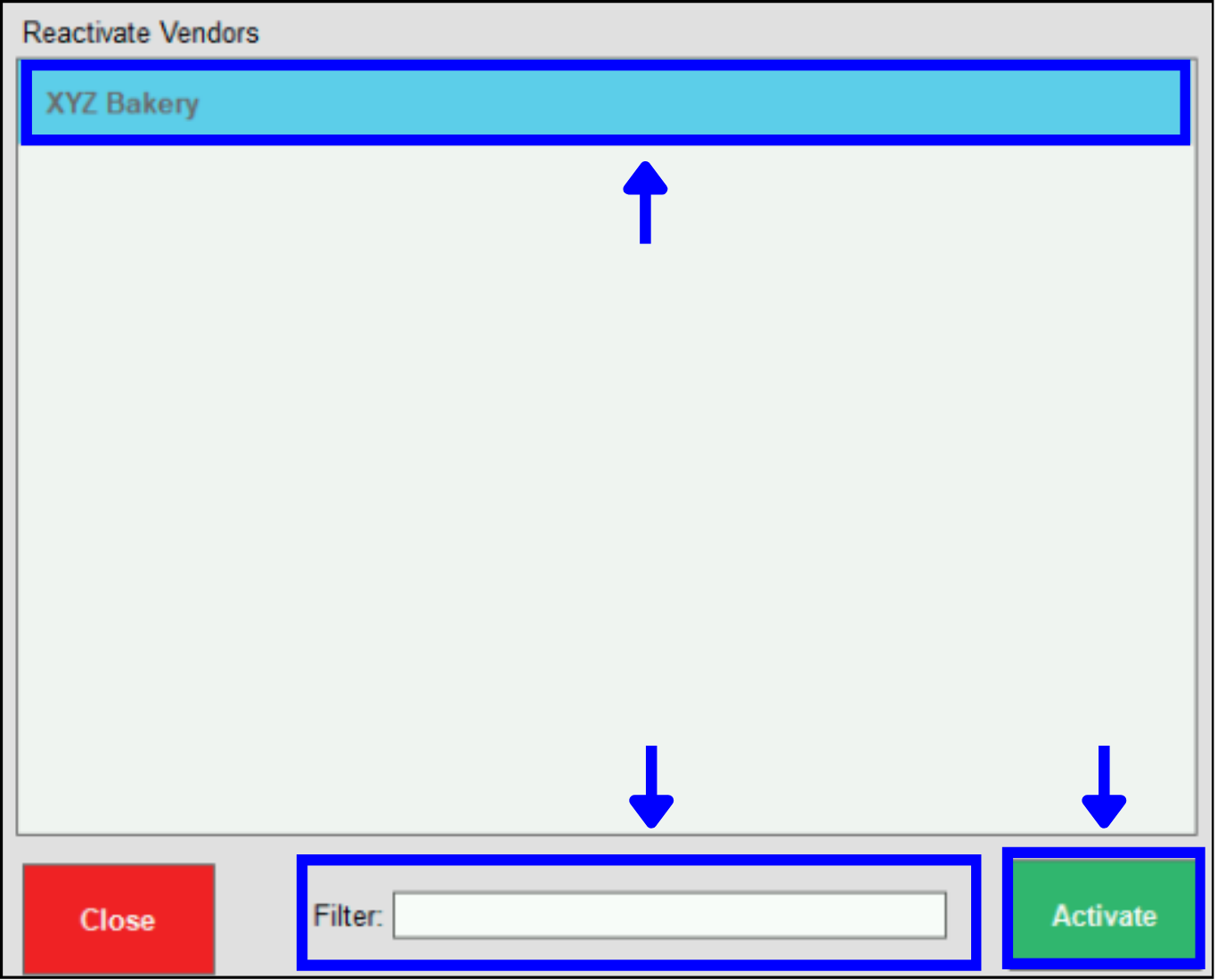
- This causes the selected vendor name to automatically disappear from the listing of deactivated staff.
How can we improve this information for you?
Registered internal users can comment. Merchants, have a suggestion? Tell us more.