
Staff Reports gather and organize staff data stored in the Exatouch database.
- Note: Leave your Exatouch system powered up and connected to the internet to generate and deliver scheduled reports.
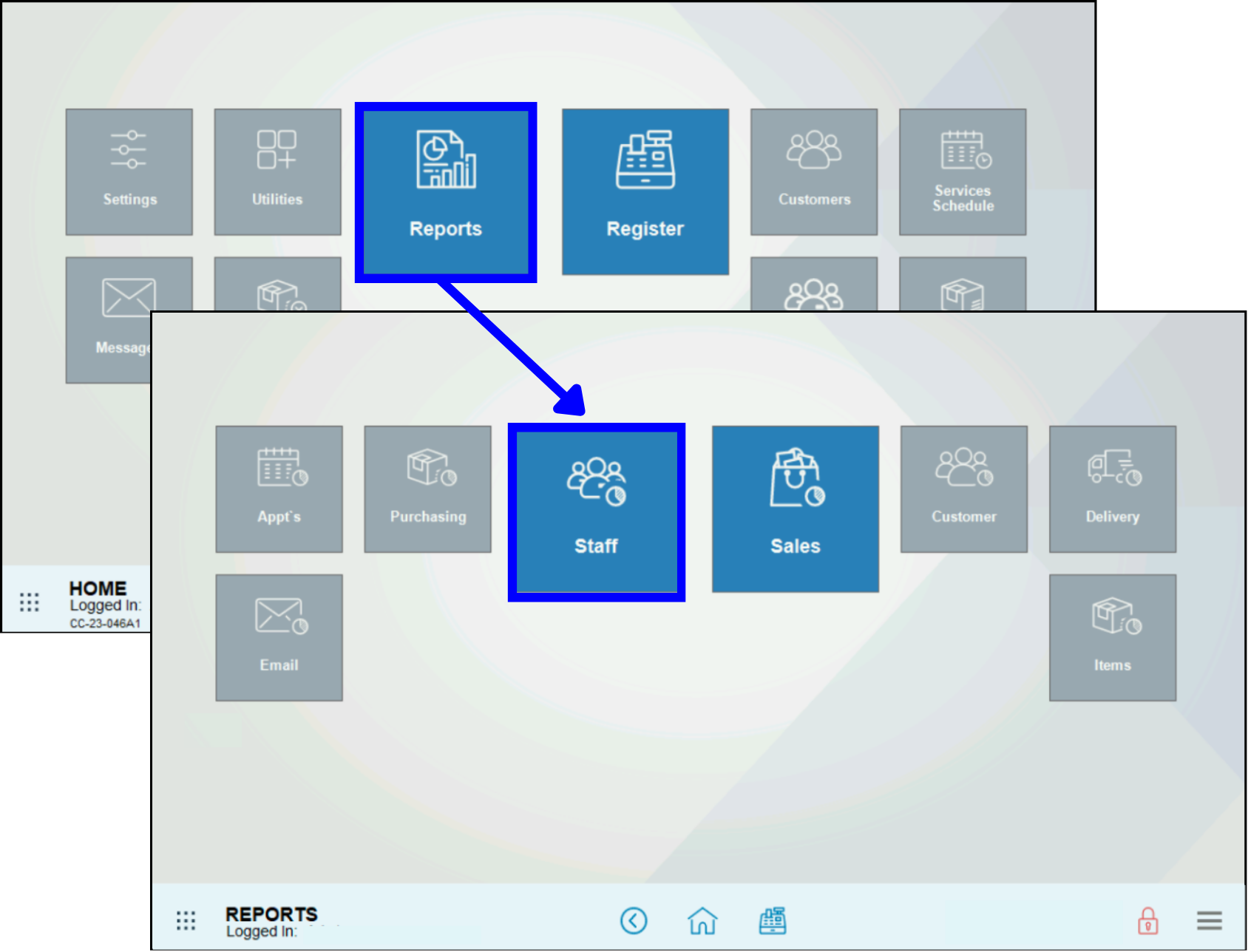
- Go to Home > Reports > Staff to display the Staff Reports work area.
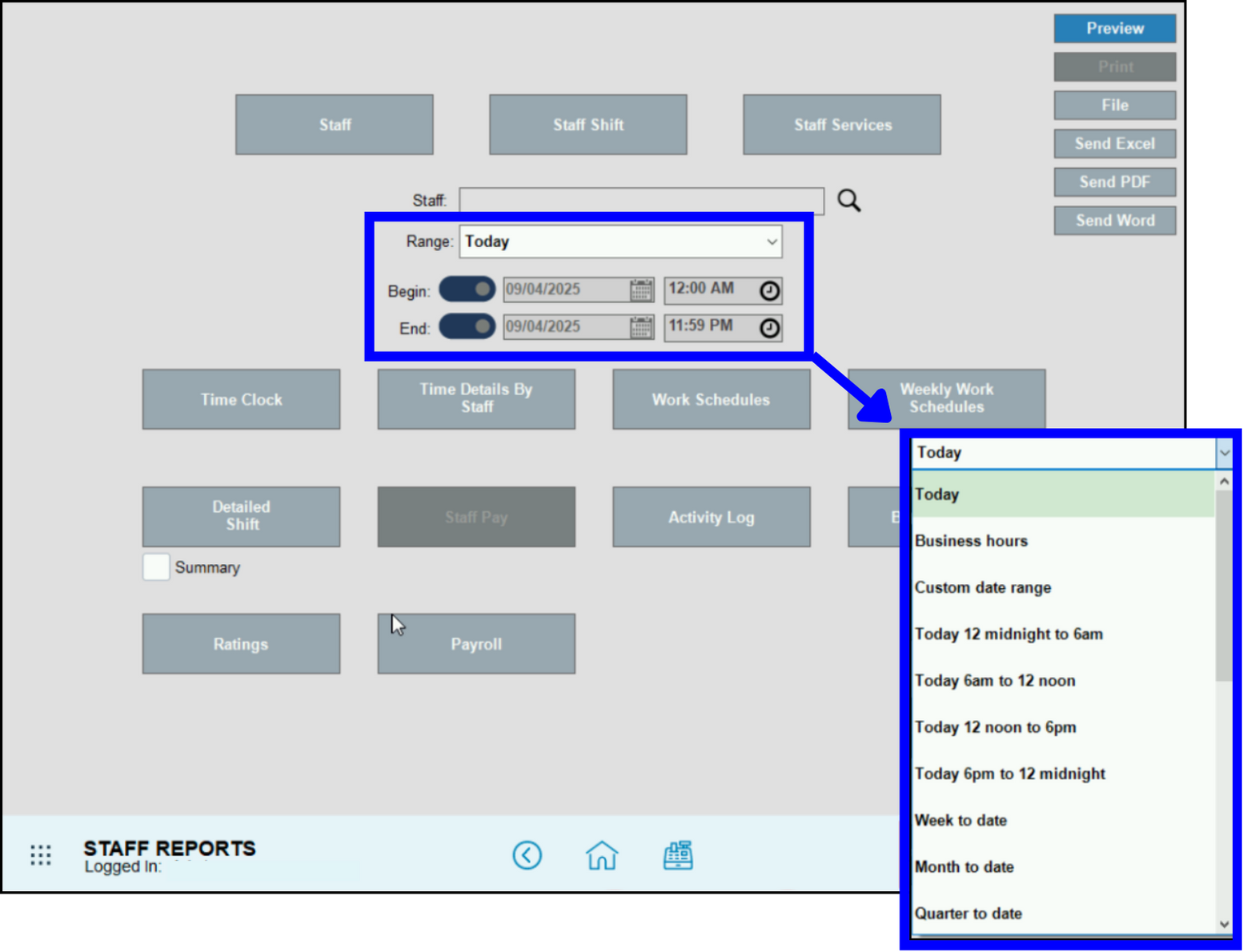
- Select a range of dates and times for this report to cover (pre-defined or custom).
- Select a report format option:
- Preview – Generate and display the report on screen
- Print – Generate and print to your report printer
- File – Generate save to an inserted USB thumb drive
- Send Excel – Generate and prepare to send in PDF format as an email attachment
- Send PDF – Generate and prepare to send in PDF format as an email attachment
- Send Word – Generate and prepare to send in PDF format as an email attachment
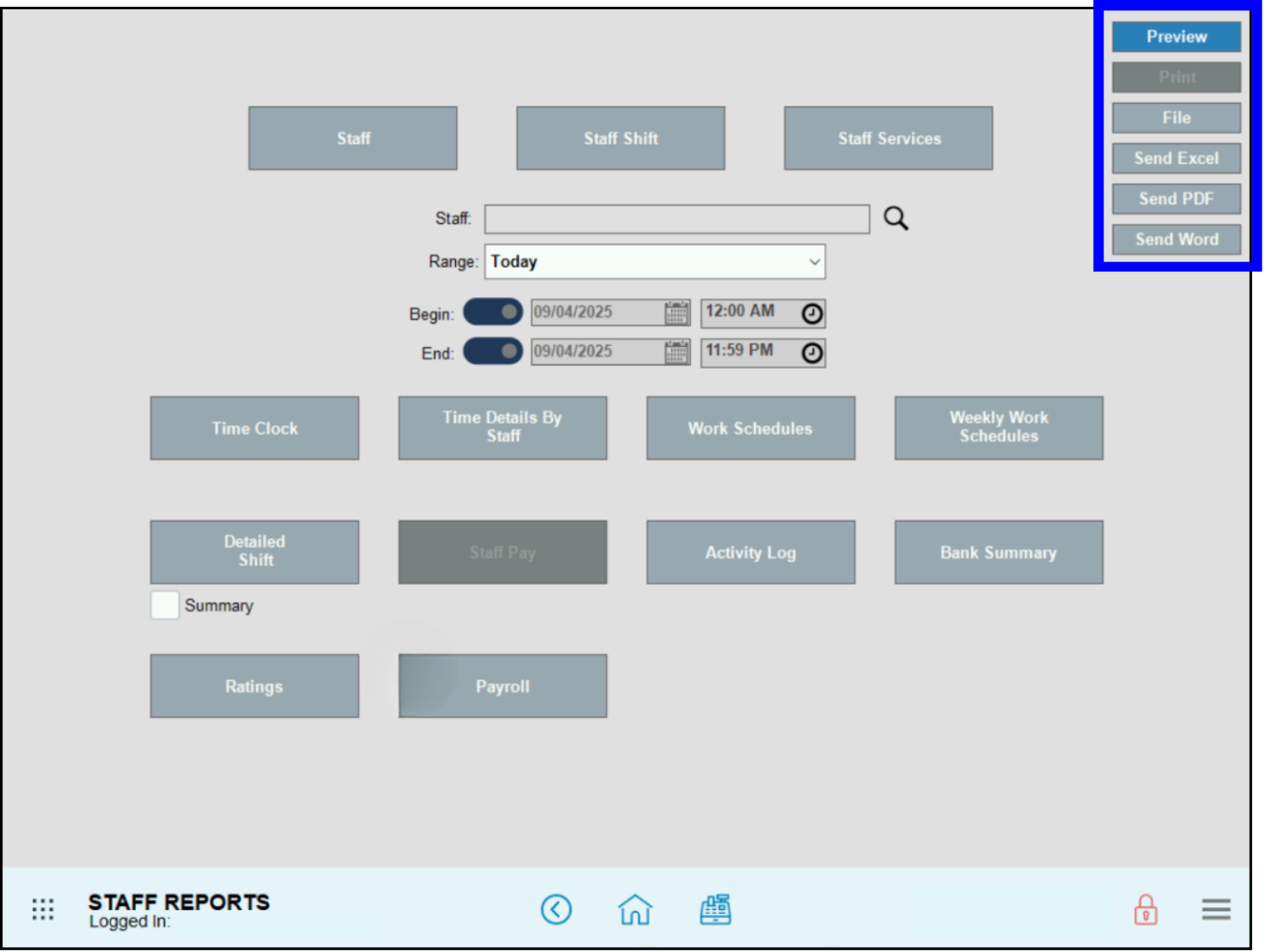
- Tap the name of the report to run. Leaving this field blank runs reports for all staff names, including deactivated names.
- Tip! Use the Staff search field to generate individual employee reports. Tap the magnifying glass icon, select an employee from the pop-up, then select a report to run.
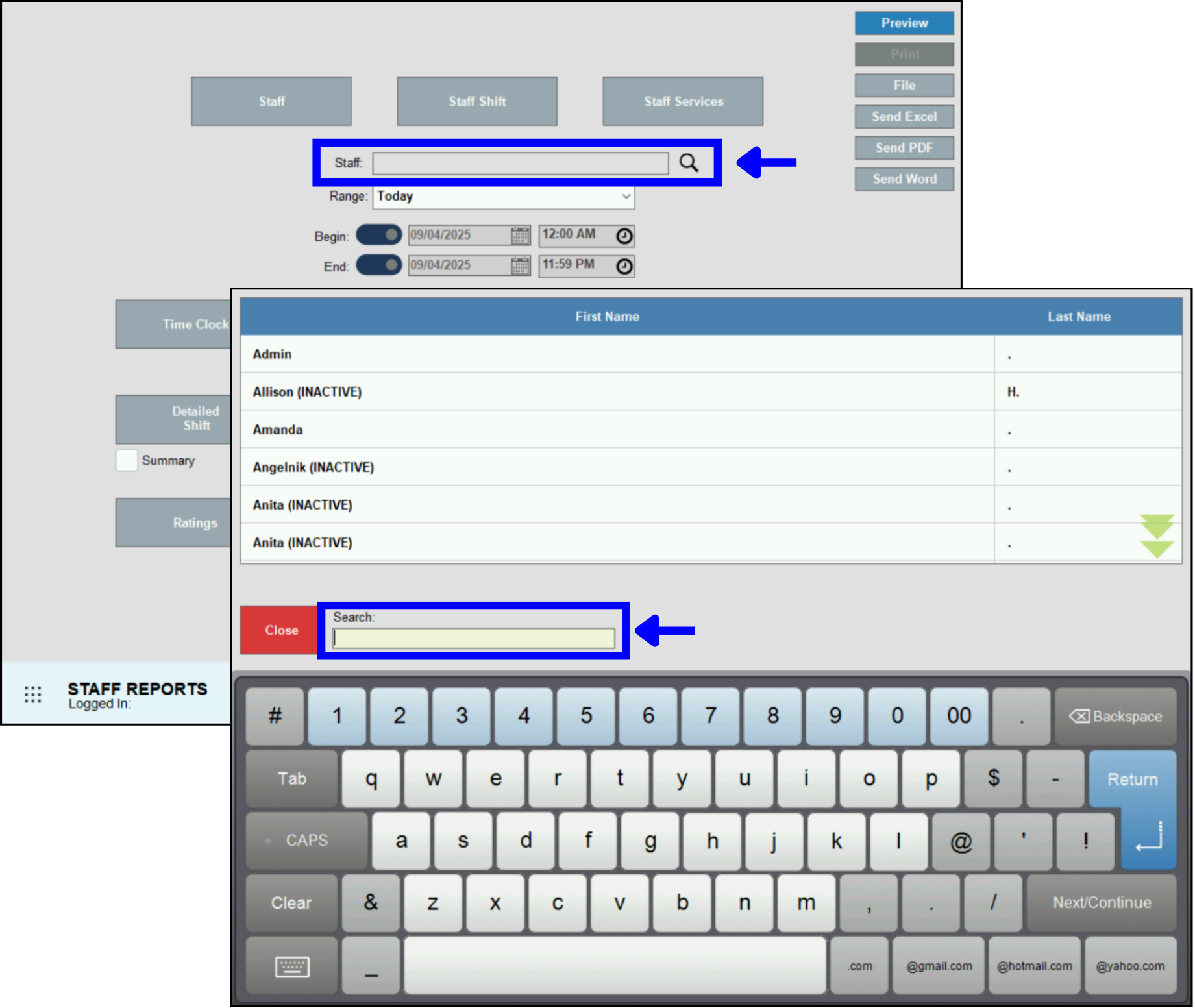
- Tip! Use the Staff search field to generate individual employee reports. Tap the magnifying glass icon, select an employee from the pop-up, then select a report to run.
- Review, send, or save the report as needed.
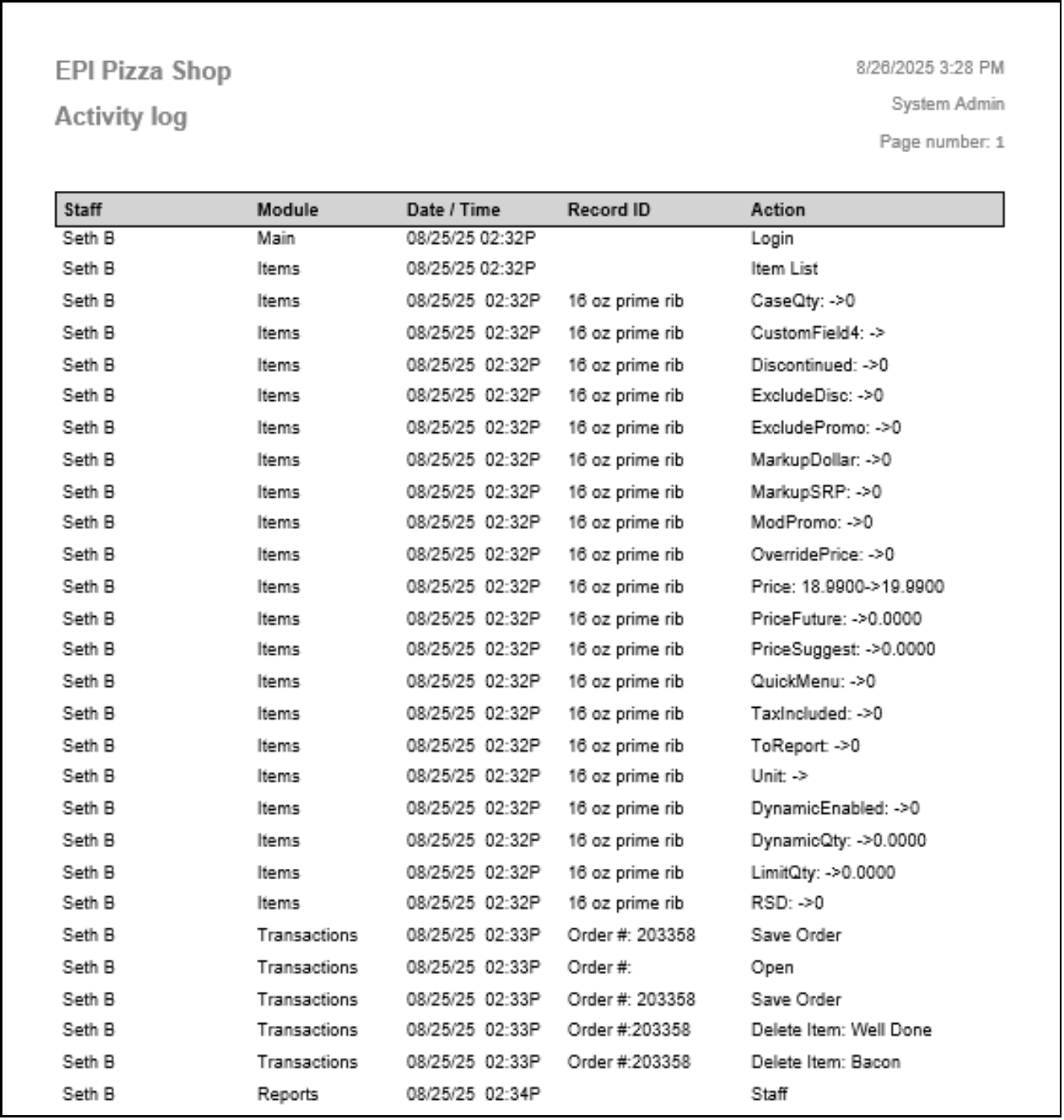
The Activity Log Report provides details on staff logins and access times in Exatouch.
- Staff – Records the employee name.
- Module – The module the employee entered. Currently only displays ‘Main’.
- Date / Time – Date and time of the recorded activity.
- Record ID – Displays the Order ID, Item, Staff etc… that took part of the recorded action.
- Action – Records the action in Exatouch that took place.
The Bank Summary Report shows the results of each cash drawer balance. Only drawers that have been swapped in appear on the report.
- Date – The bank started.
- Start Time – The time of the initial bank swap.
- End Time – The time of the second bank swap.
- Staff – Staff member set to the bank.
- Manager – The manager saved to the bank.
- Net Difference –If the bank is off balance, a positive number means the total is over the expected amount, while a negative number means it is under. A zero indicates the bank closed with the exact expected total.
- Status – Shows the present status of the bank. The results are Swap In, Swap Out, and Closed.

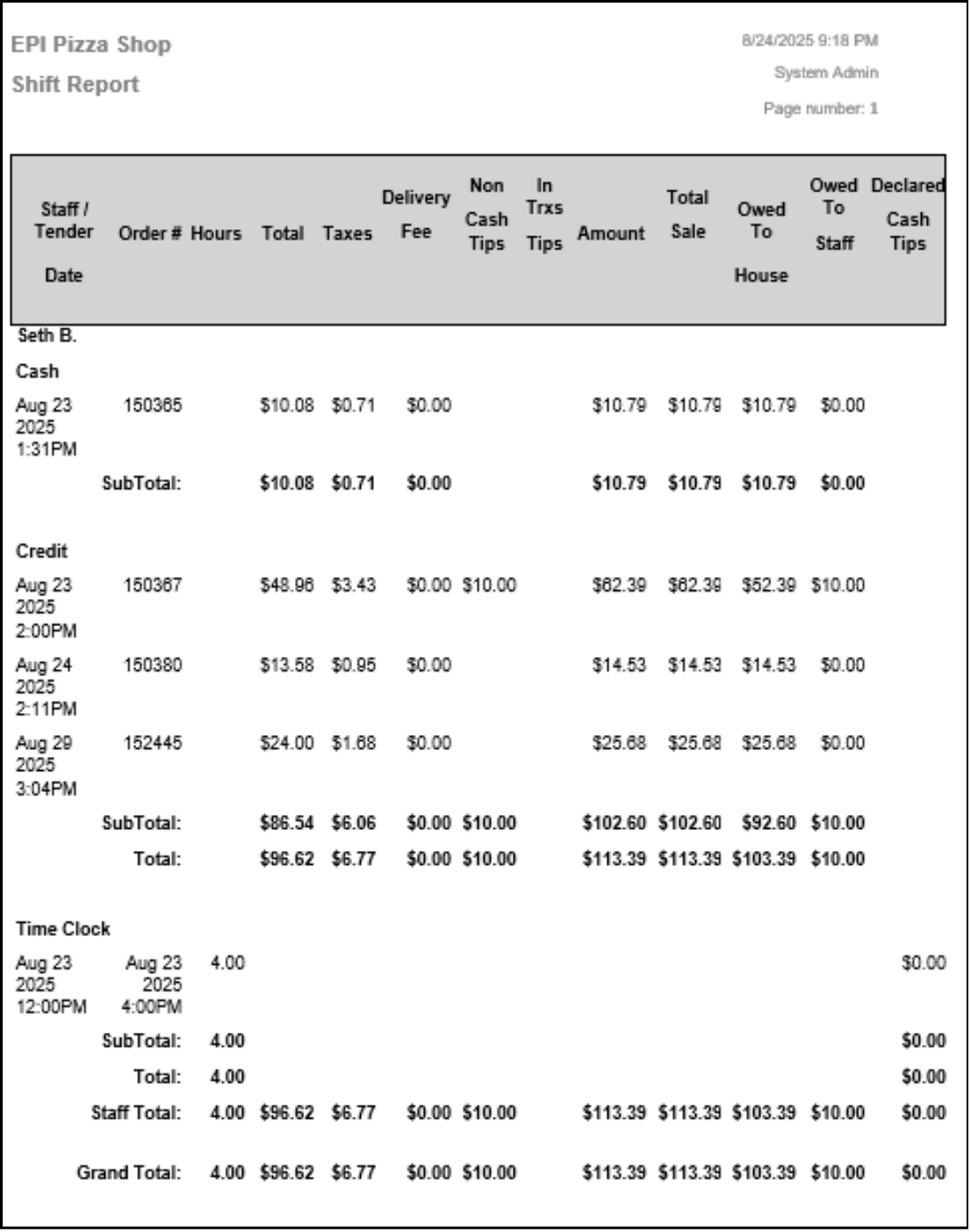
The Detailed Shift Report shows employee sales and hours worked, organized by staff member. It can be run for one employee or all employees. Sales are grouped by tender, with totals for each tender type and an overall total per employee. Time clock records appear in a separate section, and the report ends with a grand total for all employees.
- Staff/Tender Date – Date and time of the sale.
- Order # – Order number created in the register.
- Hours – Total hours worked during the recorded time clock entry.
- Total – The total before taxes, tips, and delivery fees.
- Taxes – Taxes collected on the order.
- Delivery Fee – Delivery fees applied on the order.
- Non Cash Tips – Tips applied using any tender type other than cash.
- In Trxs Tips – Tips added to the order before being closed out.
- Amount – The amount tendered.
- Total Sale – Total amount tendered.
- Owed To House – Effected by the Pay Out Non-cash Tips setting and the delivery setting, Delivery Fee % Paid To Driver. Will remove the delivery fee pay out and the tip added to the order to pay the staff member.
- Owed to Staff – Effected by the Pay Out Non-cash Tips setting and the delivery setting, Delivery Fee % Paid To Driver. Will add the tips and delivery fee pay out to be paid to the staff member.
- Declared Cash Tips – Cash tips declared while the staff member is closing out delivery orders paid with cash and when they clock out of their shift.
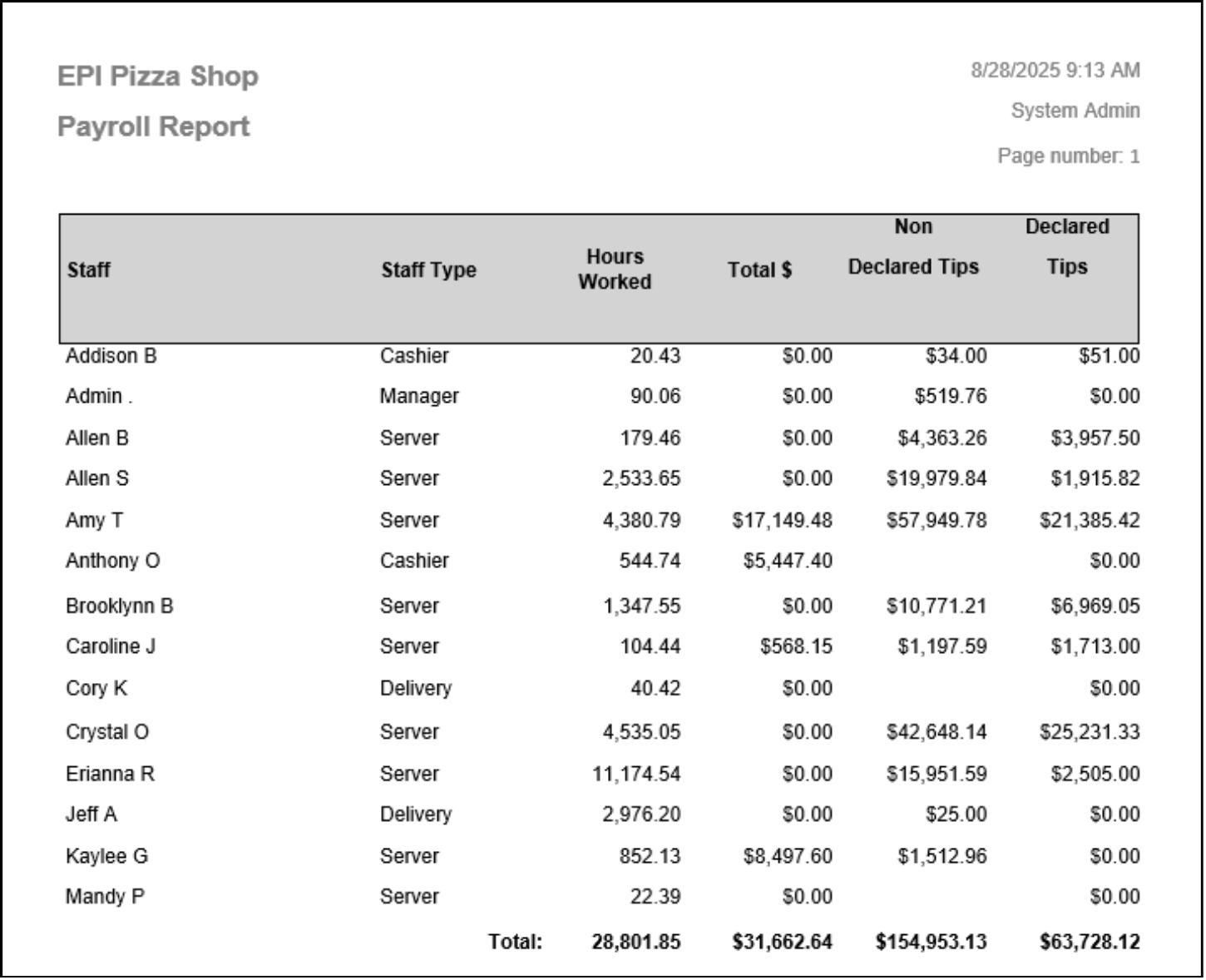
The Payroll Report lists staff members alphabetically, with each employee shown only once. Data appears after an employee successfully clocks out. Delivery fee payout percentages do not affect this report. At the end, the report provides grand totals for Hours Worked, Total $, Non-Declared Tips, and Declared Tips.
- Staff – Employee saved in Exatouch.
- Staff Type – The staff type saved on the employee’s Staff Details page.
- Hours Worked – Total time clocked in. If the staff member clocks their breaks, that time is removed from this total.
- Total $ – Hours worked multiplied by the hourly wage set on the employee’s Staff Details page.
- Non Declared Tips – All tips added before, during, or after a sale regardless of order type or tender.
- Declared Tips –Tips declared when clocking out.
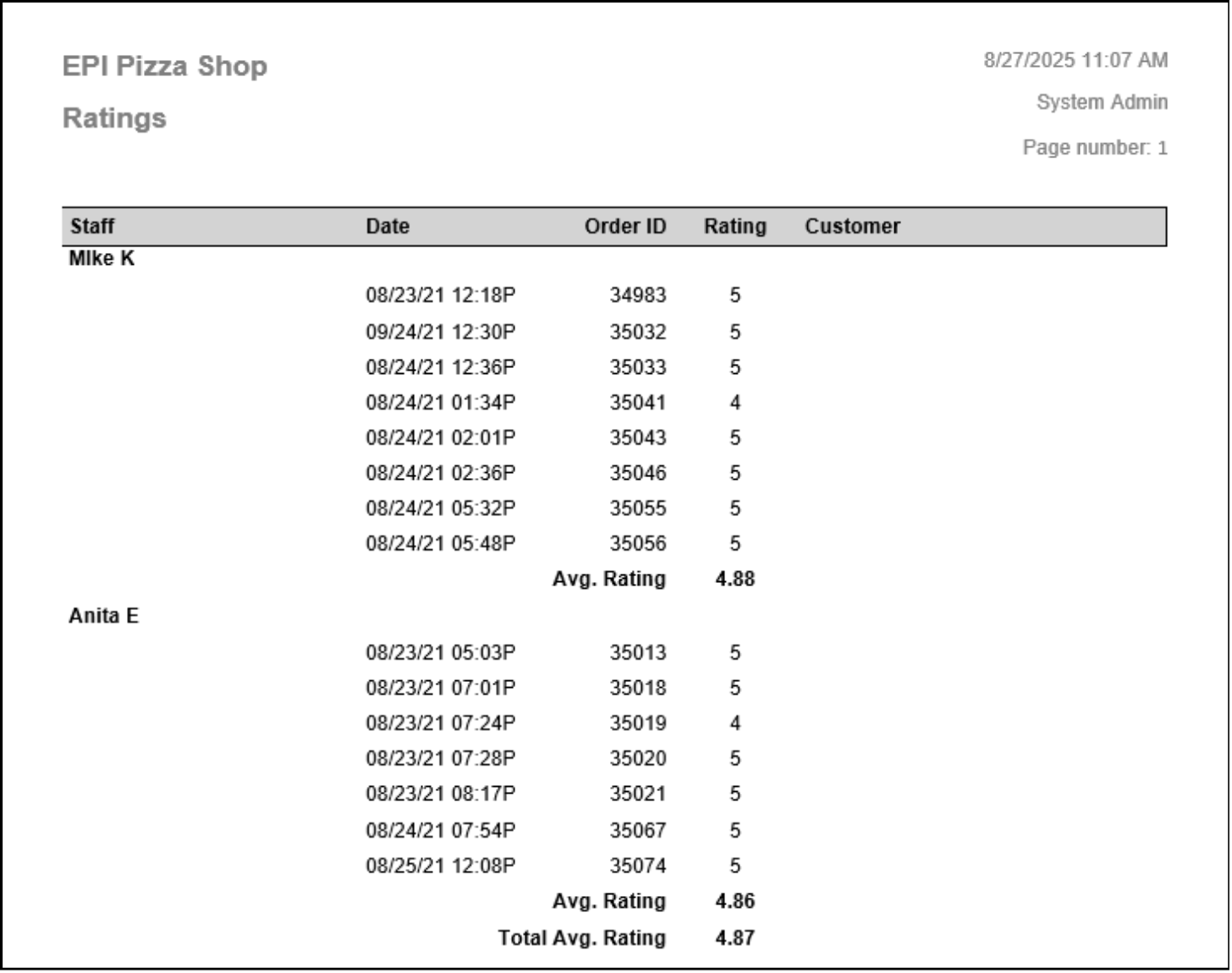
The Ratings Report shows customer star ratings entered on the customer-facing display. Results are organized by staff member and list each order within the selected time range.
- Staff – Employee that took the sale.
- Date – Date and time of the order.
- Order ID – Order number created in the register.
- Rating – The rating 1 – 5 selected by the customer.
- Customer – If a customer is added to the order, their info will display here.
The Staff Report lists employees in alphabetical order and includes their contact information saved in Exatouch.
- Staff – Employee first and last name.
- Address – Home address saved for the employee.
- Phone – Employee phone number.
- Email – Employee’s email address.

The Staff Services Report lists the services each employee is set up to perform in Exatouch, organized by staff member.
- Staff – Staff member that can perform the services.
- Service – The services the staff member has enabled.
- Price – The price a customer will pay for the service.
- Time – The allotted time set for the service.
- Staff Price – Non-conclusive.
- Staff Time – Non-conclusive.

The Staff Shift Report shows all pertinent information regarding one employee’s shift over a period of time applied by the merchant.
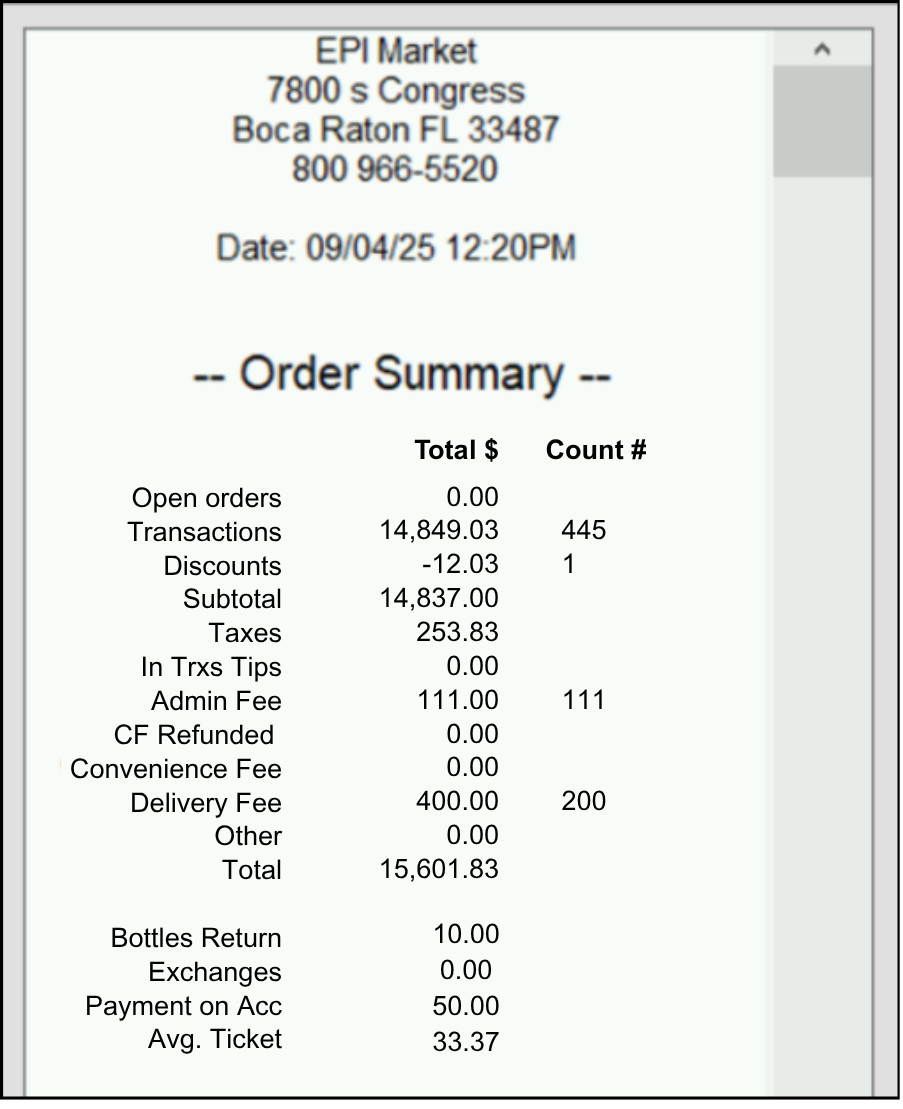
Order Summary
Order Summary breaks down all income (including fees) from all orders a staff member rang up.
- Open Orders – Sum of all open orders. These orders can be viewed from the “Get Order” button within the Register. The reported total will reflect any discounts. Except those that are applied as a result of tender type. The reported total does not reflect any partial payments applied.
- Transactions – Sum of all items and services sold, where payment has been collected in full. This is the item total before any discounts or taxes have been applied.
- Discounts – Total value of all dollar- and percentage-based discounts applied to orders. This includes all line item, whole order and tender based discounts.
- Subtotal – Difference between Transactions and Discounts.
- Taxes – Sum of all tax groups collected on orders after exemptions and refunds. The tax section at the bottom of the report will display taxes collected and refunded per group.
- In Trxs Tips – Sum of all in transaction tips, applied via Tip Adjustments, Staff Declared Cash Tips, Add/Mod Tips, Touch CFD, or TableTurn pay at the table device.
- Checkout Fee – Adds all tender based fees set in Account settings.
- Convenience Fee – Totals the convenience fees generated through DeliverMe.
- Delivery Fee – Sum of all in house and third party delivery fees collected.
- Other – Sum of other fees collected. This includes promo based fees defined as a % or $ based set up within the Items Promos menu. Also included would be CRV/DRV fees that are typically used for bottle deposit collection in retail.
- Total – Total collected from all transaction activity. This is not Gross Sales as defined by GAAP, since it includes tips, checkout fees, conv fees, delivery fees, and other collected fees, during the transaction.
- Bottles Return – Total paid to customer for qualified recyclable bottles and cans.
- Exchanges – Value and amount of all exchanged items ran in the register.
- Payment on Acc – Amount a customer pays on the total of their house account.
- Avg. Ticket – Average ticket amount based on count of Transactions and Total from order summary section.
Gross Sales by Category
Gross Sales by Category breaks down item totals by Category.

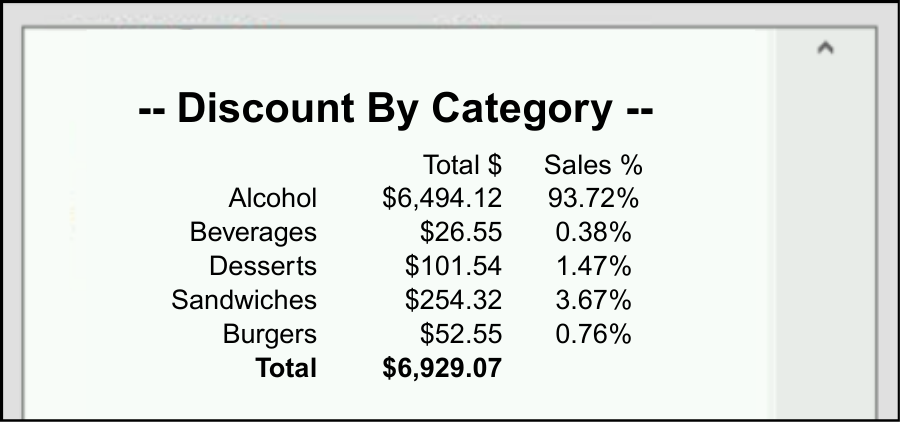
Discount by Category
Discount by Category breaks down item discounts by Category. Totals include discounts but exclude sales tax, tips, and fees. Percentages are calculated relative to the sum of all categories.
Total Sales By Category
Total Sales By Category shows sales according to your pre-chosen categories.

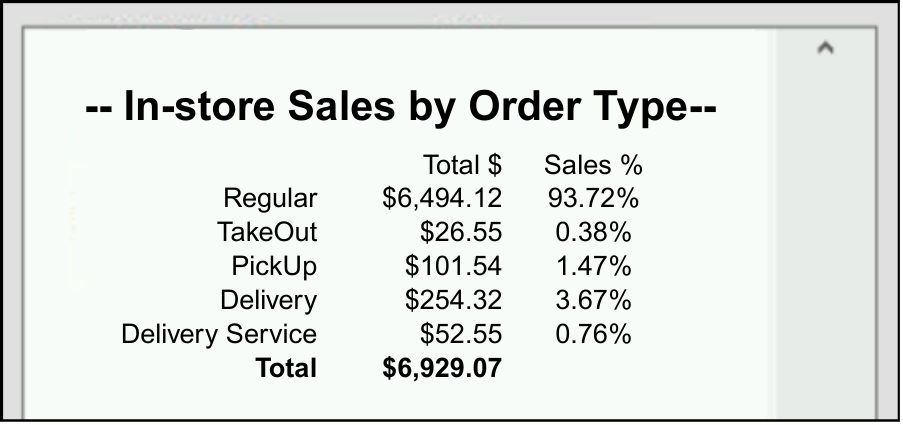
In-store Sales By Order Type
In-store Sales By Order Type shows sales by order type in the register. Totals include the Subtotal plus any Checkout Fees, but exclude tax.
Online Order Sales By Order Type
Online Order Sales By Order Type shows online orders, such as DeliverMe sales. Totals include the subtotal plus any checkout fees, but exclude tax.

Sales By Staff
Sales by Staff breaks down sales by the staff member who tendered the order. Totals include the subtotal and any checkout fees, but exclude tax.

Sales By Revenue Center
Sales by Revenue Center breaks down an item’s total value based on the Revenue Center defined in the Item Details. Totals include discounts. If no Center is defined, the sales are reported as Unclassified.

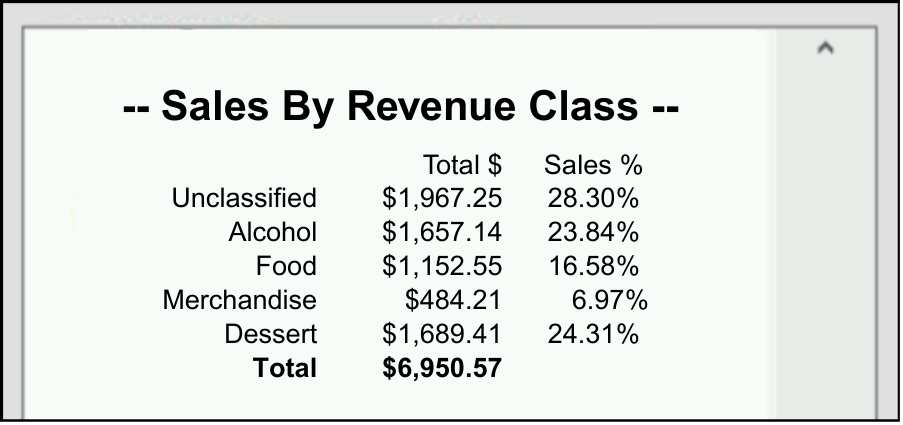
Sales By Revenue Class
Sales by Revenue Class breaks down an item’s defined value based on the Revenue Class defined in Item Details. Totals include discounts. If no Class is defined, the sales are reported as Unclassified.
Taxes
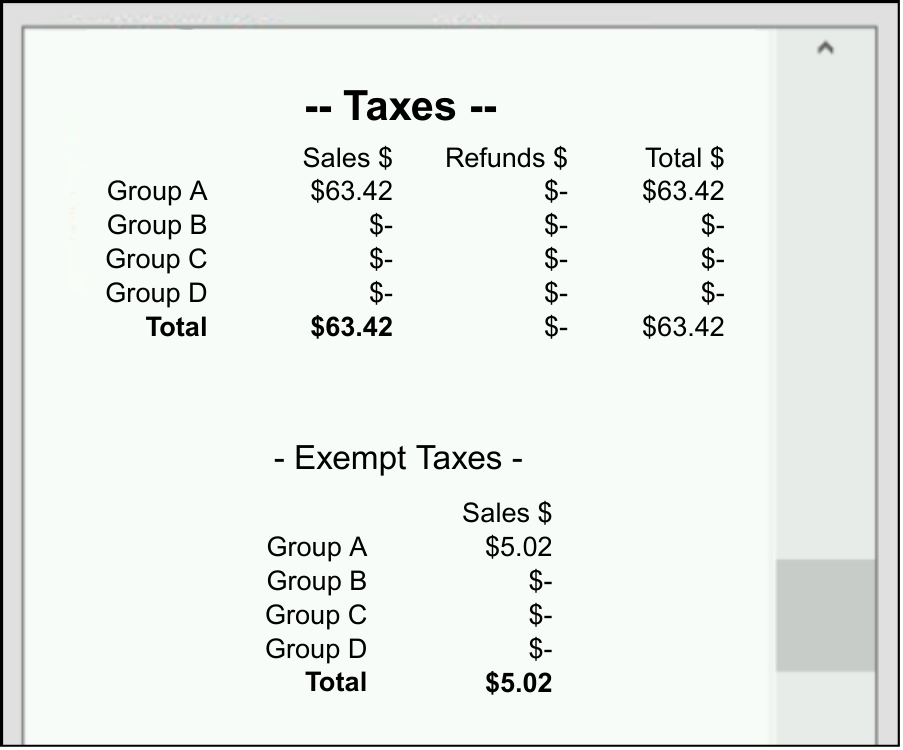
The Taxes section shows all information regarding taxes, including exemptions.
- Sales – Reports taxes collected by the Groups defined in Tax Settings. The taxable amount, shown on the Taxes Report, includes item discounts and may also include service fees depending on settings.
- Refunds – Reports taxes refunded by the Groups defined in Tax Settings. The taxable amount, shown on the Taxes Report, includes item discounts.
- Total – Difference between sales and refunded taxes collected for each group.
- Exempt – Reports any taxes that were exempt on an order, based on payment method or customer status exemption.
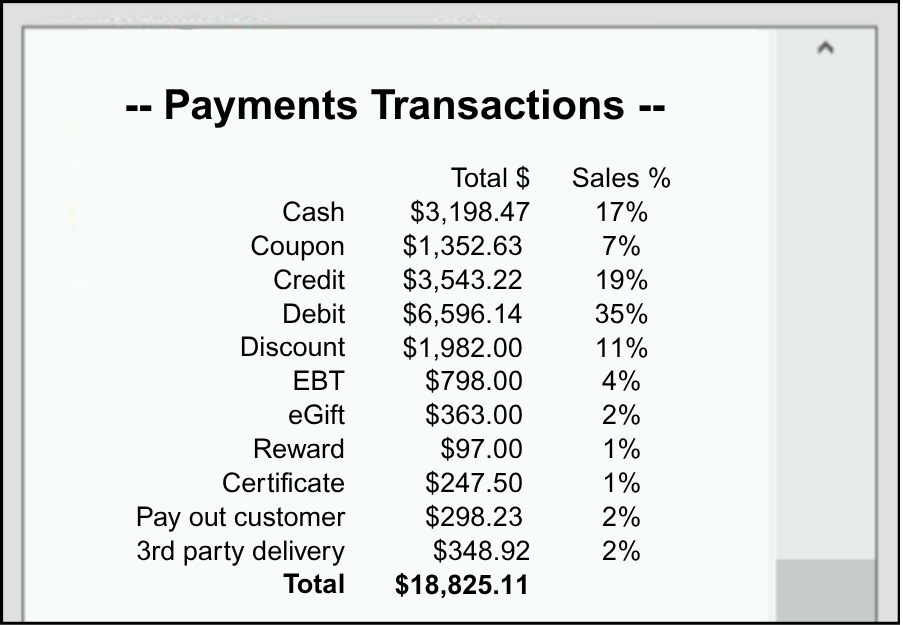
Payments Transactions
Payment Transactions report all tenders collected, showing totals for each tender type. Amounts include discounts, tax, tips, and fees applied before or after payment.
Customer Pay Out Details
Customer Pay Out Details reports payments, such as bottle returns or lottery pay outs, issued to customers. Each Pay Out type used will report on its own line. Customer Pay Out reasons can be created under Preferences on the Custom Vars page.

Company Pay Out Details
Company Pay Out Details reports all payments, such as supplies or vendor payments, made to merchants. Each Pay Out type used will report on its own line. Company Pay Out reasons can be created under Preferences on the Custom Vars page.

Refunded Payments
Refunded Payments reports refunds issued, organized by tender. Totals include discounts, tax, tips, and fees applied before or after payment. Refunds are not part of the order summary but are deducted from this section.

Voided Payments
Voided Payments reports voids issued, organized by tender. Totals include discounts, tax, tips, and fees applied before or after payment. Voids are not part of the order summary but are deducted from this section.

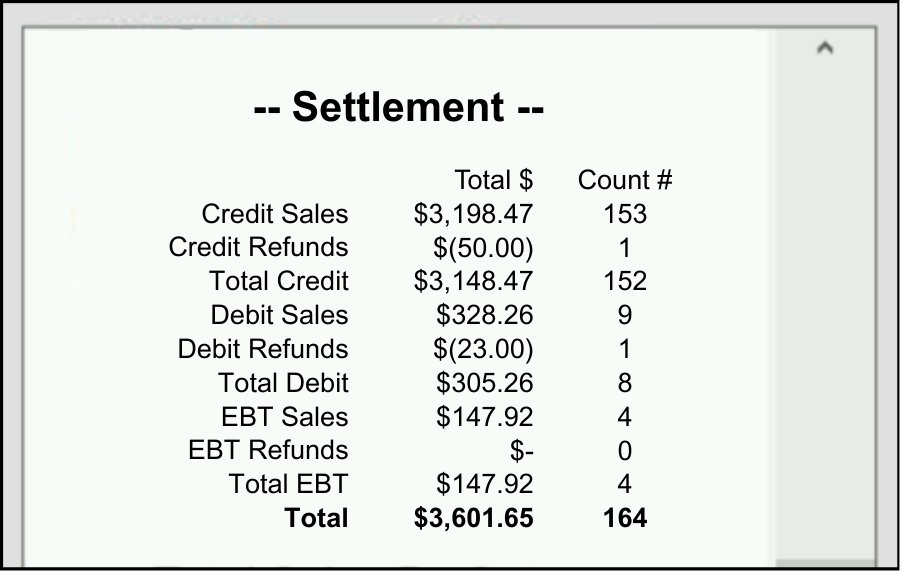
Settlement
Settlement shows credit, debit, and EBT (if applicable) payments collected, along with any refunds. Totals include discounts, taxes, tips, and fees applied before or after payment.
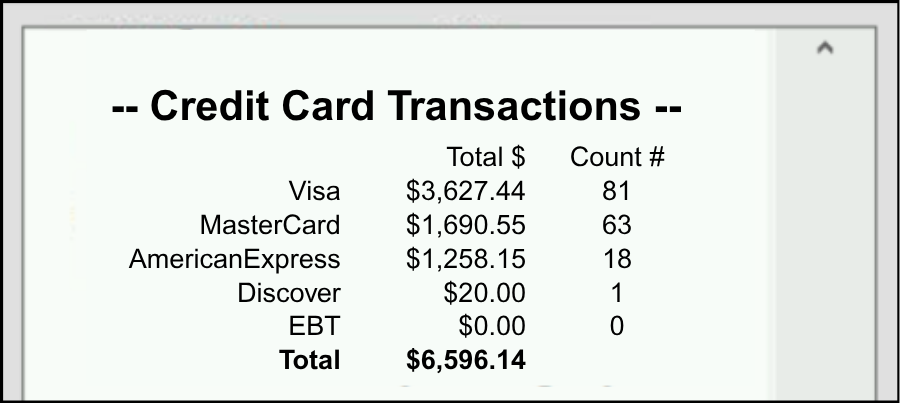
Credit Card Transactions
Credit Card Transactions breakdown card sales by card type. Totals between this section and Settlement should match.
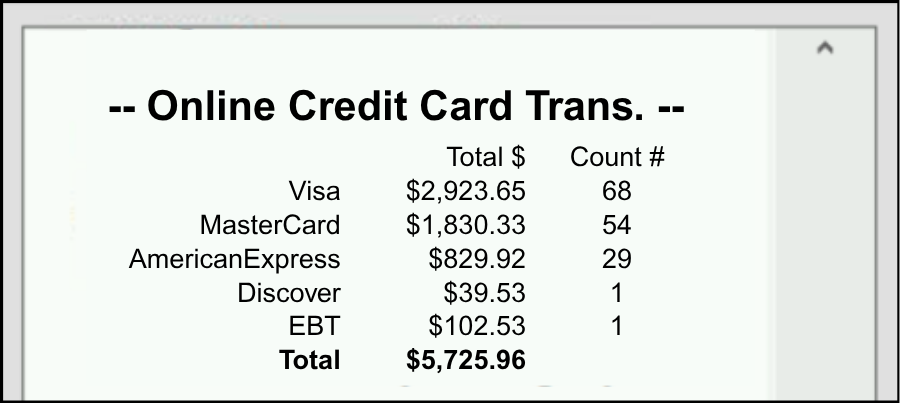
Online Credit Card Transactions
Online Credit Card Transactions break down transactions through DeliverMe by card type.
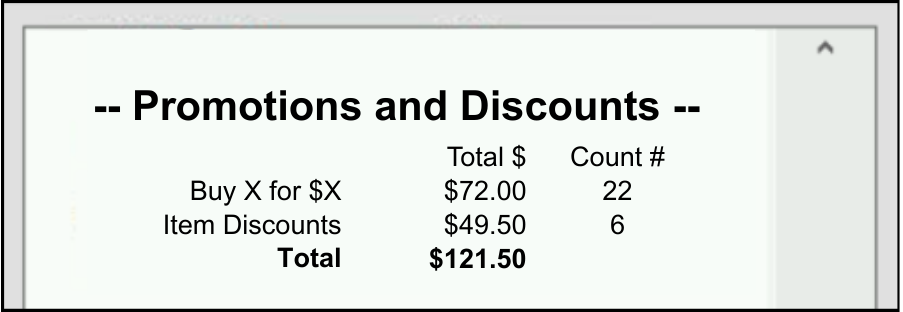
Promotions and Discounts
Promotions and Discounts report the total of all automatically applied promotions. Each promotion type is listed separately, including item-level, category-level, and happy hour promotions on items and services.
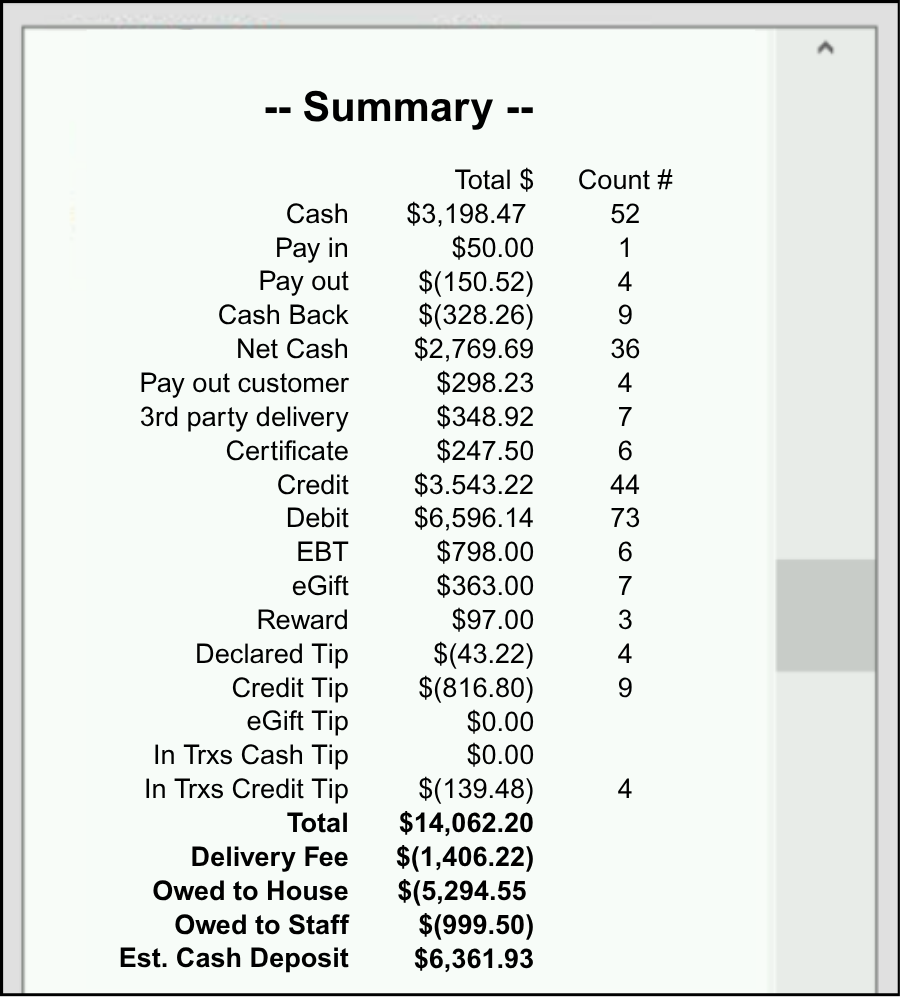
Summary
Summary shows a snapshot of all the information that previously appeared in the report.
- Cash – All cash accepted before any pay ins, tips, and after refunds and voids.
- Pay in – Pay In Company.
- Pay out – Pay out Company.
- Cash Back – Pay out Customer and cash back from check payments.
- Net Cash – Cash total after Pay Out Company and Cash Back are removed and Pay In is added.
- Pay out customer – Pay out Customer.
- 3rd party delivery – Delivery Services tender option in the Register on the Pay tab.
- Certificate – Exatouch gift certificates.
- Credit – Total credit before any tips.
- Debit – Total debit before any tips.
- EBT – Total EBT.
- eGift – Total eGift.
- Reward – Loyalty rewards point value used.
- Declared tip – Declared tips are entered while clocking out or entered in the Delivery Manager.
- Credit tip – Credit adjustments done through Complete Auth.
- eGift tip – Tips applied on eGift cards.
- In Trxs Cash Tip – All cash tips accepted before checking out.
- In Trxs Credit Tip – All credit tips accepted before checking out.
- Total – Total of all tendered activity, inclusive of discounts, tax, tips, and fees applied.
- Delivery fee – Revenue from delivery fees.
- Owed to House – Everything collected, minus non-cash tips, declared tips, in-transaction tips, and customer payouts applied to orders.
- Owed to Staff – Total of credit tips, eGift tips, declared tips, tips in transactions, and percent of delivery fee paid to driver.
- Est. Cash Deposit – Remaining cash after paying out tips, and a delivery fee percent to drivers if set. This does not include in-transaction cash tips, Declared Tips, or In Trxs Cash Tips.
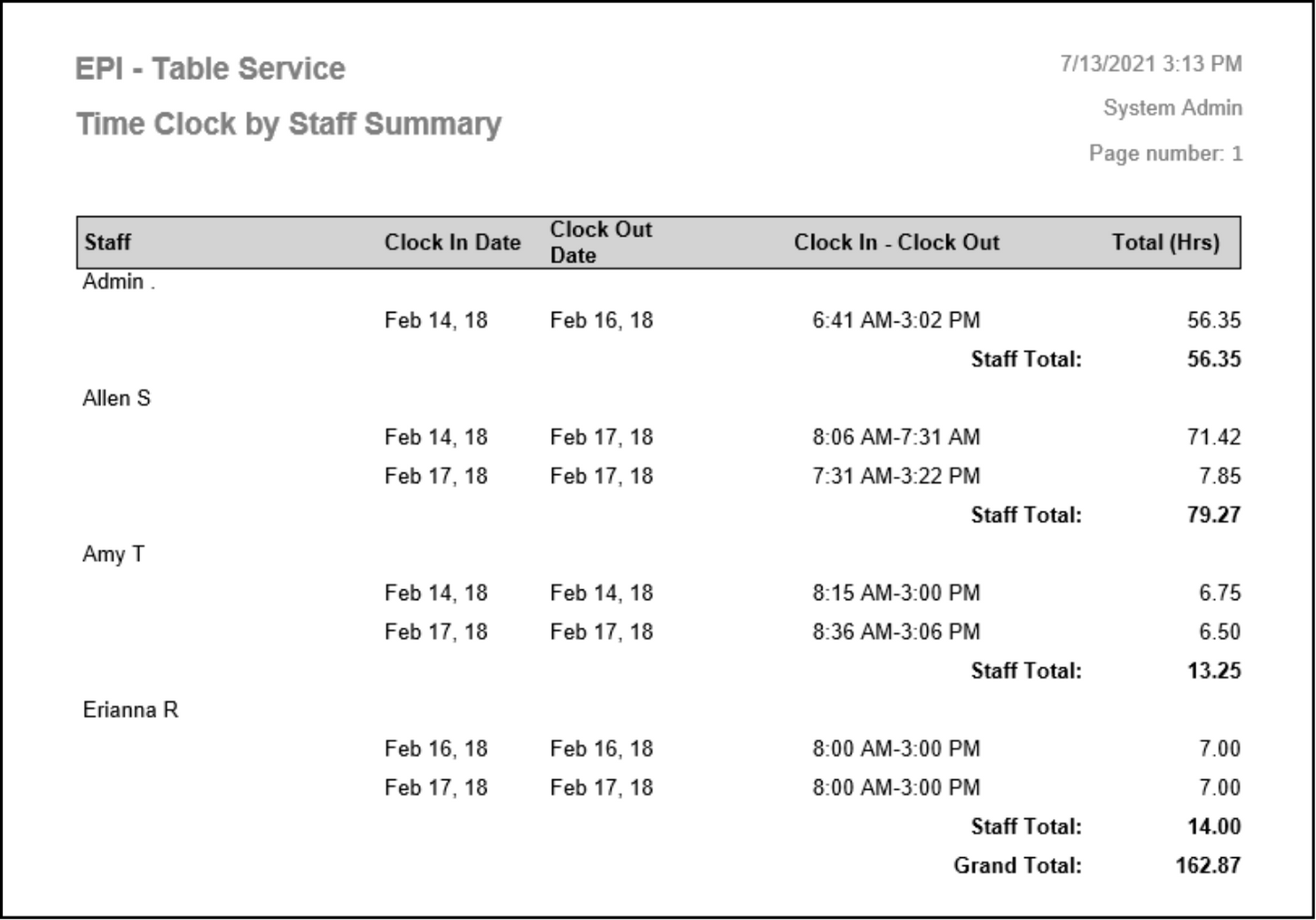
The Time Clock Report shows employee clock-in and clock-out records from the register. It can be run for one employee or all staff, with employees listed alphabetically. Each employee’s total includes all hours worked minus any clocked breaks. Breaks appear as negative values, and a grand total of all hours is shown at the end.
- Staff – The staff member who clocked in.
- Clock In Date – The date the employee clocked in.
- Clock Out Date – The date the employee clocked out.
- Clock In – Clock Out – The time of the clock in followed by the time of the clock out.
- Total (Hrs) – Total the hours for the time clock record.
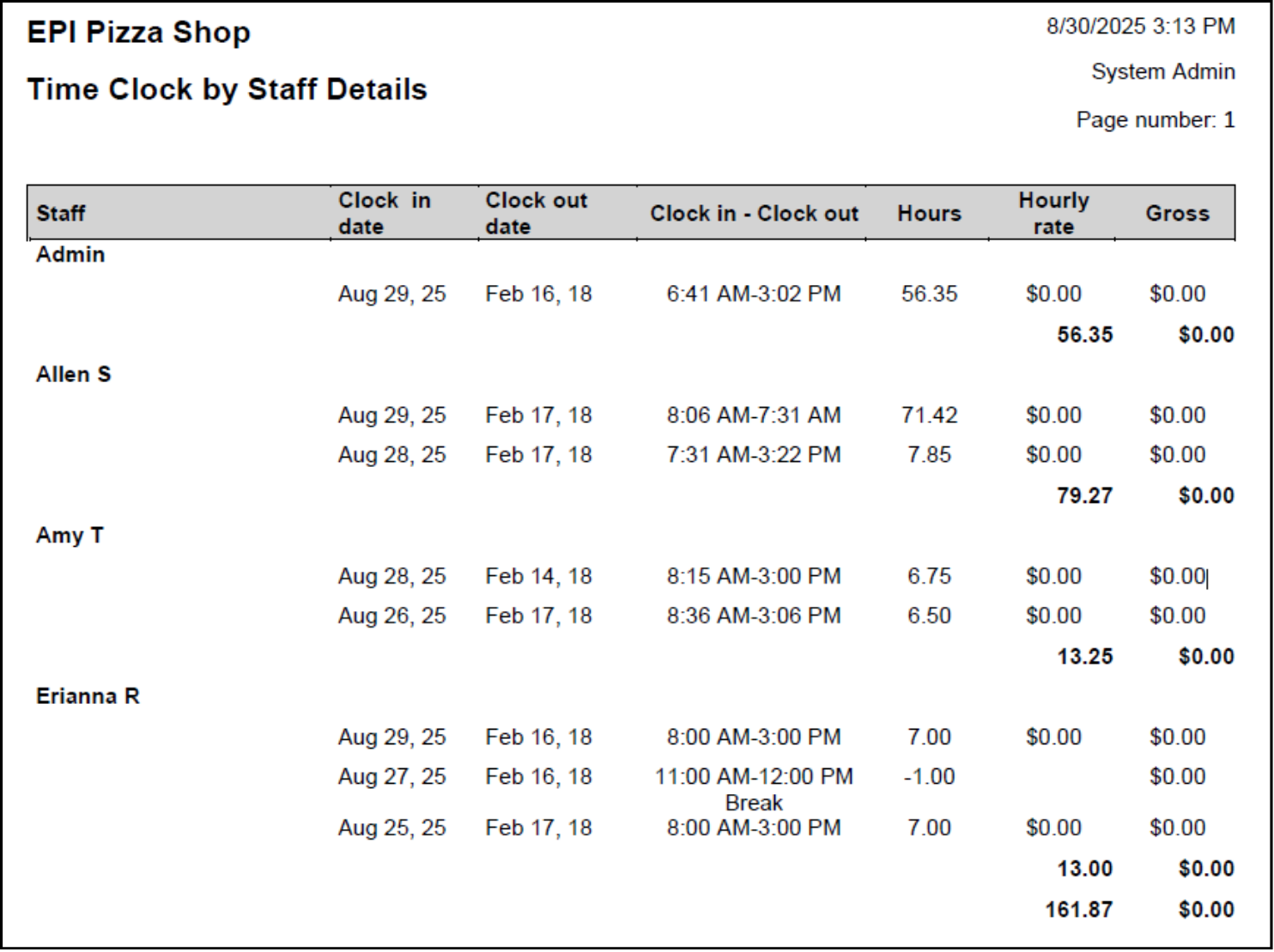
The Details by Staff Clock Report shows employee clock-in and clock-out records from the register. Tapping “Time Details by Staff” runs the report for one employee or all staff, with employees listed alphabetically. Each employee’s total reflects hours worked minus clocked breaks, and their gross total shows wages calculated without breaks. Breaks appear as negative values. A grand total of all hours and gross pay is displayed at the end.
- Staff – The staff member who clocked in.
- Clock In Date – The date the employee clocked in.
- Clock Out Date – The date the employee clocked out.
- Hours – Time elapsed for the time clock record.
- Hourly Rate – The hourly wage set up on the staff details page.
- Gross – Hourly rate multiplied by the hours worked.
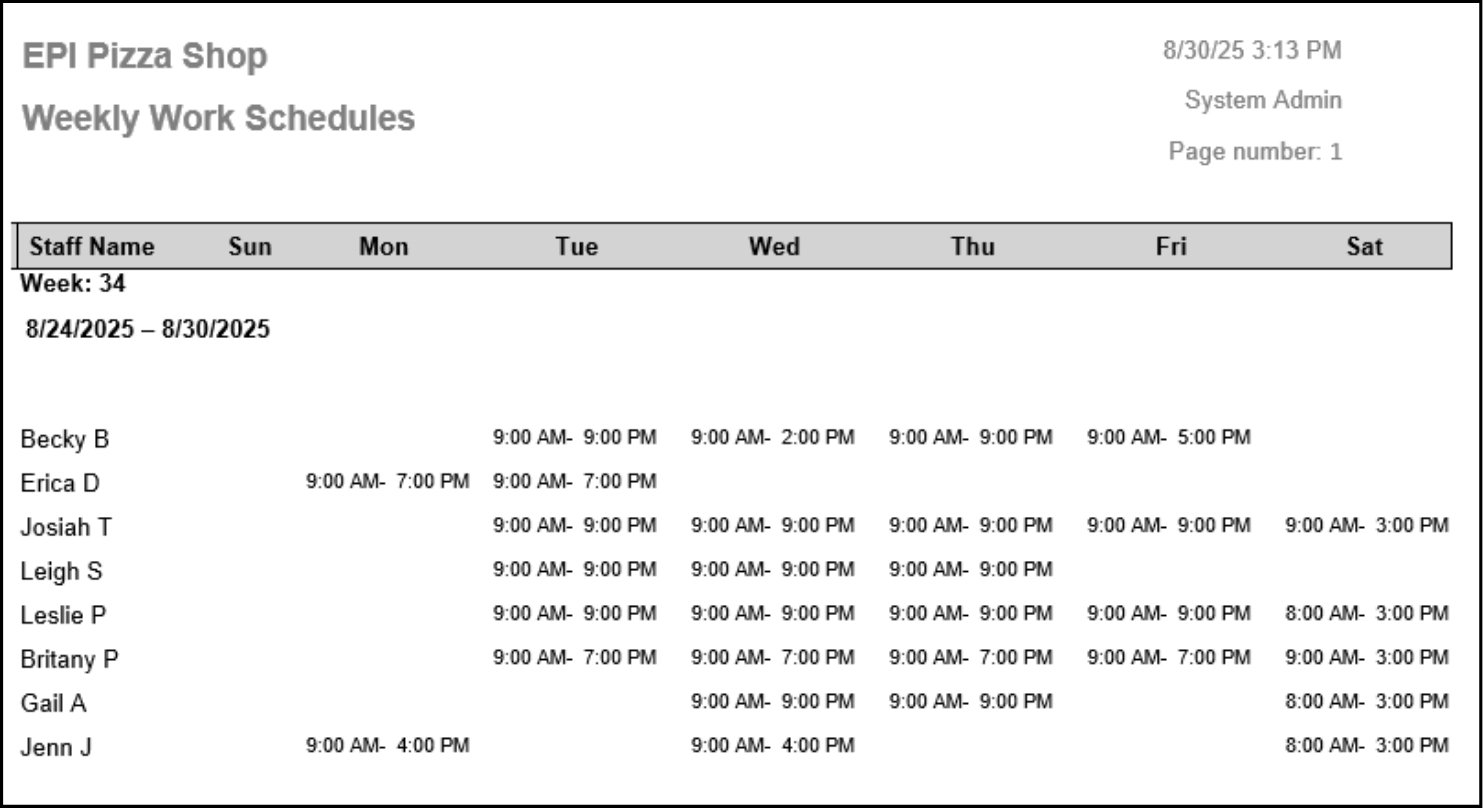
The Weekly Work Schedules Report shows a weekly preview of employee work schedules. It can be run for one staff member or all employees, and is organized by week in ascending order.
- Staff Name – The staff scheduled. Staff members may display multiple times if the report is run for a date range that spans multiple weeks.
- Week Day – The beginning and end time for each day scheduled.
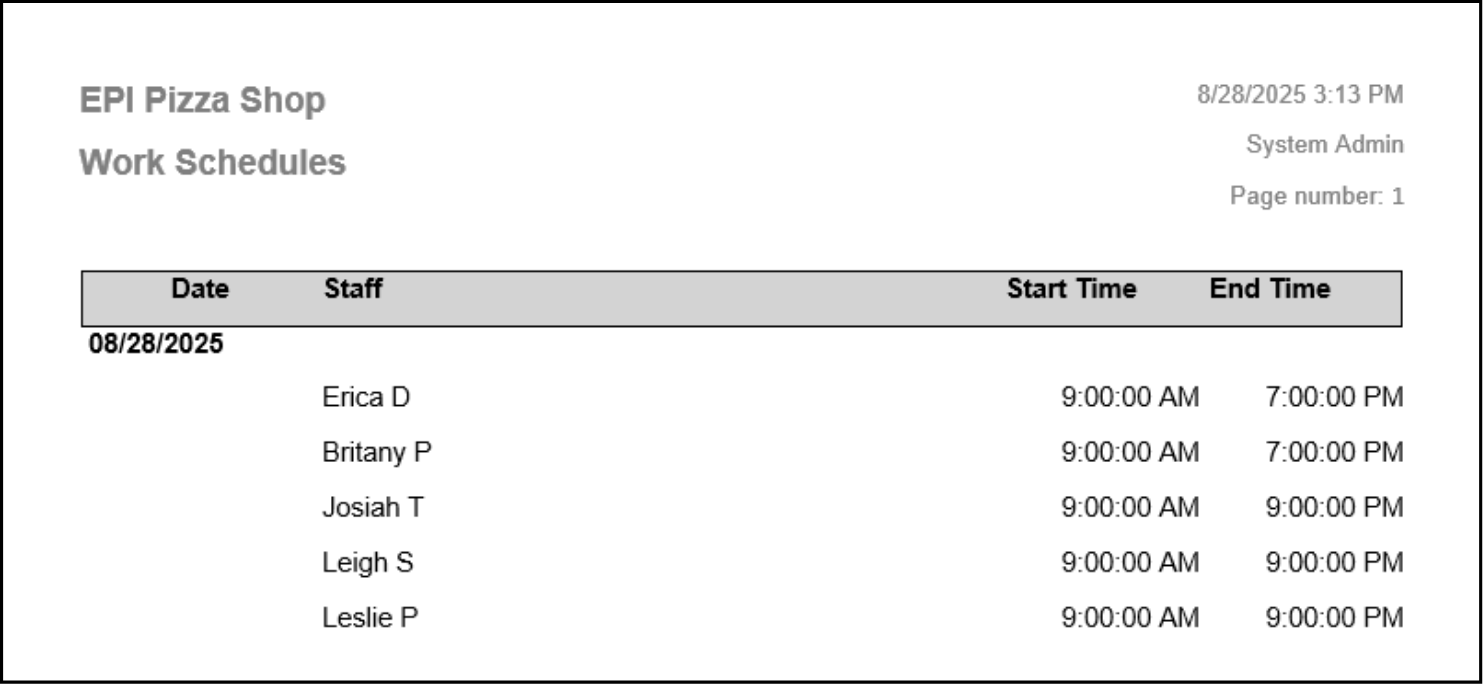
The Work Schedules Report shows the scheduled shift start and end times for employees. It can be run for one staff member or for all staff.
- Date – The calendar date of the shaded shift.
- Staff – The staff member scheduled for the shift.
- Start Time – The time the employee is expected to start their shift.
- End Time –The time the employee is set to end their shift.
How can we improve this information for you?
Registered internal users can comment. Merchants, have a suggestion? Tell us more.