
Tracking business overviews and transactions reports is easier with POS Cloud, which allows merchants to monitor business data on the road or in the office. Accessible from any desktop computer or compatible mobile devices, the POS Cloud provides regular updates and gives merchants access to the very latest data about how their business is performing.
Recommended Equipment and Browsers
POS Cloud is accessible from most PC and Apple computers, as well as Apple and Android devices. It works with most common browsers, including Google Chrome, Firefox, and Microsoft Edge. Apple users can also access POS Cloud via Safari.
Usernames and Passwords
Electronic Payments provides merchants with their own Username, typically the email address associated with the merchant’s account. Merchants will receive an email that includes a link to create a password. If you don’t receive this email or encounter other password-related issues, click “Forgot Your Password” and reset your password or contact the Technical Support team.
Logging Into POS Cloud from M360
- Go to https://merchant360.com/.
- Enter Username and Password.
- Click Login.
- In the Platforms section, select View Exatouch.
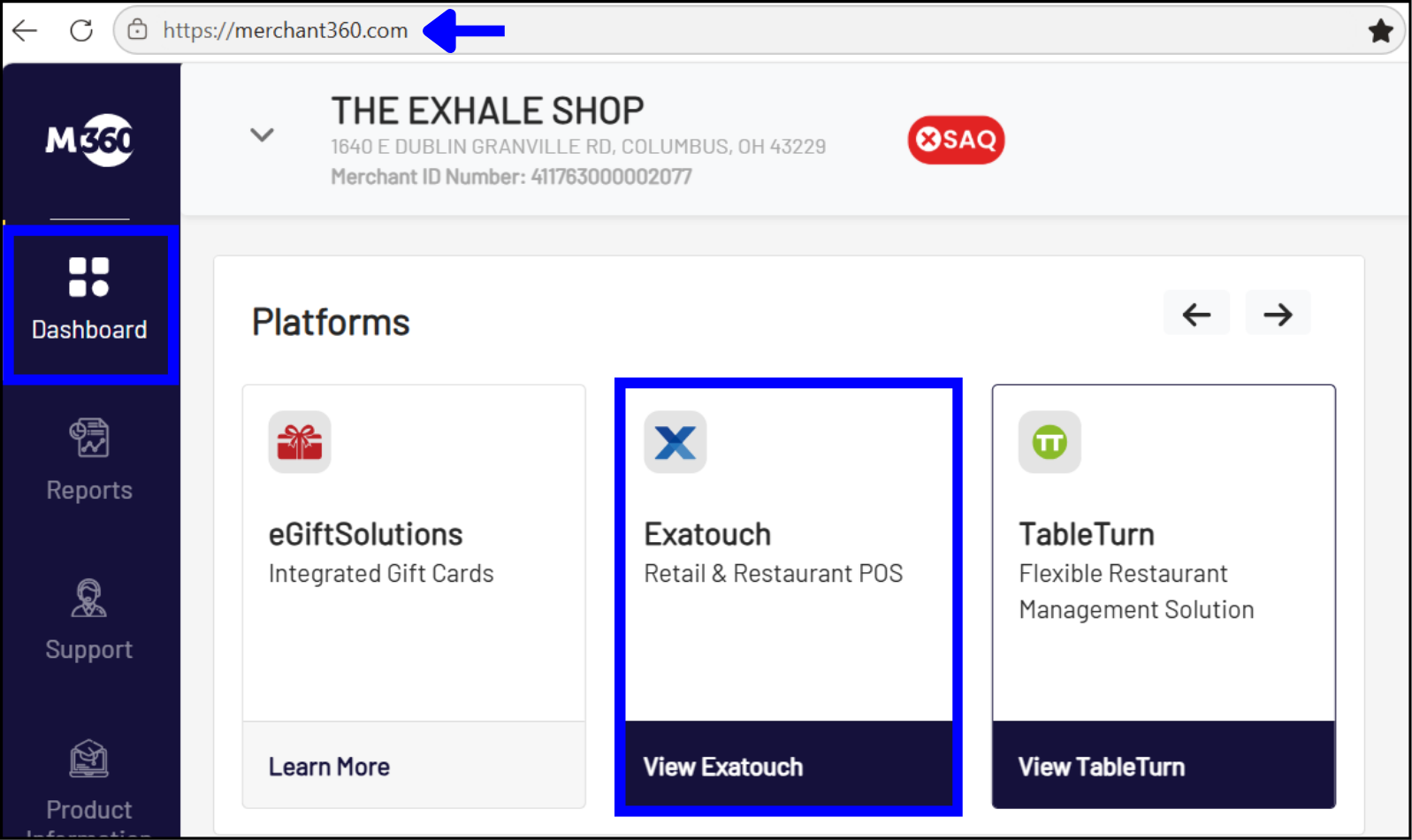
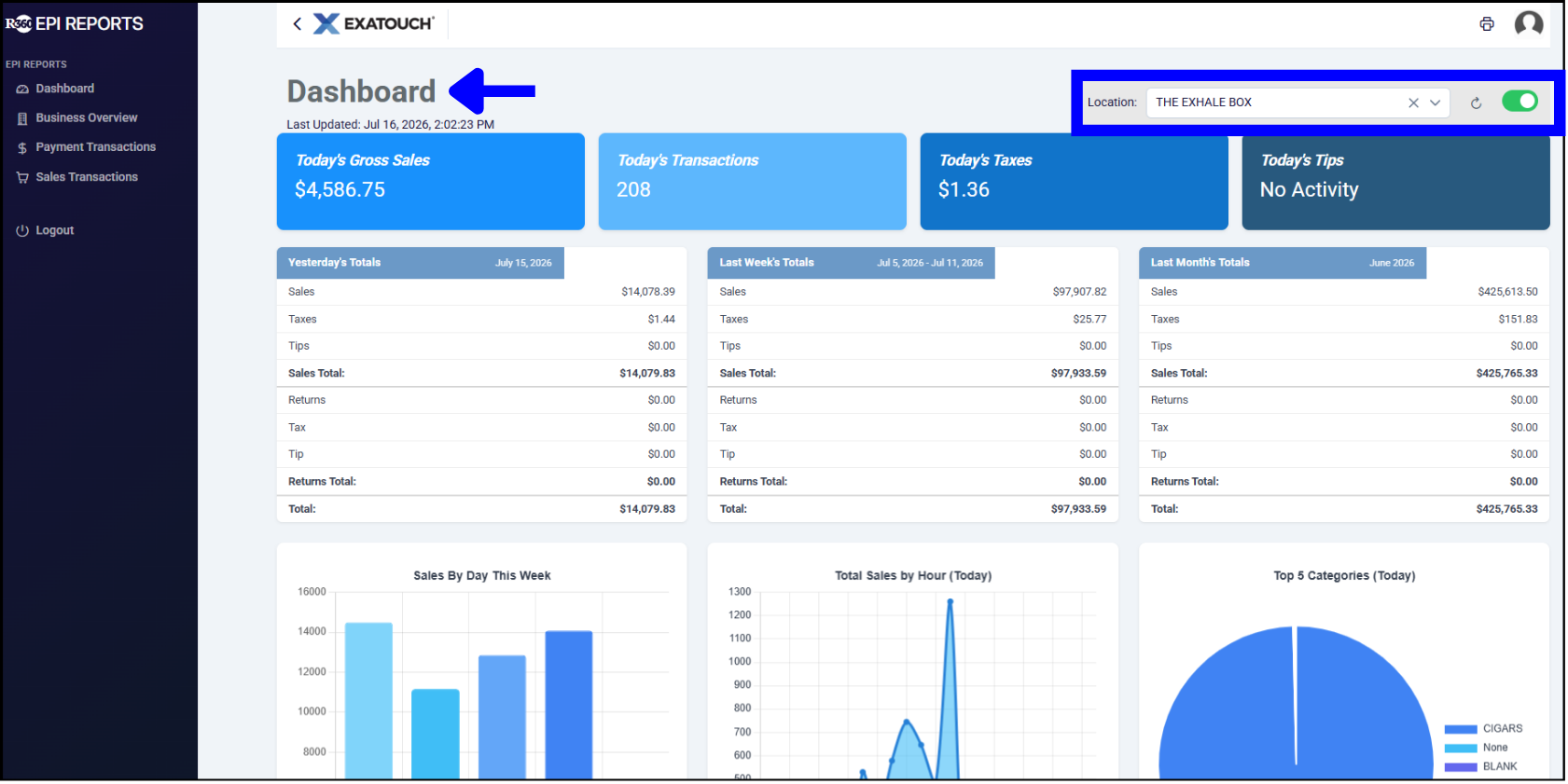
After logging in, the reporting Dashboard will display automatically for the default organization. To view reports for other organizations associated with the account, go to the Location dropdown and select a different location.
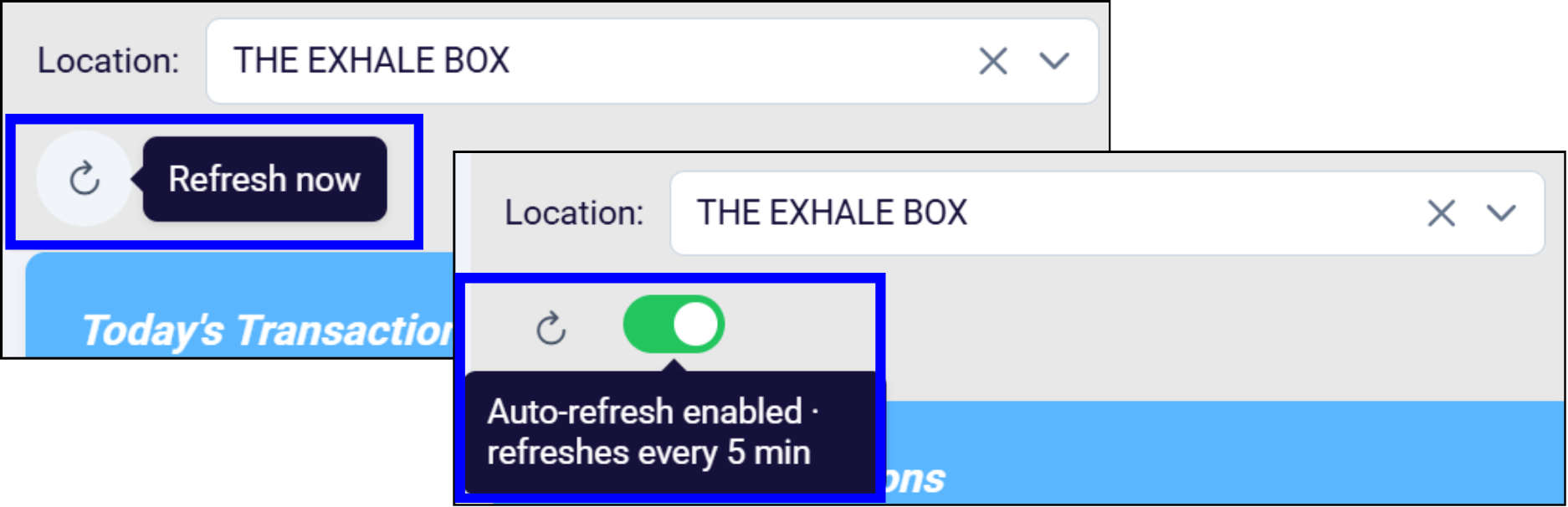
Refreshing the Data
Activate the toggle by the Location dropdown to auto-refresh the data every five minutes. To refresh the data immediately, click on the Refresh arrow.
Dashboard Reports
The POS Cloud dashboard provides top-level sales and revenue reports (onscreen only, see image above).
- Yesterday’s Totals: Yesterday’s gross sales totals.
- Last Week’s Totals: Last week’s gross sales totals.
- Last Month’s Totals: Last month’s gross sales totals.
- Sales by Day This Week: Daily sales trends for the current week.
- Total Sales by Hour (Today): Hourly sales trends on today’s date.
- Top 5 Categories (Today): The top five categories of items sold on today’s date.
- Top 10 Items (Today): The top 10 items sold on today’s date.
- Gross Profit (Today): The gross profit reported for today’s date.
- Totals by Tender (Today): Today’s sales totals by tender type.
Running Reports
Merchants can quickly and easily generate a wide variety of reports by designating a type of report, a location, and a date range. To run a report:
- Select a reporting option from the left menu – Business Overview, Payment Transactions, or Sales Transactions.
- Select a Date Range (preset or custom) and Location from the dropdown menus.
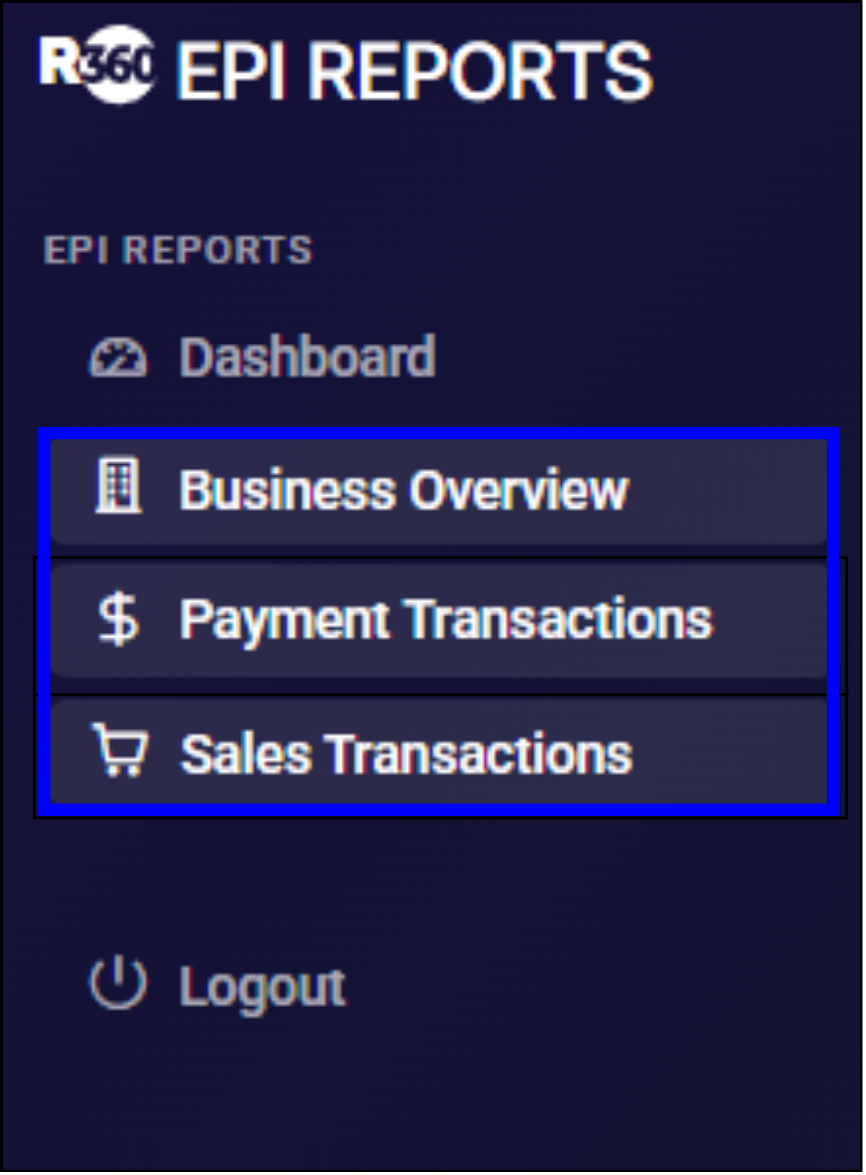

The report will appear onscreen with the most up-to-date information.
Business Overview
Business Overview reports provide merchants with various onscreen snapshots of how their business is performing.
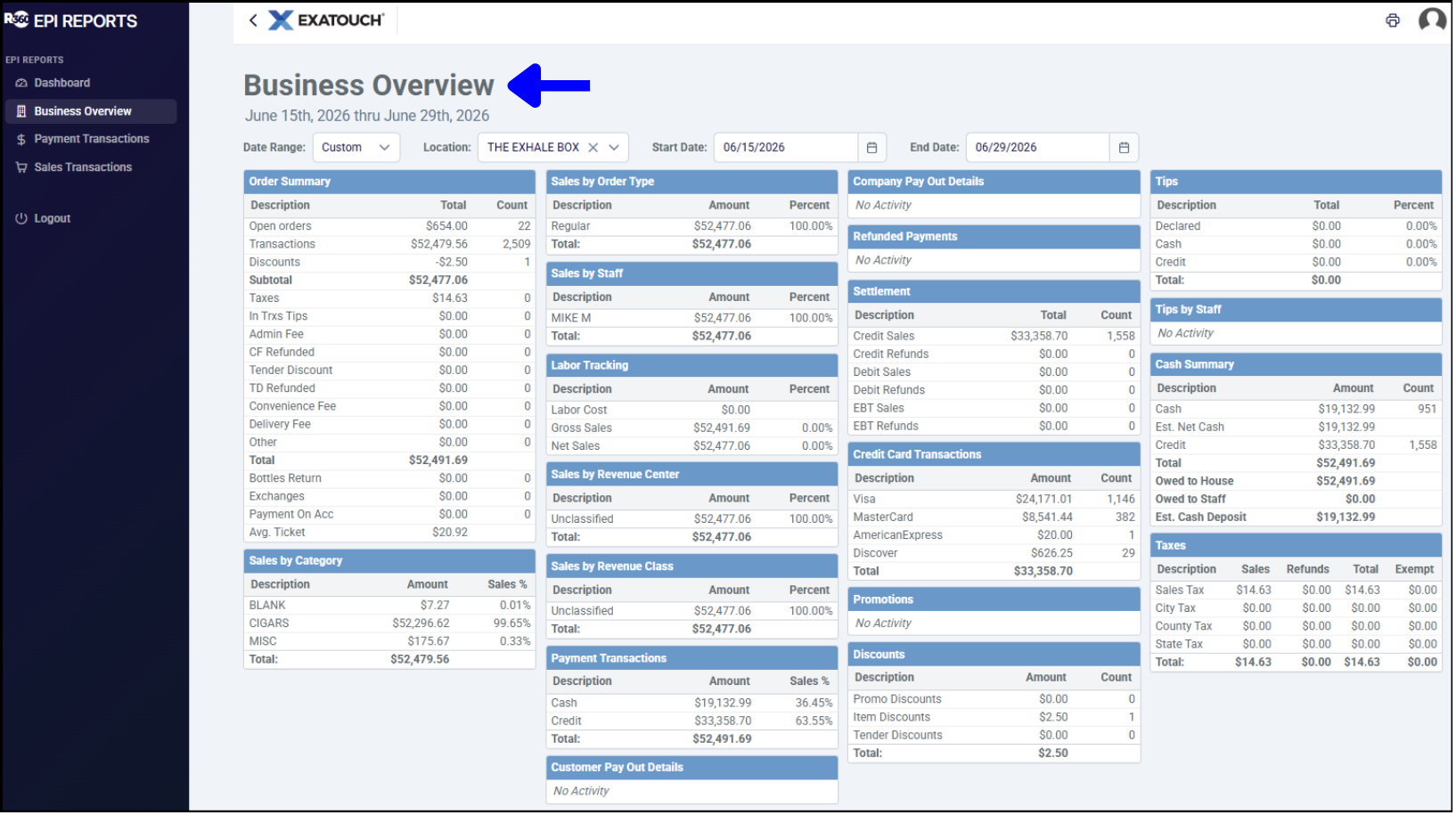
- Order Summary: Lists summary of all orders, taxes, fees, discounts, and tips.
- Sales by Category: Reports group sales data by Category and Subcategory.
- Sales by Order Type: Displays sales by in-store order types in the register. This number is the sum of the Subtotal and Admin Fees applied. This total does not include tax.
- Sales by Staff: Sales processed by individual staff member.
- Labor Tracking: Lists labor costs (if any) and deducts from Gross Sales.
- Sales by Revenue Center: Lists sales by department.
- Sales by Revenue Class: Total of items broken down by defined value for Revenue Class definition found in Item Details. This number includes discounts applied. If no Class is defined, values will report as unclassified.
- Payments Transactions: Lists amounts of various payment methods, such as cash, credit, and coupons.
- Customer Pay Out Details: Pay Outs issued for customers, such as bottle returns or lottery payouts. Each Pay Out type used will report on its own line. Pay Out customer reasons can be created under Preferences on the Custom Vars page.
- Company Pay Out Details: Pay Outs issued for the merchant, such as supplies or paying a vendor. Each Pay Out type used will report on its own line. Pay Out Company reasons can be created under Preferences on the Custom Vars page.
- Refunded Payments: Lists amounts of any refunds
- Settlement: Reports credit/debit and EBT (where applicable) card payments collected and refunds. Includes all discounts, taxes, tips, and fees applied before or after tendering payment.
- Credit Card Transactions: Lists transaction totals by credit card.
- Promotions: Lists amount of any promotions.
- Discounts: Lists amount of any discounts given.
- Tips: Lists tip amounts by type.
- Tips by Staff: Lists tip amounts by employee.
- Cash Summary: Lists total of expected cash.
- Taxes: Lists amounts of various taxes collected.
Payment Transactions
Payment Transactions reports provide merchants with totals from payments taken on orders created in the Register. Payment Transactions reports can also be exported to .xls, .csv, and .pdf.
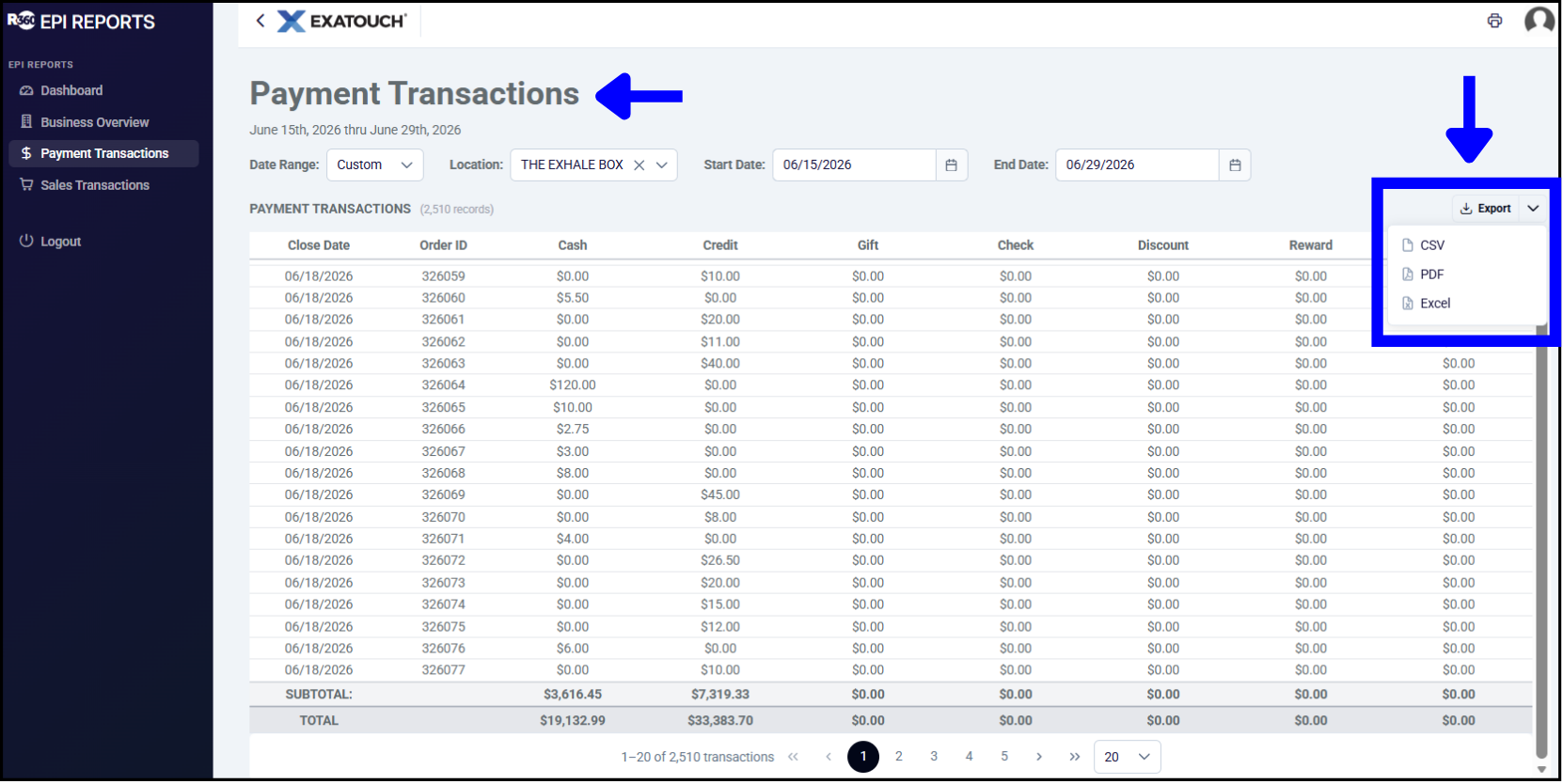
- Close Date: Date and time of the transaction.
- Order ID: Order ID from the sale. This report creates a record per Order ID created, not per payment.
- Cash: Cash amount paid for an order.
- Credit: Credit amount paid on an order.
- Gift: eGiftSolutions and gift certificate amount paid on an order.
- Check: Check amount paid on an order.
- Discount: Discount amounts given on an order.
- Reward: Amount of an order paid for by using loyalty rewards points.
- Pay Out: Amount of an order paid for using a customer payout.
Sales Transactions
Sales Transactions reports provide merchants with totals from sales created in the Register. Sales Transactions reports can also be exported to .xls, .csv, and .pdf.
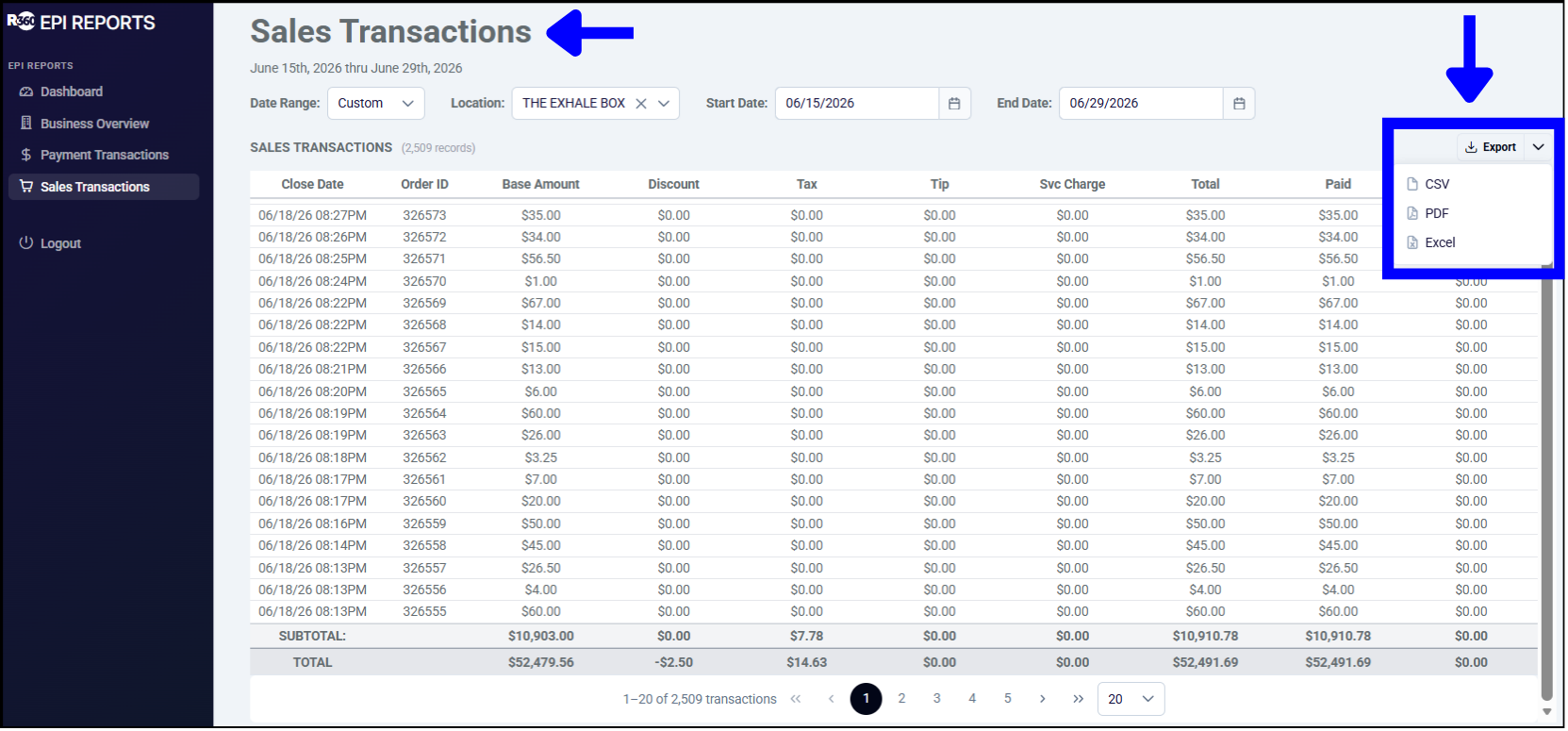
- Close Date: Date and time the sale was finalized.
- Order ID: Order ID from sale/transaction/order.
- Base Amount: Amount pre-discount, tax, tip, and other fees.
- Discount: Discounts applied to items, excluding tender type discounts. Discounts always display as a negative value.
- Tax: Tax total from the order.
- Tip: Tips accepted on the order (if applicable).
- Svc Charge: The service charge (set in Account Settings).
- Total: Sum of base amount, discount, tax, and service charge.
- Paid: Portion of the order paid for. This will be less than the Total if the order is partially paid.
- Balance: Portion of the order left over. This will display as zero unless there is a remaining balance on the order.
How can we improve this information for you?
Registered internal users can comment. Merchants, have a suggestion? Tell us more.