
Purchasing Reports pull information from the Exatouch Database about purchases, including purchase orders, vendor details, and inventory stock levels.
- Note: Leave your Exatouch Systems powered up and connected to the internet to generate and deliver scheduled reports.
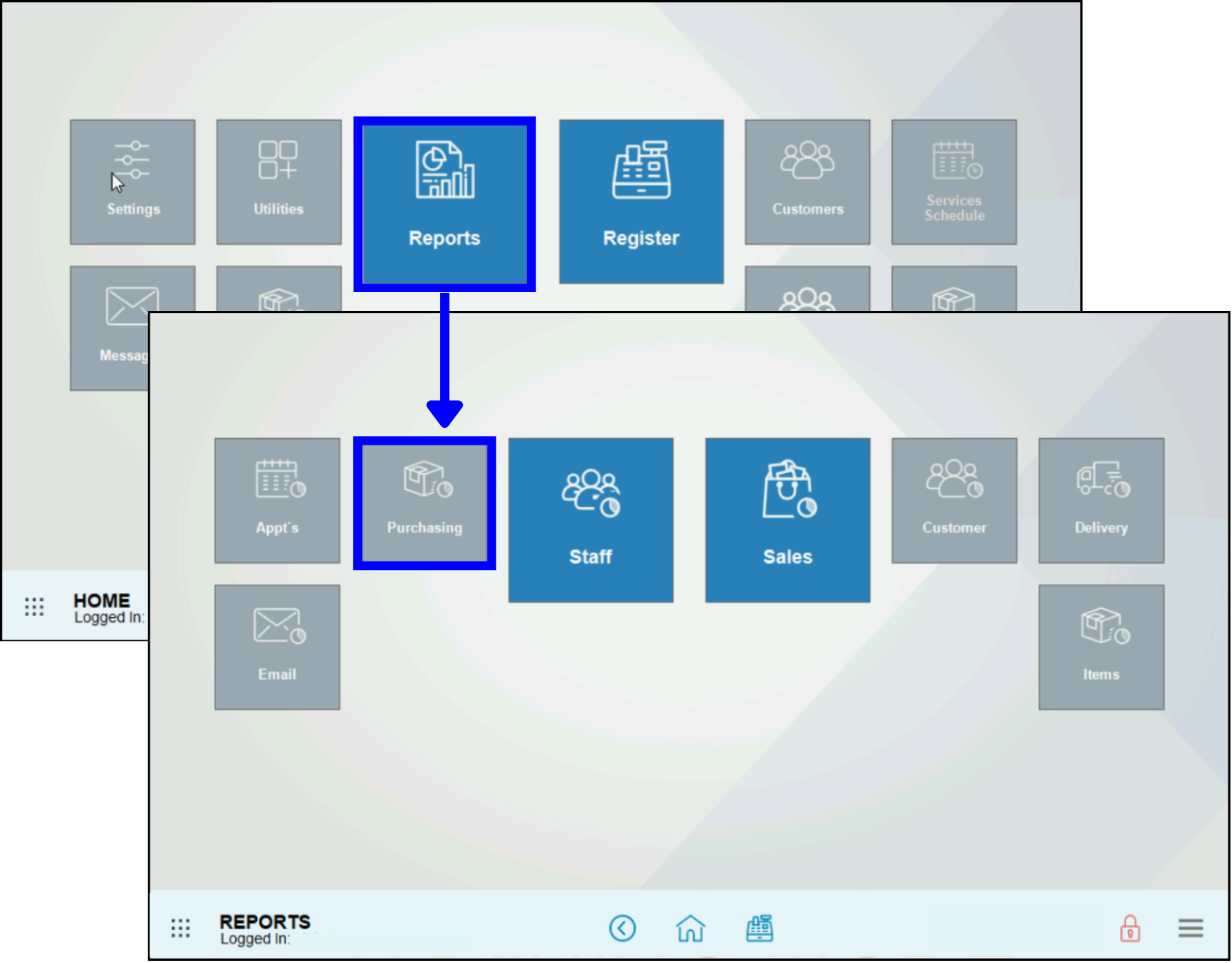
- From Home , navigate to Reports > Purchasing to display the Purchasing work area.
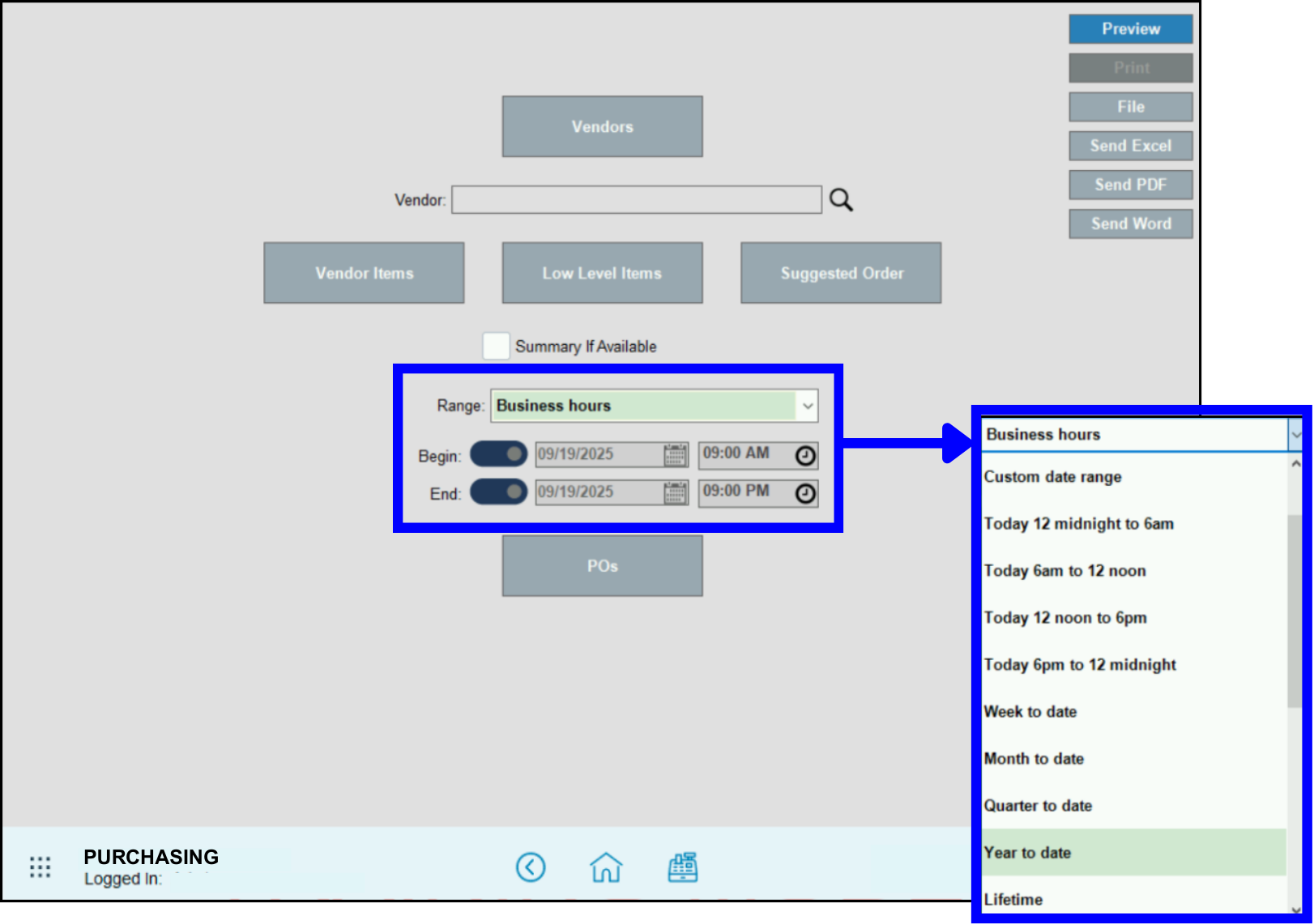
- Select a Range of dates and times for this report to cover (pre-defined or custom).
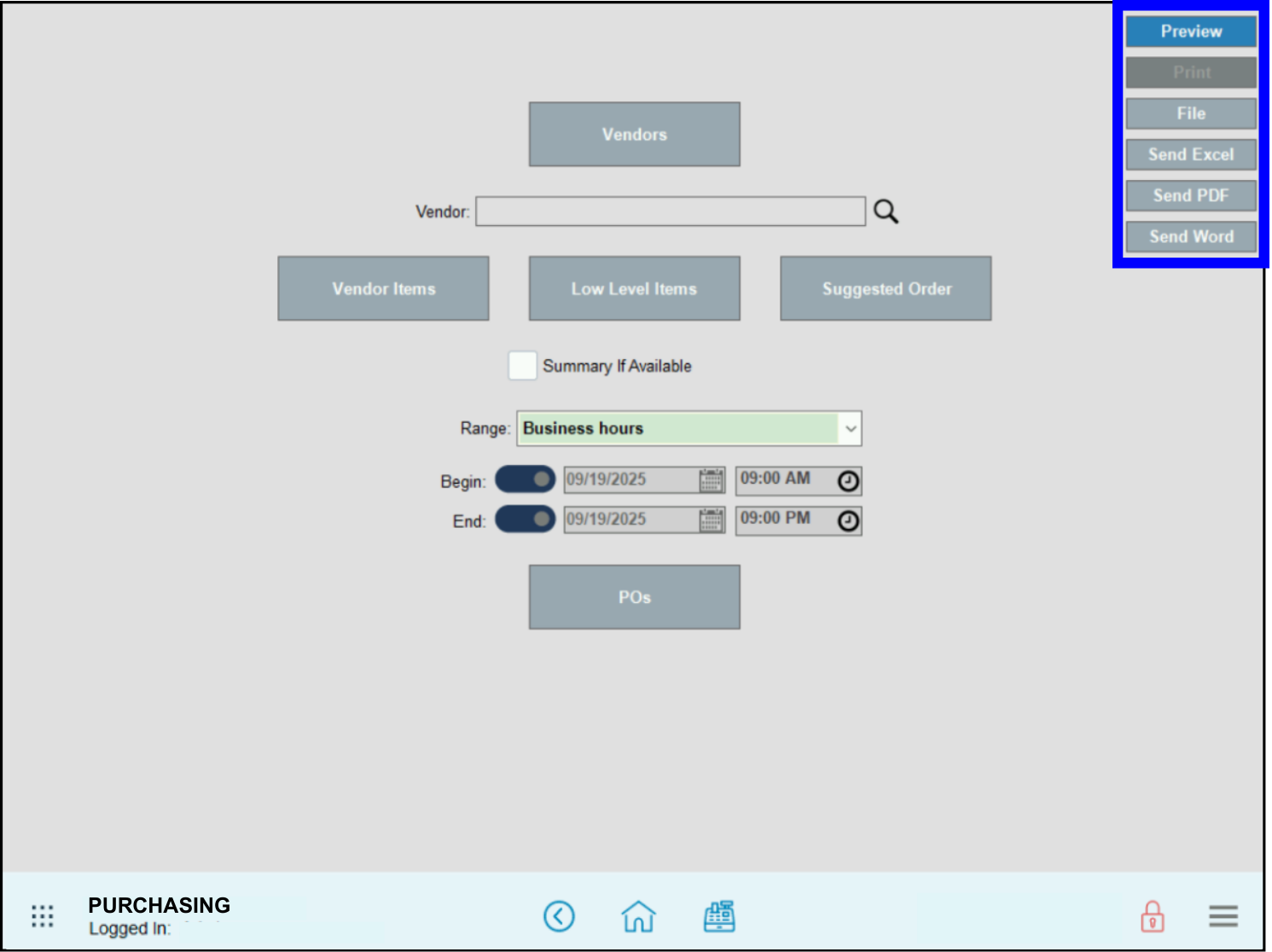
- Select a report format option:
- Preview – Generate and display the report on screen.
- Print – Generate and print to your report printer.
- File – Generate save to an inserted USB thumb drive.
- Send Excel – Generate and prepare to send in XML format as an email attachment.
- Send PDF – Generate and prepare to send in PDF format as an email attachment.
- Send Word – Generate and prepare to send in DOC format as an email attachment.
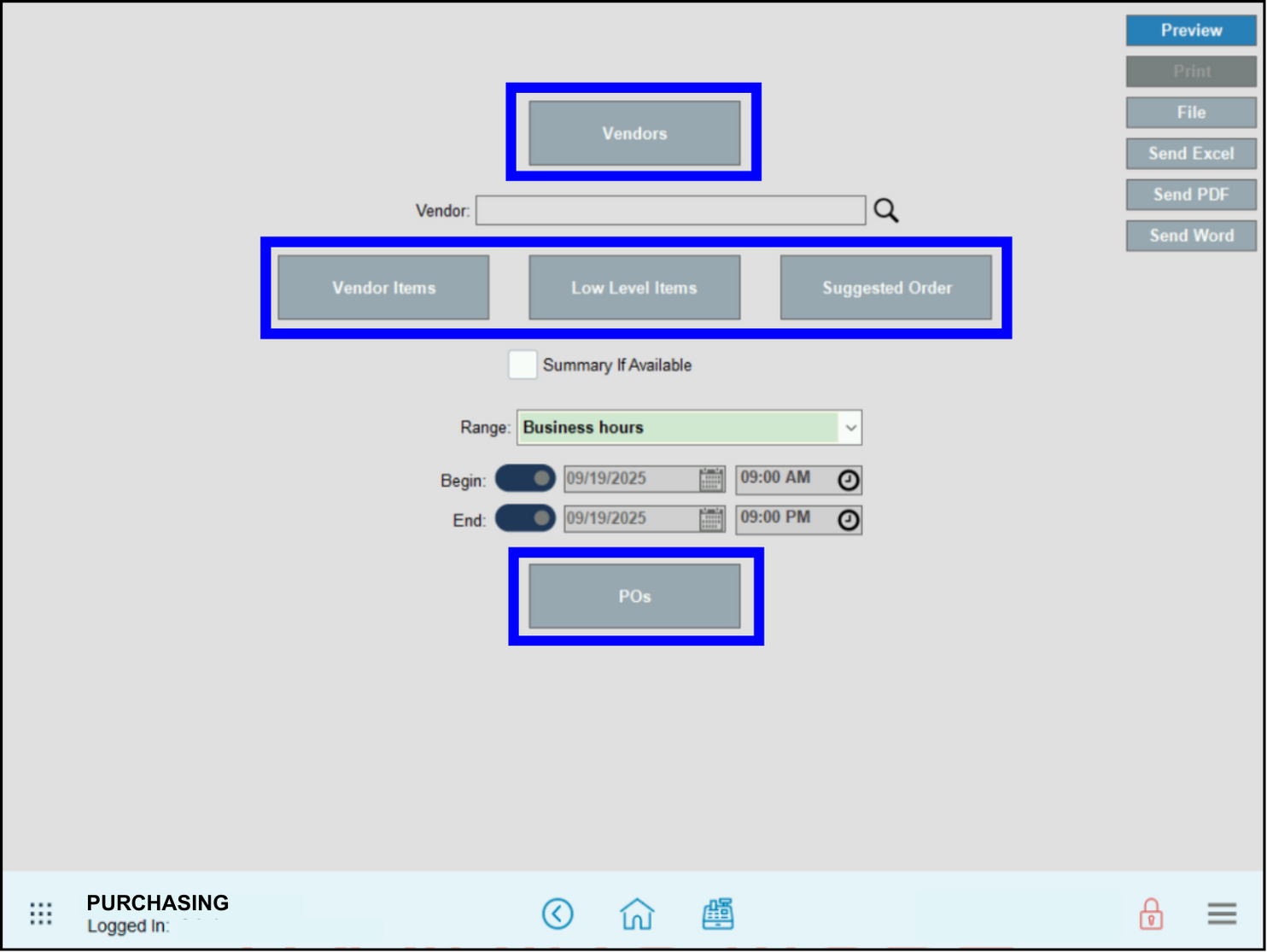
- Tap the name of your report to run: Vendors , Vendor Items , Low Level Items , Suggested Order , or POs .
- Tip! Use the Vendor search field beneath the Vendors report button to narrow your search by individual vendor. Tap the magnifying glass icon, select a vendor from the pop-up that displays, and then select a report to run.
- Review, send, or save the report as needed.
The Vendor Item Low Level Report provides merchants with a list of items that have a stock quantity below the Low Level threshold.
- Item – The Name of the item.
- SKU – Primary SKU saved.
- Mfg – The item manufacturer.
- Part # – Part number saved on the Inventory tab.
- Size – Item Size saved.
- Color – Item Color saved.
- Cost– The merchant’s purchase cost.
- On Hand – The current stock quantity.
- Reorder Qty – The purchasing quantity default.
- Status – indicates the quantity status of the item.
- R – Item needs to be reordered.
- T – If the item is a parent / child inventory item.
- Null – Item is at a healthy inventory count.

The Purchase Orders Report provides merchants with a history of their purchase order activity. The report is organized by Vendor. It will display a vendor total as well as a grand total at the end.
- PO # – Purchase order number.
- Date – The date the purchase order was created.
- Description – A Preview of the first few items on the order.
- Amount – The total purchase cost for the order.
- Status – The status of the order the such as Open, Paid, Completed and Voided.
- Delivery – The date the order was completed or paid.

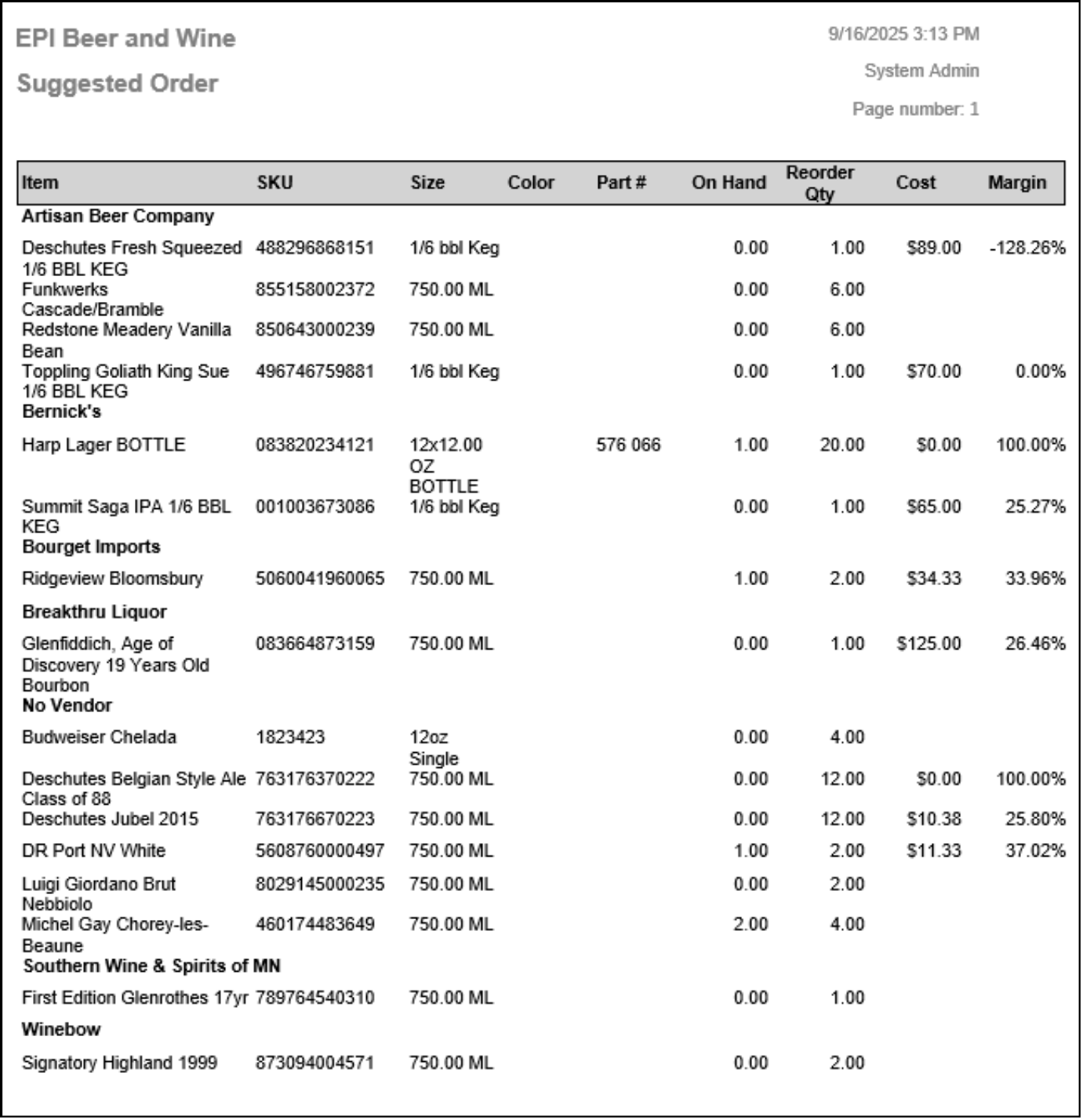
The Suggested Order Report provides merchants with a suggested purchase order. Items must have a reorder quantity saved and a low or zero in stock quantity. If the item is sold infrequently, it will not populate on the report.
- Item – Item Name saved on Items Details.
- SKU – Primary SKU.
- Size – Pack Size saved on the item.
- Color – The item’s color.
- Part # – Manufacturer Part Number.
- On Hand – the quantity of the item at the time the report is ran.
- Reorder Qty – The Reorder Quantity set to the item.
- Cost – Total cost to the merchant to purchase a single item.
- Margin – The margin calculated from selling the item.
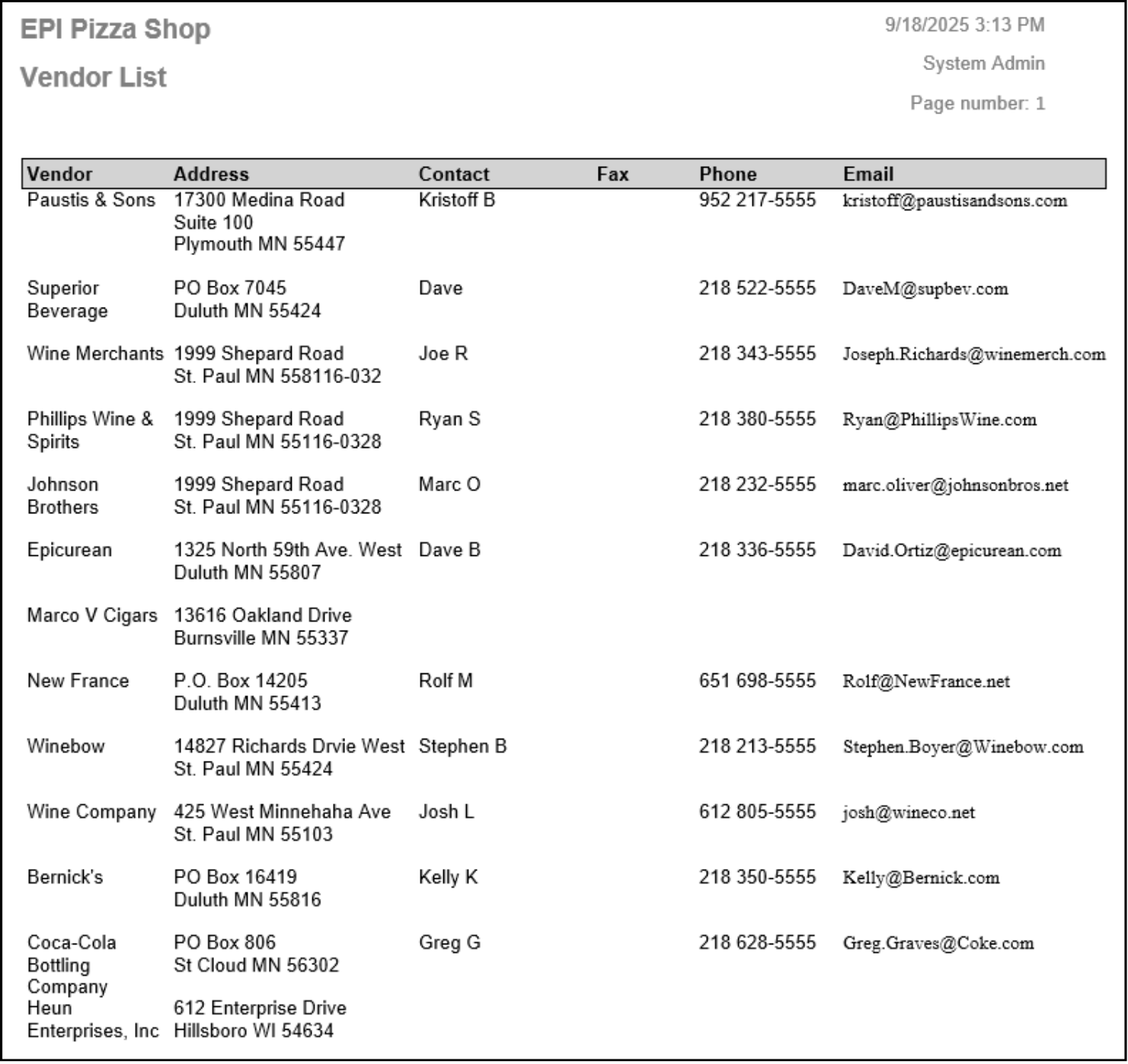
The Vendors Report provides merchants with their vendors contact information.
- Vendor – The business name saved to the vendor.
- Address – The vendor’s physical location.
- Contact – Point of contact with the business.
- Fax – The vendor’s fax line.
- Phone – Phone number saved on Vendor Details.
- Email – The email address where the vendor can be reached.
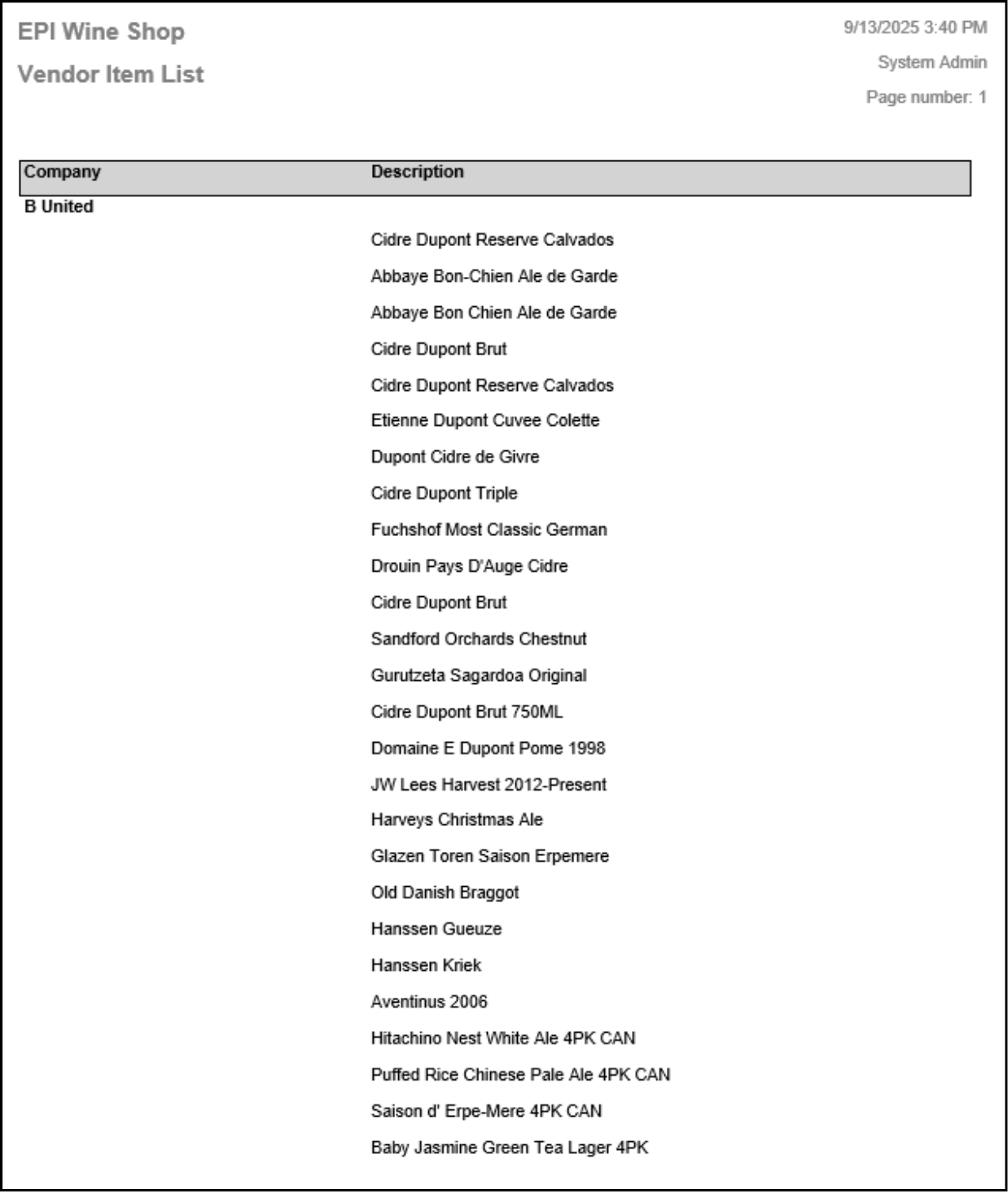
The Vendor Items Report provides merchants with their inventory provided by each vendor. The report is organized by vendor.
- Company – The business name of the vendor.
- Description – The item description sold by the vendor.
How can we improve this information for you?
Registered internal users can comment. Merchants, have a suggestion? Tell us more.